This guide offers simple steps for connecting to Wi-Fi. It helps with problems on phones, tablets, smart TVs, security cameras, and more.
Reliable Wi-Fi is key for streaming, work, smart homes, and cloud backups. Issues often stem from device settings, router faults, ISP outages, interference, or wrong security.
Before diving in, try this quick checklist: make sure Wi-Fi is on, Airplane mode is off, and toggle Wi-Fi off and on. Restart your device and try reconnecting. These steps often fix common Wi-Fi issues.
This guide combines advice from device makers and experts like Microsoft Windows support and Wired guides. It offers a clear path for fixing Wi-Fi problems.
Understanding Wi-Fi Basics
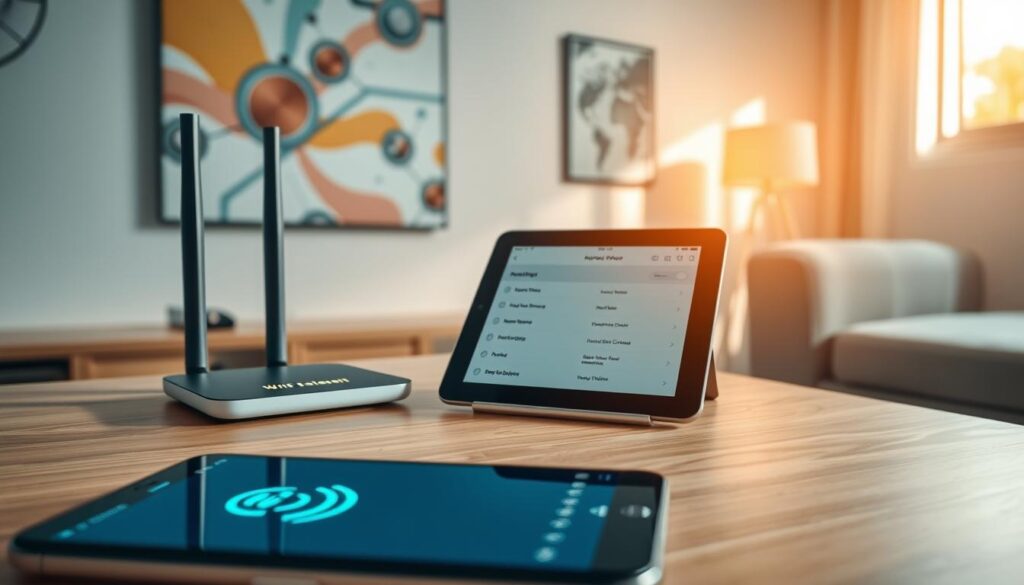
First, learn about the radio bands routers use: 2.4 GHz and 5 GHz. Many smart devices and older gadgets only work on 2.4 GHz. But, newer phones, tablets, and laptops often support both bands.
If a device can’t connect, check its wireless adapter. Make sure it matches the router’s broadcast frequency.
Modems and routers do different things. Modems get internet from your ISP. Routers create your local Wi-Fi network and assign addresses. Some devices do both jobs.
If you have a combo device, follow the maker’s reboot advice. This helps fix Wi-Fi connection drops.
Setting up your SSID and password is key. Pick the right SSID and enter the exact password. Some devices get confused by special characters or spaces in SSIDs. So, choose simple names.
Most networks use DHCP to assign IP addresses. If a device gets an IP like 169.254.x.x, it didn’t get an address from the router. This could be a DHCP issue or a temporary glitch. A reboot might solve it.
Checking the assigned IP helps you figure out if the problem is local or with the router.
- Use simple diagnostic checks before deeper troubleshooting.
- Toggle the device Wi‑Fi off and on or switch Airplane mode briefly to reset the radio.
- Run a basic ping to the default gateway to confirm whether the device talks to the router.
These basic steps help you start fixing problems. Remember these tips when connecting devices to Wi-Fi. They help you quickly find and fix issues, ensuring a stable connection.
Identifying Connection Issues

First, test different devices on your network. Try another phone, tablet, or laptop. If they connect, the problem is with your device. If none can connect, check the router, modem, or your ISP.
Know the difference between local network access and Internet access. If your device says it’s connected but has no Internet, it’s a local issue. Check another device or your router’s app for outage notices from providers like Comcast or AT&T.
Look for visual cues on your device. A Wi‑Fi icon with an exclamation mark means you’re connected locally but not to the Internet. Windows, macOS, Android, and iOS all show network status indicators to help you troubleshoot.
Match symptoms with possible causes. Intermittent drops might be due to interference, power settings, or outdated firmware. If you can’t find the SSID, it could be band incompatibility or a faulty adapter. Repeated “incorrect password” prompts usually mean a mismatch or router security settings.
- Use basic network commands for quick checks.
- On Windows, run ipconfig to find the Default Gateway.
- Ping the gateway to confirm router reachability.
Successful pings show a local link to the router, not guaranteed Internet access. These steps help narrow the problem and speed up Fixing Wi-Fi connection issues.
Keep a note of patterns you find while Troubleshooting Wi-Fi connection. That record speeds support calls to your ISP and makes it easier to follow guides on How to connect to Wi-Fi when you reset devices or change settings.
Checking Your Smart Device Settings
First, make sure Wi-Fi is on and Airplane mode is off. Turn Wi-Fi off, wait a bit, then turn it back on. Restarting often fixes Wi-Fi connection issues.
If that doesn’t work, try forgetting the network and adding it again. On Android, iPhone, Windows, or macOS, select the network, choose Forget or Remove, then reconnect and re-enter the password. This action solves many sign-in problems.
Next, check your date and time settings. Enable automatic date and time to ensure certificates and authentications match. Incorrect time can block network logins and captive portals.
On Android, test for app interference by booting into safe mode. If Wi-Fi works in safe mode, a downloaded app is likely blocking connections. Uninstall recent apps one at a time until the issue stops.
Use Reset Network Settings on mobile devices when other steps fail. This resets Wi-Fi, Bluetooth, and VPN entries so you can start fresh.
On Windows, open Device Manager and find Network adapters. Ensure the adapter is enabled and uncheck any power management box that lets the PC turn off the device to save power. Power settings can drop connections while you are connecting devices to Wi-Fi.
Keep drivers and the operating system up to date. Install the latest network adapter drivers from your PC maker or from Apple or Microsoft support pages when applicable. If a recent update caused problems, be ready to reinstall drivers from the manufacturer’s support site using a USB drive.
If you’re stuck, repeat the core steps in order: toggle Wi-Fi, forget and re-add the network, check date/time, test in safe mode, reset network settings, and update drivers. These actions cover most device-side causes when you are learning how to connect to Wi-Fi or finishing the final steps of setting up Wi-Fi on devices.
Ensuring Your Router is Functional
First, try power cycling to fix temporary issues. Turn off your modem and router by unplugging them for 30 seconds. If your modem has a backup battery, take it out for a bit.
Then, turn the modem back on and wait for its lights to settle. After that, power up the router when the modem’s WAN light is steady.
Next, check your cables and hardware. Look for any damage on the Ethernet cable between your modem and router. If it’s damaged, replace it with a Cat5e or Cat6 cable for better speeds.
Use the router’s LEDs to find out what’s wrong. Check your router manual or use the vendor app from brands like Netgear, Asus, or TP-Link. This will help you see if the router and WAN are working right.
If the lights don’t look right after a reboot, try connecting a PC directly to the modem with Ethernet. This will help you figure out if the problem is with the modem or router.
- Keep your router’s firmware up to date. This helps avoid bugs that can stop devices from connecting.
- If your settings are wrong, do a factory reset. This will set everything back to default and help you start fresh.
- Make sure your SSID broadcast, band splitting, and security mode are set right. This ensures your devices can connect smoothly.
Be careful of double NAT when using an ISP-supplied gateway with your own router. Double NAT can make it hard for devices to find the network. Try putting the ISP device in bridge mode or set your router to access point mode to avoid problems.
Also, check your QoS and prioritization settings. These can limit access for some smart devices. If you’re having trouble, try adjusting or disabling these settings to let all devices connect and work properly.
If you’re not fixed after these steps, try power cycling again, update your firmware, and test with one device. Following these steps can help you fix Wi-Fi issues quickly and make setting up your network easier in the future.
Assessing Your Internet Service
First, run a speed test on a device connected to your network. Use a browser test or the speed tool in your router to check download and upload speeds. Make sure they match your ISP plan.
If speeds are slow on all devices, check your ISP’s outage page or social media. You can also test your home network by using a smartphone’s cellular data to load a few pages.
Next, inspect your modem. If your modem and router are together, follow the troubleshooting steps from the manufacturer. If you can get full Internet via Ethernet but not wirelessly, the router is likely the problem.
- Check coax, phone, or fiber cables for tight connections and visible damage.
- Replace old or cheap Ethernet cables with Cat5e or Cat6 for better stability.
- Note modem lights: power, receive, send, and online indicators should be steady when healthy.
Run simple ping tests to a public IP like 8.8.8.8 from a connected device. If the router replies but the Internet does not, record the ping results and the modem/router light patterns before contacting your ISP.
When you call support, describe the issue clearly. Mention what you tested, the speed test numbers, ping results, and which devices fail. This helps your ISP quickly figure out if a modem swap or line repair is needed.
Remember these steps when connecting devices. Good assessment makes connecting to Wi-Fi easier and helps with troubleshooting Wi-Fi connection problems when they arise.
Positioning Your Router for Optimal Coverage
For better home Wi-Fi, place your router in the middle of your living area and high up. Put it on a shelf or mount it on a wall near the ceiling. This way, signals spread out more evenly to all rooms. Don’t hide your router in cabinets or behind TVs.
Keep your router away from things that can mess with Wi-Fi signals. Things like microwaves, cordless phones, big fish tanks, and metal filing cabinets can block signals. Also, thick walls and nearby routers in apartments can weaken your signal.
- Try different antenna angles on routers with external antennas to shape coverage.
- For tower-style routers, rotate the unit or shift it a few feet to find stronger reception areas.
- With mesh systems, place nodes so they form a backbone through your home, not in corners.
Wired backhaul between mesh nodes makes a big difference. If you can run an Ethernet cable to a remote node, performance improves and latency drops. When wiring is hard, place nodes midway between the main router and the dead zone.
Use a Wi-Fi scanning app like NetSpot or WiFi Analyzer to map signal strength and busy channels. These tools help you refine node placement and channel choices so devices spend less time reconnecting.
- If one room shows a weak signal, try routing Ethernet there or adding a mesh node closer to the area.
- Test Connecting to Wi-Fi after each move to measure real improvements.
- Keep your Wi-Fi network setup simple: one SSID for your mesh or main router to avoid device confusion.
Follow these Wi-Fi connectivity tips when you rearrange furniture or change electronics. Small shifts often yield large gains in speed and stability while you are Connecting to Wi-Fi in every room.
Troubleshooting Specific Devices
Smartphones and tablets often fix themselves with small steps. Try turning Wi-Fi off and Airplane mode on for a few seconds. Then, reverse that action. If that doesn’t work, restart your device, forget the network, and add it again. Or, reset network settings.
Check if your device’s date and time are correct. Wrong time can block secure sign-ins. On Android, try safe mode to see if a third-party app is the issue. Pixel users can ask Google Assistant for help with setting up Wi-Fi.
Laptops and desktops need quick checks. Forget and rejoin the network, then use Windows Network Troubleshooter or macOS Wireless Diagnostics. Open Task Manager or Activity Monitor to spot apps hogging bandwidth. Make sure the Wi-Fi adapter is enabled and drivers are current.
On Windows, run netsh winsock reset, netsh int ip reset, and ipconfig /release /renew /flushdns to repair TCP/IP. This helps when connecting devices to Wi-Fi.
Smart TVs, streaming boxes, and game consoles can fail at the SSID or password step. Verify you’ve entered the correct network name and passphrase. Confirm whether the device supports 2.4 GHz or 5 GHz bands.
If wireless keeps dropping, try an Ethernet connection to isolate the issue. Keep firmware and app software updated. This improves reliability when connecting to Wi-Fi with these devices.
Smart-home gadgets and IoT devices often prefer 2.4 GHz. If you have many sensors, lights, or plugs, create a dedicated IoT or guest network. This improves compatibility and security.
Splitting bands can let older devices join without interfering with high-speed traffic. Use this approach when setting up Wi-Fi on devices that struggle on mixed networks.
Security cameras, doorbells, and other bandwidth-heavy devices can slow your whole network. Lower camera resolution or reduce recording frequency to cut sustained upload traffic. Consider storing footage locally or scheduling recordings to keep real-time streaming from causing interruptions.
Public Wi-Fi and captive portals at cafes or airports require a web sign-in page. If that page does not appear, forget and rejoin the network, toggle Wi-Fi, or open a fresh browser tab to trigger the portal. These steps usually resolve authorization blocks and show you how to connect to Wi-Fi in public places.
Updating Device Firmware
Keeping your firmware up to date is a simple way to avoid and fix wireless issues. Companies like Netgear, ASUS, Google Nest, Samsung, Apple, and Roku often release updates. These updates can make your devices more stable, secure, and compatible.
Use the vendor’s mobile app or web admin panel to check for updates. Turn on automatic updates to catch all the latest patches. When you update manually, read the release notes to find fixes for common problems.
Smartphones, tablets, smart TVs, cameras, and IoT devices also need OS patches. On Android and iPhone, check System Updates and install them. These updates often improve network performance.
- Back up settings before major router upgrades to restore if needed.
- Update one device at a time on large networks to isolate problems.
- Ensure stable power and a solid connection during updates to avoid bricking.
If an update causes new issues and rollback is supported, follow the vendor’s rollback steps. If rollback is not possible, contact manufacturer support for help. Use official support pages for device-specific guidance and troubleshooting.
Combine these steps with basic Wi-Fi connectivity tips. Keep firmware current, monitor device behavior after updates, and document any changes. This approach reduces downtime and makes fixing Wi-Fi issues faster and more predictable.
Changing Wi-Fi Channels
Wireless channels are key for your smart devices’ signal. On 2.4 GHz, there are just a few channels without overlap. This often leads to slow speeds due to nearby networks. The 5 GHz band has more channels and less interference, making it more reliable.
Begin by scanning your area with a Wi-Fi analyzer app like NetSpot or WiFi Analyzer. You can also use your router’s channel view. This scan reveals which channels are busy and which are not. Choose a less crowded channel to enhance your connection.
To change channels, log into your router’s admin page or use the vendor app from brands like Asus, Netgear, or TP-Link. Look for wireless settings and pick a specific channel for both 2.4 GHz and 5 GHz. Some routers have an Auto channel option that picks the least busy one for you.
If devices keep switching between bands, try splitting the SSIDs into different names. Use names like Home_2.4 and Home_5. Or turn off band steering to force devices onto the band you prefer. This helps with Troubleshooting Wi-Fi connection issues related to frequency.
Features like Multi-Link Operation (MLO) in newer standards can improve throughput but might confuse older devices. If you face stability issues, disable MLO or place sensitive devices on a simpler network profile. This is a useful Wi-Fi connectivity tip for mixed-device environments.
After changing channels, test each area. Use a laptop or phone to walk through rooms, run speed tests, and note any improvements. Monitoring after the change confirms if the channel switch reduced interference and solved your Troubleshooting Wi-Fi connection steps.
- Scan nearby networks before changing channels.
- Select a quiet channel on 2.4 GHz or 5 GHz.
- Split SSIDs or disable band steering when needed.
- Disable advanced features like MLO if devices act unstable.
- Retest coverage and speeds after the change.
Security Settings That Affect Connections
Encryption on your router affects how devices connect. Brands like Netgear, Asus, and TP-Link use WPA2 and WPA3. Some old devices can’t connect to WPA3-only networks.
If devices can’t connect, try a mixed WPA2/WPA3 mode. Or, create a legacy SSID for older devices.
Passwords and SSID names must match exactly. If devices keep asking for a password, check your password. Reset your router password if simple re-entry doesn’t work.
Guest and IoT networks make management easier and safer. Place fragile smart plugs and older cameras on a separate IoT SSID. This avoids conflicts with main devices.
Remember, guest isolation can block features like casting or local printing. This might seem like a problem when fixing Wi-Fi issues.
MAC filtering and access control lists block unknown devices. Make sure each device’s MAC address is whitelisted. Too strict controls can prevent devices from getting a DHCP lease.
- Check firewall rules on the router if a single device has limited access.
- Review parental controls that may restrict times or app categories.
- Examine QoS settings that could throttle bandwidth to one device.
Public networks and captive portals can be tricky. Hotels and cafes often require you to accept terms before full access. If a device can’t show the portal, open a browser on a phone or laptop and sign in, then retry connecting.
Forget and rejoin the network if the portal fails to trigger.
When troubleshooting, change one security setting at a time. Test each device. Keep a note of original settings so you can return the router to a secure state after fixing Wi-Fi issues.
Using Wi-Fi Extenders or Mesh Networks
Do you need a simple boost or a whole-home upgrade? Wi-Fi extenders can fill in dead zones by repeating your router’s signal. On the other hand, mesh routers replace a single router with nodes for better coverage and roaming.
Put an extender where it gets a strong signal from your router. If it’s too far, the backhaul will be weak, cutting speeds in half. Try to connect it with an Ethernet cable for a wired backhaul to keep speeds high.
- Choose a location midway between the router and the dead zone.
- Avoid placing extenders near microwaves, cordless phones, or thick walls.
- Test signal strength at the extender before finalizing placement.
Mesh systems are great for many smart devices. Brands like Eero, Google Nest Wifi, ASUS AiMesh, and Netgear Orbi have good apps. They offer features like device prioritization and binding to keep devices on the same node.
Keep mesh nodes close for a reliable wireless backhaul. If possible, use Ethernet between the main router and nodes. This gives the fastest, most stable performance and reduces roaming issues.
- Set up the primary node near your modem for the strongest internet feed.
- Add secondary nodes in open areas where walls do not block signals.
- Use the vendor app to check node health and reassign placement if a node shows weak links.
Watch for sticky clients that hang on to a distant node. Some mesh systems let you bind devices or set priorities. This keeps stationary gear on the best local node, improving streaming or gaming reliability.
If coverage gaps or instability continue, consider upgrading. A modern mesh system or a high-performance router with the latest Wi-Fi standard can solve these issues.
Maintaining a Stable Wi-Fi Connection
Keep a simple maintenance routine to avoid surprises. Reboot your router and modem weekly or monthly. Also, check for firmware updates from manufacturers like ASUS, Netgear, or Linksys. Make sure your devices run current OS and app versions for smooth Wi-Fi connection.
Watch how bandwidth is used in your home. Security cameras, cloud backups, and streaming services can hog throughput. Use QoS settings or set device schedules to prioritize work devices during peak hours. These tips help reduce lag and improve the experience for everyone on the network.
Replace aging hardware before it fails. Old routers, modems, and frayed Ethernet cables degrade performance. Consider a mesh system from Google Nest or Eero if your floor plan creates dead zones. Keep copies of network adapter drivers on a USB drive and note your router admin credentials and ISP support phone number for quick recovery when needed.
Document every change and test results so you can roll back if something breaks. If you confirm router-to-modem pings succeed but Internet access fails, or many devices continue to lose service, contact your ISP or the device maker. Provide diagnostic details like ping logs, LED status, and firmware versions. These steps make troubleshooting faster and help you maintain a stable Wi-Fi connection long term.