Touchscreens are everywhere: your smartphone, tablet, ATM, and the infotainment system in your Toyota or Ford. They collect fingerprints, oils, and germs. This affects device hygiene and your experience.
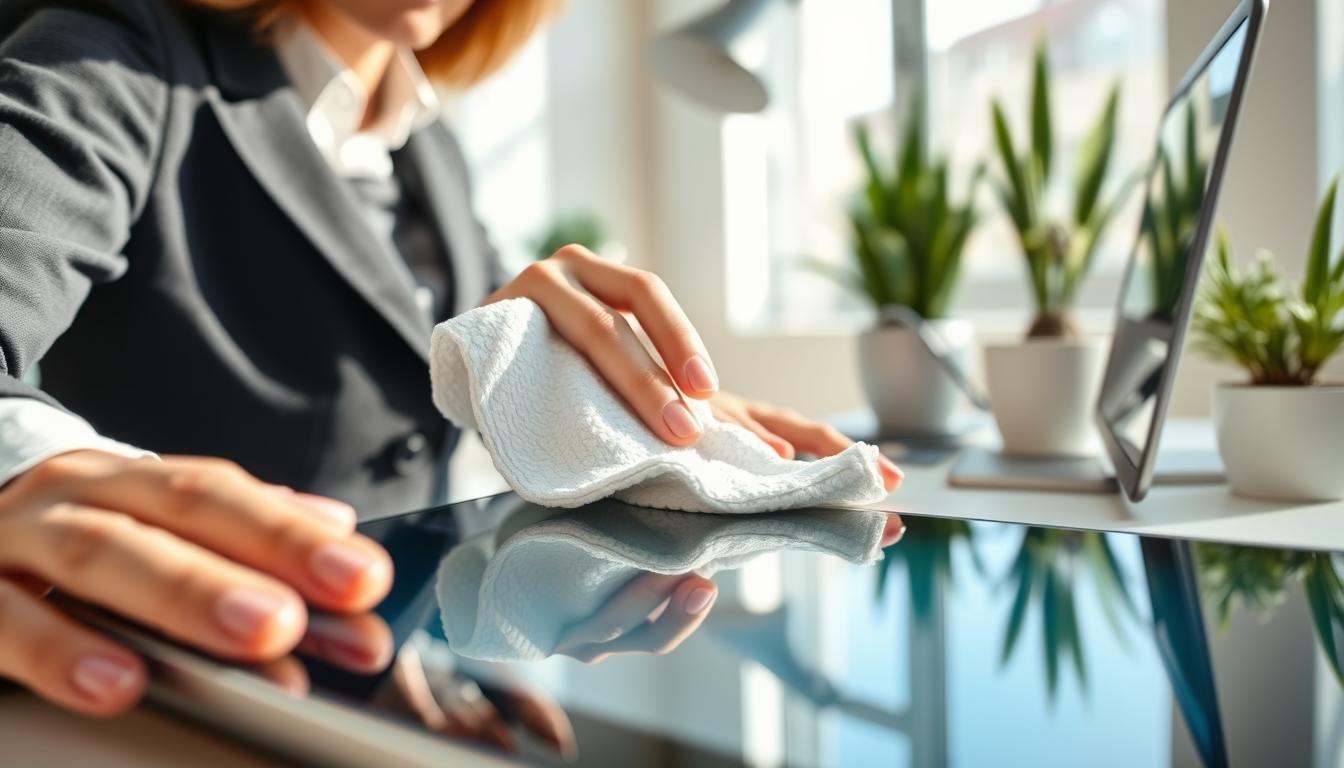
Start with a dry microfiber cloth to remove smudges and dust. If you need more cleaning power, slightly dampen the cloth with water or a mild solution—never soak it. Power off the device before you clean to avoid accidental inputs and reduce the risk of damage.
Avoid abrasive cleaners and harsh chemicals like ammonia or undiluted alcohol. Such substances can strip coatings on LCD and OLED panels, dull anti-glare finishes, and harm sensors. Use light, even pressure and gentle circular motions; pressing hard can warp screens or misalign sensors.
Make cleaning part of your routine. High-traffic public touchscreens and in-vehicle tech benefit from daily attention. For commercial fleets, know the touch technology—projected capacitive (PCAP), resistive, or infrared—so you can adapt methods without harming sensitive components.
This article will walk you through safe, practical steps for cleaning smart devices, how to clean electronics at home, disinfecting gadgets, tools to use, eco-friendly options, accessories care, and troubleshooting to keep your devices working well.
Understanding the Importance of Cleaning Smart Devices
Keeping your phone, tablet, car display, or kiosk clean is key to health and device function. Oils, dust, and microbes accumulate on screens and sensors. This buildup can make screens less readable and touchscreens less responsive.
In cars, even a single fingerprint can mess with systems like parking assistance and emergency braking. It’s important to handle infotainment displays and sensor housings with care to avoid issues.
Public touchscreens, like ATMs and self-service kiosks, spread germs easily. Cleaning them daily and practicing good hygiene can help prevent the spread of bacteria and viruses. This keeps the user experience better for everyone.
Different touchscreens need different care. PCAP screens have durable glass but should be cleaned gently. Resistive and infrared (IR) displays are more delicate and need special cleaning to avoid damage.
Regular upkeep stops problems like hazing and damage to coatings from harsh chemicals. Cleaning your devices right keeps screens clear and sensors working well.
Cleaning devices well keeps their value up and saves you from expensive repairs. You can also encourage users to clean by placing hand sanitizer near public touchscreens. This reduces contamination between cleanings.
- Wipe screens regularly to support touchscreen responsiveness.
- Use mild cleaning methods tailored to the technology in your device.
- Make device hygiene part of daily routines in high-traffic areas.
Common Materials Used in Smart Device Screen Protection
First, figure out what your phone, tablet, kiosk, or wearable is made of. Many have special coatings to reduce glare and smudges. These coatings can wear off if you use harsh cleaners or rough wipes.
Tempered glass protectors offer a strong, replaceable shield against scratches. Cleaning them is easy: just use a soft cloth and gentle strokes. Don’t scrub too hard, even if the glass seems tough.
Some cheaper devices and big screens use plastic or thin polymer films. These are more prone to scratches and can get damaged by solvents. Clean them with water or very mild cleaners. Replace the film when it starts to show wear.
PCAP touchscreens have sensors hidden under glass and often have a tough coating to fight fingerprints. Their flat design also traps less dust. Regular, gentle cleaning helps keep them working well.
Camera lenses and sensor domes have special coatings or materials. Never use polishes, waxes, or car sealants on them. These can blur images or mess with sensor signals.
- Glass and tempered glass: tolerate slightly stronger cleaners, but avoid ammonia.
- Plastic and polymer films: use water or mild solutions; avoid solvents.
- Coated PCAP screens: clean gently with microfiber to protect sensors.
- Camera and sensor domes: only use approved lens wipes or distilled water.
Knowing what your device is made of helps you choose the right cleaning method. Stick to the best ways to clean gadgets and use hacks that keep coatings and clarity intact.
Tools You Need for Safe Cleaning
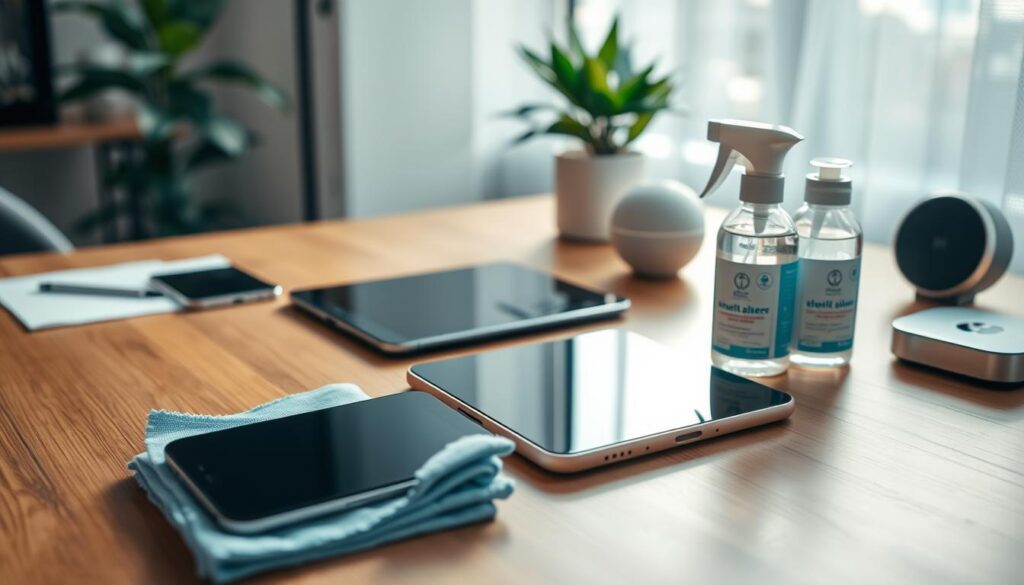
To keep your devices in top shape, gather a small kit of proven items. Start with lint-free microfiber cloths. Their soft fibers lift oils and particles without scratching screens or camera lenses.
Distilled water is essential for dampening cloths. It prevents mineral spots that tap water can leave on screens and optical sensors. For tougher grime, use isopropyl alcohol (IPA) at 70% or a 50/50 mix with distilled water on a cloth, never sprayed directly on surfaces.
- Dedicated touchscreen cleaning sprays or wipes that list compatibility with anti-glare coatings and plastics.
- Soft foam brushes and compressed air for vents, crevices, and sensor housings.
- Microfiber lens cloths and lens-cleaning solutions for cameras and optical sensors.
When you clean smart devices in a vehicle, foam detailing brushes work well for vents and cabin sensors. Use compressed air in short bursts first, then brush gently to remove debris without using liquids near electronics.
For panels around sensors, dilute pH-neutral soap in water for safe hand-washing of surrounding surfaces. Avoid waxes, polishes, and protectants on cameras and radar units.
Place a hand sanitizer dispenser or alcohol-based gel near public touchpoints to reduce contamination frequency. These simple smart device cleaning tips cut down on how often you must deep-clean shared screens.
Keep multiple cloths on hand so you do not reapply dirt. Mix these items with tested electronic device cleaning hacks: quick compressed-air bursts, microfiber wiping, and spot-treating with a diluted IPA solution when needed.
With the right tools for cleaning electronics, you can protect coatings, sensors, and touchscreens while maintaining hygiene and function across your devices.
Step-by-Step Guide to Cleaning Touchscreens
First, turn off your device. This includes phones, tablets, laptops, and car units. Make sure your car is parked and the engine is off for infotainment systems.
Use a dry microfiber cloth to remove dust and smudges. Gently rub the cloth in circular motions over the screen. This often fixes most issues without using liquids.
If marks are left, dampen the cloth with distilled water or a 50/50 mix of water and isopropyl alcohol. Don’t spray liquid on the screen. Just make the cloth slightly damp.
Wipe the screen with the damp cloth using slow, circular strokes. Be careful not to press too hard. Check for scratches on screens with protective films or tempered glass.
Buff the screen dry with a clean, dry microfiber cloth. This removes streaks and moisture. Let the device dry completely before turning it back on. If you see liquid in seams, contact the manufacturer.
For public touchscreens, use cleaners recommended by the manufacturer. Some may suggest special wipes or formulas to protect coatings.
When cleaning car dashboards and infotainment panels, avoid paper towels and cleaners with ammonia. These can damage the surfaces and reduce clarity over time.
Remember these tips for cleaning electronics at home. Regular, gentle care and proper disinfecting methods will keep your screens clear and working well.
How to Clean Sensors Without Causing Damage
First, figure out what kind of sensor you’re dealing with and where it is. Cameras, radar, and sensors in mirrors need different cleaning methods. Knowing this helps you clean safely and keep your devices clean.
Start by removing loose dust. Use compressed air or a soft brush to clean out vents and housings. Don’t spray liquids directly on sensors. Compressed air helps avoid scratches while you clean.
For camera lenses, use a special lens cleaner and a microfiber cloth. Clean gently and then dry with a clean microfiber to avoid streaks. Don’t use waxes or polishes on lenses or radar domes as they can mess with clarity or signals.
When cleaning around radar or lidar, avoid rough cloths. If it’s okay to use liquids, use a damp microfiber cloth carefully. Many car makers say to avoid touching radar covers too much and to replace damaged ones for safety.
For sensors inside the car, like air quality or HVAC sensors, use compressed air and a foam brush. Change cabin filters as your car maker suggests to keep the air clean and devices working well.
Special sensors like thermal or night-vision ones need cleaners approved by the maker. Only use cleaners recommended by the device maker to avoid damage and keep sensors working right.
If a sensor or camera needs to be recalibrated after cleaning, follow the maker’s instructions. This is important for safety, like with backup cameras and driver-assist systems. These steps help you clean gadgets safely and effectively.
Do’s and Don’ts When Cleaning Smart Devices
When cleaning your phone, tablet, or smart thermostat, follow these do’s and don’ts. First, turn off the power and remove any cases. This helps protect the sensitive parts inside.
Use a soft microfiber cloth and gentle, circular motions for screens and lenses. For stubborn spots, you can dampen the cloth with distilled water or a 50/50 mix of distilled water and 70% isopropyl alcohol. Make sure to replace old screen protectors and check for any damage to keep your device clean.
- Do use compressed air and a soft brush for vents, speaker grilles, and sensor housings.
- Do encourage handwashing and offer hand sanitizer near public touchscreens to lower contamination risk.
- Do inspect sensors like cameras and LiDAR after cleaning for smudges or residue that could affect performance.
Don’t spray liquids directly onto screens, seams, or sensor openings. This can cause liquid to get inside and lead to short circuits. Also, avoid using ammonia-based cleaners, bleach, undiluted alcohol, or strong solvents. These can damage the oleophobic coatings and discolor the displays.
- Don’t rub hard or use paper towels and abrasive cloths; these can scratch glass and plastic lenses.
- Don’t apply waxes, polishes, or sealants to camera lenses, radar domes, or sensor elements; these products can interfere with optics and signals.
- Don’t ignore manufacturer guidance. Brands like Apple, Samsung, and Google publish specific cleaning rules that you should follow.
Remember, cleaning smart devices may not fix calibration or sensor alignment issues. Some systems, like safety sensors, might need professional recalibration after cleaning. Use these tips to clean your devices safely and keep them working well.
Follow these do’s and don’ts to create a cleaning routine that keeps your devices in good shape. Regular, gentle care helps maintain functionality and avoids expensive repairs or replacements.
Cleaning Smart Device Accessories
Start by taking off your device from cases and covers. For silicone or rubber, wash with mild soap and water. Then, rinse and let it air-dry. Leather items need a leather cleaner and conditioner to avoid drying or cracking.
For stylus tips, use a damp microfiber cloth. If it’s okay with the maker, mix 50/50 isopropyl alcohol for a deeper clean. But, don’t soak electronic styluses unless they’re waterproof.
- Unplug chargers and cables before handling.
- Use a dry microfiber cloth on connectors.
- Apply a small amount of isopropyl alcohol on a swab if contacts look dirty, then let them dry completely before reconnecting.
Wash silicone or woven bands in mild soapy water and air-dry them. Leather bands need gentle care and should be removed before showering if not water-rated.
Check screen protectors and tempered glass for chips or lifting. Replace scratched tempered glass to keep your screen clear and touch accurate.
Use compressed air and a soft brush to clean docking stations and speaker grills. Stay away from liquids near ports to avoid damage and keep devices clean.
In public or shared areas, disinfecting gadgets between users helps stop germ spread. Offer single-use stylus covers or disposable ones when giving out loaner styluses at kiosks.
Regular care of all cleaning accessories extends your devices’ life. Small, consistent actions keep your gear clean and working well.
Eco-Friendly Cleaning Solutions
You can protect screens and sensors with simple eco-friendly cleaning solutions. These solutions cut waste and keep devices safe.
Use distilled water on a soft microfiber cloth to avoid mineral spots. Apply liquid sparingly and wipe in gentle circles when cleaning smart devices.
For disinfection, mix 50/50 distilled water and isopropyl alcohol. Test on a small corner first. Use this diluted blend only on surfaces rated for alcohol exposure.
- Choose plant-based, biodegradable screen cleaners made for electronics to preserve coatings and reduce harsh chemicals.
- Prefer refillable spray bottles over single-use wipes to lower plastic waste when cleaning smart devices.
- Wash and reuse microfiber cloths per manufacturer instructions so they stay effective and reduce landfill waste.
Look for sustainable disinfecting gadgets like UV sanitizers for phones and keyboards when you want contactless options. These tools can reduce solvent use while keeping hygiene high.
When you maintain public kiosks or vehicle cameras, select eco-conscious hand-sanitizer dispensers and avoid chemical runoff. Use minimal liquid and capture any waste during professional detailing to protect the environment.
Keep a short list of electronic device cleaning hacks: test cleaners, use minimal liquid, choose reusable cloths, and pick biodegradable products. This balances cleanliness and sustainability.
Troubleshooting Common Issues After Cleaning
If streaks or residue appear after cleaning, use a clean, dry microfiber cloth to buff the surface. For tough marks, dampen the cloth with distilled water or a cleaner approved by the maker. Wipe again and dry well to prevent streaks.
Touch responsiveness issues? Turn off the device and let it dry fully. Moisture or a damaged screen protector can cause delays. Replace the protector, check software, and reach out to Apple or Samsung if problems persist.
Coatings look hazy or discolored? Stop using the cleaner that caused it. Harsh cleaners like ammonia harm oleophobic and anti-reflective coatings. Mild haze may clear with cleaners from Corning or the device maker. Severe damage might need a pro.
Sensors or cameras acting strange after cleaning? Some systems need recalibration. For Tesla, Ford, and Toyota’s cameras, erratic behavior might need a tech check.
- Liquid gets in? Turn off right away and follow the maker’s advice. Don’t turn on a wet device to avoid damage.
- Dust in vents or speakers? Use compressed air and a soft brush. For car vents, consider professional detailing or new cabin filters if airflow is poor.
Follow these smart device cleaning tips to avoid problems: test cleaners first, avoid household cleaners, and keep it dry. By doing this, keeping your devices clean becomes easy and you’ll need fewer repairs.
To keep devices clean, log any ongoing issues. Also, check your warranty from Apple, Samsung, or car makers before trying fixes that might void it.
Maintaining Cleanliness Over Time
Make a simple schedule to keep devices clean. For public touchscreens, clean them every day. For personal devices, do a quick clean once a week. Do deeper cleanings for car sensors and vents every month to stop buildup.
Always have the right supplies ready. Keep spare microfiber cloths and safe sprays in a clean, dry spot. This helps avoid spreading germs and makes cleaning easier when needed.
- Check screen protectors and films often. Replace them if they’re scratched or worn to keep touch accuracy.
- Change cabin air filters as the maker suggests to keep sensors clean and HVAC working well.
- Get professional help for cameras or sensors that need to be recalibrated, like advanced driver-assist systems.
Encourage good habits among users. Put hand-sanitizer near public kiosks and remind people to wash hands. Teach family or staff how to clean devices without causing damage.
Update your cleaning products as needed. Check if new cleaners are safe for your devices before switching. This keeps your devices clean and avoids damaging special coatings.
Keep a record of your cleaning routine and any services. A log helps you see patterns and keeps cleaning consistent over time.
Conclusion: Keeping Your Devices Clean and Functional
To keep your gadgets in top shape, follow some easy steps. First, turn off your devices before cleaning. Use a soft microfiber cloth to avoid scratches. Choose cleaners that are safe for your device’s materials.
For most touchscreens, you can use distilled water or a 50/50 isopropyl alcohol mix if it’s okay with the maker. But stay away from harsh chemicals. They can damage coatings and sensors.
Understand the tech inside your devices—like PCAP, resistive, or infrared. Always check the maker’s advice before cleaning. Regular cleaning and good habits help keep shared screens germ-free and responsive.
Using eco-friendly cleaners is also a good idea. It keeps your devices clean without harming the planet.
If a cleaner messes with a sensor or you’re not sure about it, don’t take risks. Reach out to the maker or a pro instead. By following these tips, you’ll make your devices last longer, work better, and stay clean and shiny.