This guide will show you how to adjust privacy and microphone settings for your smart home devices. You’ll learn how to manage camera and microphone access for video calls, voice commands, and web features. This way, your smart home privacy settings will work just right for you.
If you use a work or school device, there might be some restrictions. Managed Chrome or a managed device might limit your ability to change settings. In this case, talk to your network administrator or check the policies for managed Chrome and devices to see what changes are possible.
The steps in this guide work for desktops (Windows, macOS, Chromebook), mobile Android devices, and browser access. You might need to update both system permissions and app or browser settings. This ensures your smart home devices are secure and behave consistently.
Later, we’ll cover some troubleshooting tips. You’ll learn how to pick a default microphone or camera, switch between them, and confirm your default recording device. We’ll also talk about restarting apps or devices when settings don’t work as expected. These tips will help you protect your smart home data while keeping essential features like video calls and voice interactions working.
Understanding Smart Home Privacy Settings
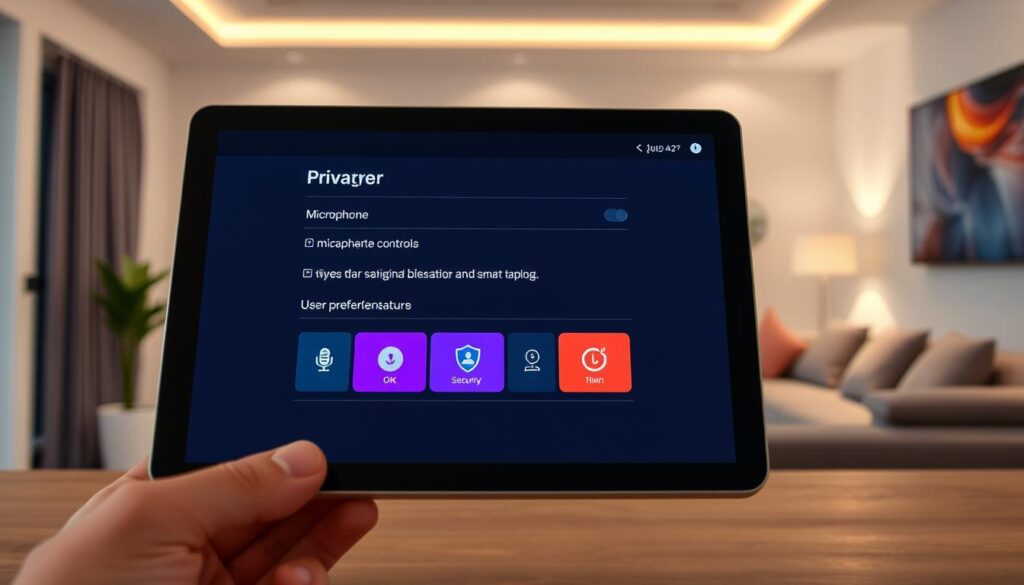
Your smart home privacy settings control who can use cameras and microphones. They also decide what apps log data and how devices share information. These settings include camera and microphone permissions, data sharing, and device app permissions.
Understanding these areas is key to protecting your smart home privacy. It helps you manage who can access your devices and data.
Permission scope defines when a site or app can record. If a site is allowed, it can access your mic or camera only while you are on that site or using that app. Switching tabs or apps usually stops access unless you allow it.
This rule applies to Chrome on desktop and many smart-home apps on Android and iOS.
Devices and apps are categorized as Allowed or Not Allowed/Blocked. Allowed sites or apps can use mic and camera features when active. Blocked ones cannot, so features that need those inputs will fail.
For example, a blocked camera prevents you from joining a video call or using a visual assistant feature.
In managed environments, organizations can enforce stricter policies. If your device is managed by an employer or school, settings in Chrome on your computer or Android can be locked. Consult your network administrator when you see restricted controls on managed devices to learn what is enforced and why.
Managing smart home privacy reduces unnecessary audio or video capture. It limits what voice assistants and cameras collect. Tight control over permissions supports smart home data protection by cutting down on shared logs and third-party access.
Use device dashboards and account settings to review and adjust permissions regularly. This helps safeguard smart home privacy and manage it across all devices.
Overview of Voice Assistant Features
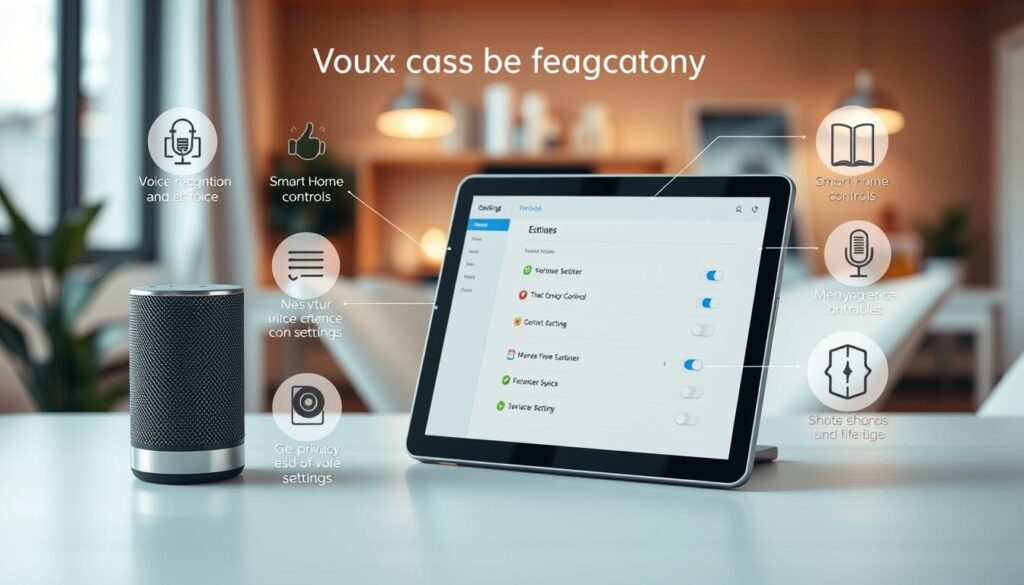
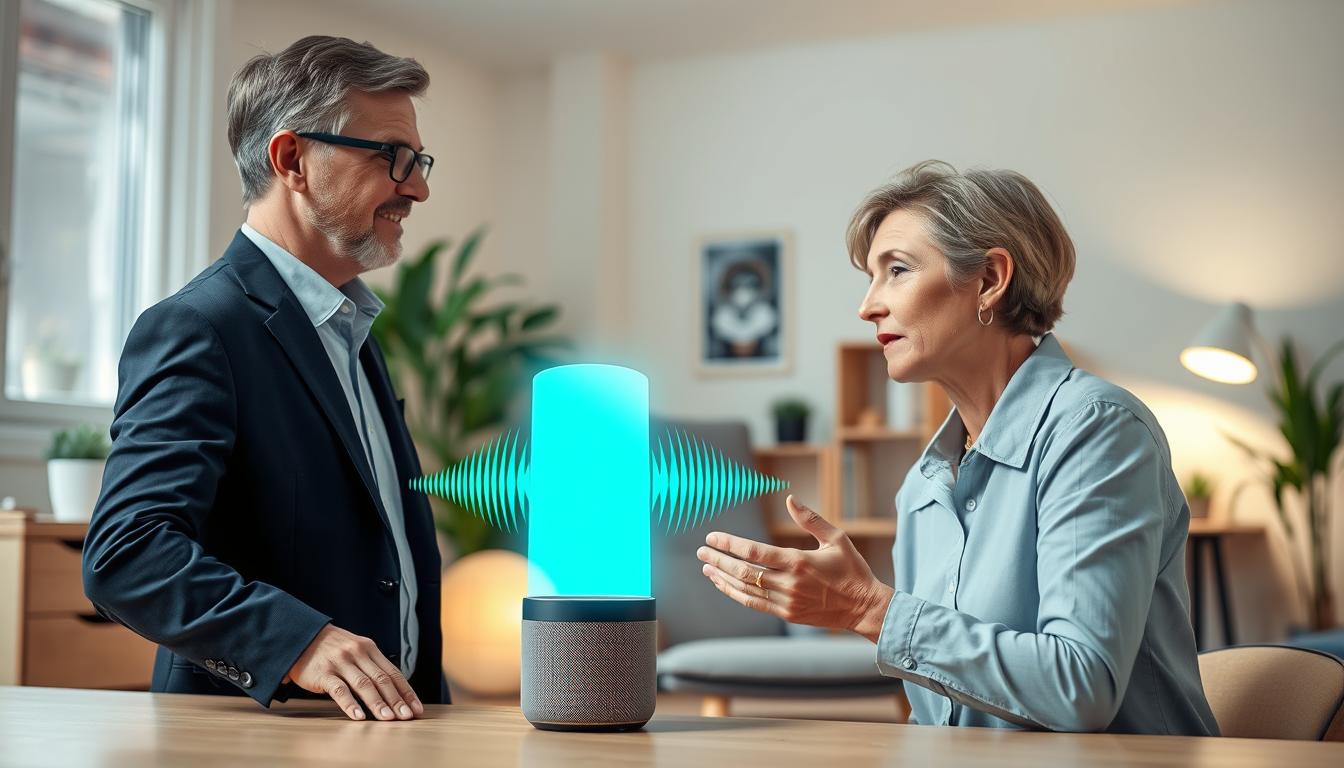
Modern voice assistants have simple features that are easy to use. They include wake-word listening, voice commands, and routine triggers. You can also control smart devices and process voice queries in the cloud.
Wake-word listening is a key feature. It keeps a microphone active so devices can respond when you say a wake word. This can be “Alexa,” “Hey Google,” or “Hey Siri.” Full recording and transmission start after the wake word or when you press a button.
Voice commands let you control various devices. You can turn on lights, adjust thermostats, lock doors, and play music. Routine triggers automate tasks like turning off lights and locking doors at night.
Voice input can be processed locally or sent to cloud servers. Companies like Amazon, Google, and Apple handle data differently. You can check your account settings to manage data, review transcripts, and delete recordings.
There’s a trade-off between convenience and privacy. Voice assistants offer hands-free ease but may collect data. Adjusting microphone access and limiting data sent to servers can reduce risks while keeping useful features.
- Wake-word listening: low-power local detection before activation.
- Voice commands and routines: automate daily tasks and smart-device control.
- Cloud processing: optional or required depending on the feature and provider.
- Data controls: review and delete recordings through account settings.
Knowing how voice assistants work helps you set privacy controls for smart homes. Use this knowledge to enable privacy features that fit your needs. Focus on ensuring privacy across devices and accounts.
Accessing Your Device Settings
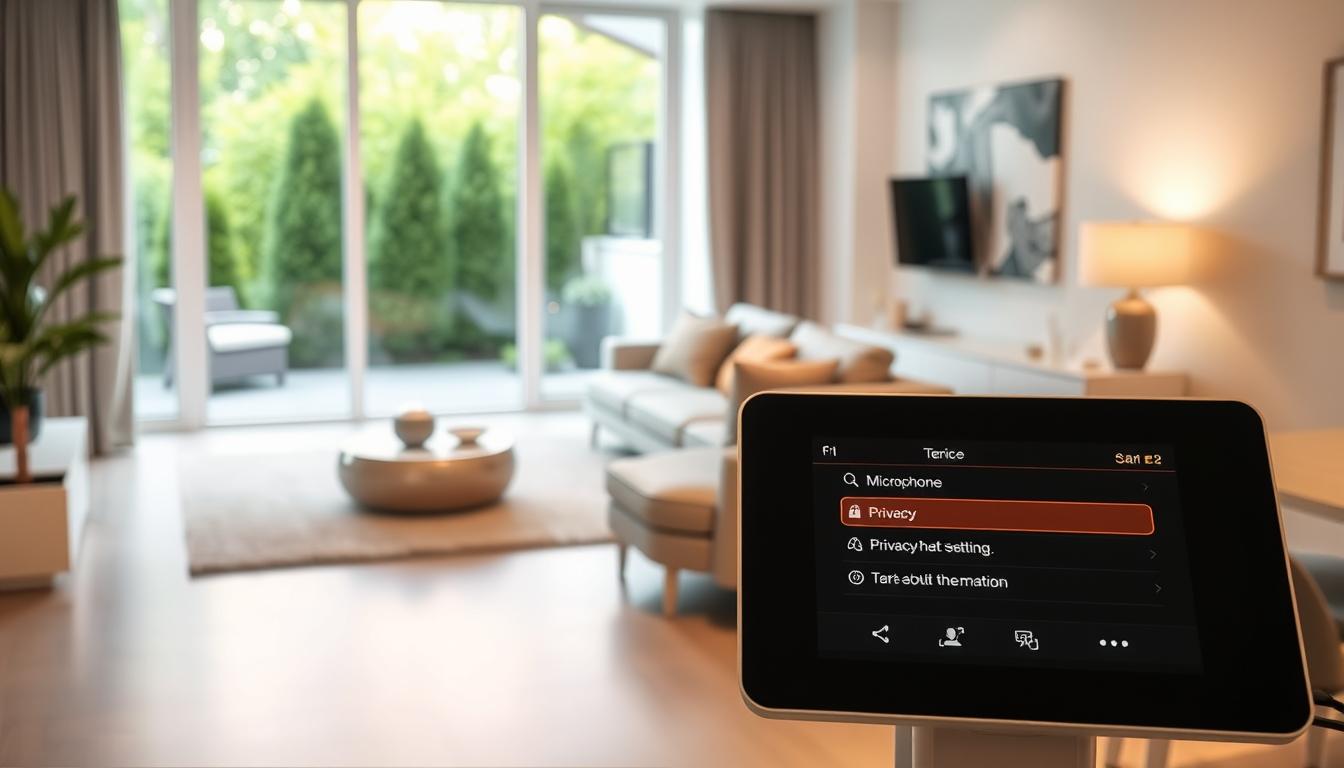
To manage permissions in Chrome on desktop, go to More > Settings > Privacy and security > Site settings > Camera or Microphone. On Android, open Chrome, tap More > Settings > Site settings > Microphone or Camera. These paths let you review site-specific access and tweak smart home security settings that affect browser-based controls.
Some features depend on device-level permissions. Chrome may prompt you to Open settings to enable Camera or Microphone if the operating system has blocked access. You might need to quit or restart the browser or an app for changes to take effect. Check Windows Privacy, macOS System Preferences, or Chromebook settings when a permission toggle is missing.
You can choose default devices in Chrome desktop by clicking the down arrow next to Microphone or Camera and selecting the preferred hardware. Similar selection exists in Windows Sound, macOS Input > Sound, and Chromebook audio/camera settings. Picking the right device is a key step toward secure smart home devices that work consistently with voice assistants and cameras.
Site-specific controls let you see which pages are Allowed or Blocked. Review the list, select a site, and delete an exception to remove access. Change a site from Blocked to Allow when you want it to use your camera or mic. Careful editing helps with managing smart home privacy at the browser level.
If a feature on a site won’t load, check browser settings like JavaScript, or temporary blockers such as ad blockers and privacy extensions. Try another browser to isolate the issue. Troubleshooting these items often restores access and keeps your smart home security settings functioning as expected.
- Check browser site settings for Camera and Microphone.
- Open system settings when prompted to enable device-level permissions.
- Select default mic or camera in browser and OS sound/camera panels.
- Edit allowed and blocked sites to manage permissions per site.
- Disable extensions or test another browser if a site component won’t load.
Adjusting Microphone Settings
First, adjust your browser’s microphone settings to control who can hear you. On desktop Chrome, open Chrome, then choose More, then Settings. Go to Privacy and security, pick Site settings, then Microphone. Use the down arrow to set your default microphone and toggle new site permissions.
On Android Chrome, open Chrome, tap More, then Settings and Site settings. Select Microphone and tap to turn it on or off. If a site is blocked, tap it and change it to Allow when you trust the page.
If your microphone won’t work, do some system checks. Make sure your hardware mute switch is off. Check site and app mute settings. Also, verify the correct device is set as the default recording device in your system’s sound settings.
If problems continue, try restarting the website call, restarting Chrome, and then restarting your computer or device. For hardware issues, contact the microphone manufacturer.
- Disable microphone access when not needed to reduce risk.
- Prefer per-site permissions over global Allow for better control.
- Switch microphones or cameras only when necessary to limit exposure.
These steps help with smart home privacy by limiting audio access and protecting data. Regularly check site exceptions and update your default microphone to keep your protection strong.
Reviewing Data Sharing Options
Your smart devices share many types of information. This includes audio recordings, device usage logs, and camera snapshots. Knowing what each item is helps you choose the right data sharing options for your home.
Cloud providers handle this data in their own ways. Google Assistant, Amazon Alexa, and Apple Siri each have their own rules for keeping and using voice recordings. You can usually review and delete these recordings in their respective apps. You can also stop them from being used to improve services if you want stronger privacy.
To limit sharing from browsers and apps, adjust site-level permissions. In Chrome, remove site exceptions and set microphone and camera access to “ask” instead of “allow.” On mobile, turn off microphone or camera access at the system level when an app does not need it. These steps offer direct privacy controls for smart homes and reduce unwanted collection.
Remember that managed devices may follow organizational policies. If a device is owned or managed by an employer or property manager, their settings can override what you change in device apps. Check with the administrator to confirm how managed devices affect protecting smart home data.
- Remove site exceptions in your browser and app settings if you no longer use them.
- Change blocked sites to allowed only when needed, then revert after use.
- Regularly review permissions lists in Chrome and smart-home apps to spot new entries.
Use manufacturer account settings for more control. In Amazon Alexa, Google Home, and Apple accounts, you can view data retention, turn off voice recording storage, and limit how clips are used for improvement. These choices form the backbone of effective privacy controls for smart homes.
Make it a habit to check data sharing options every few months. Routine reviews help keep smart home data protection current as apps and policies change. Small, regular actions keep your privacy controls strong and your household data safer.
Setting Up Notifications for Privacy Changes
Think of alerts as your first line of defense for keeping your smart home private. They alert you when a site or app wants to use your camera or microphone. Or when your account settings change without your okay.
On browsers like Chrome, you can’t get one-time alerts for permission changes. But, you can check Site settings. Look at Camera and Microphone to see who’s allowed or blocked. This helps you manage your smart home’s privacy and catch any unexpected permissions.
Smart-home platforms like Google Home and Amazon Alexa send you alerts too. Turn on these notifications to keep track of changes in your routines, new device pairings, or account changes that affect your privacy settings.
Mobile operating systems will ask you the first time an app wants to use your camera or microphone. Make sure to keep these OS-level security alerts on. They give you the info you need to decide whether to allow or block access.
- Check your browser, phone, and hub’s permission lists often to keep your smart home privacy up to date.
- Enable push notifications from companion apps for big security events and account changes.
- Where available, set up email or in-app alerts tied to activity logs. This way, you can see past events and take action.
By checking your browser, device alerts, and app notifications, you boost your smart home’s privacy. These steps make it easier to manage your smart home’s privacy. And they help prevent unauthorized access from slipping by unnoticed.
Managing User Accounts and Permissions
First, figure out who has access to your smart home. On Google Home, Amazon Alexa, or Apple Home, there are different roles. The primary owner can add or remove people. Others, like invited members or guests, have less control.
It’s important to know these roles. This way, you can set up privacy features that really work for you.
To manage access, use the app from the manufacturer. Open settings, invite someone by email, and choose their permissions. For example, you can let them control devices but not see camera history. For web interfaces, check your site permissions and account-sharing settings to keep things private.
- Assign control rights without camera history access when possible.
- Give temporary guest access for short-term visitors.
- Remove stale invitations and unused accounts promptly.
Follow the least-privilege principle. Give users only the access they need. For example, let a family member change lights and thermostats but not see camera history. This makes your smart home safer.
Remember, devices from work or school might have limits. Policies set by administrators can stop you from changing settings on these devices.
Check your user list often. Delete unused accounts and clear browser exceptions. These steps help keep your smart home private over time.
When checking settings, find a balance between ease and safety. Managing user accounts and using privacy features keeps your smart home safe and under your control.
Understanding End-to-End Encryption
End-to-end encryption means your data is locked on your device. It’s only unlocked by the person you send it to. This way, no one in between, like service providers, can see what you’re sharing.
Many smart home systems now use end-to-end encryption. This includes camera feeds, doorbell recordings, and voice backups. Check the manufacturer’s guide to see if they truly encrypt everything.
Using E2E might limit some features that need cloud access. For instance, cloud-based voice analysis or remote processing might not work. Think about whether the privacy benefits are worth the lost convenience.
To turn on E2E, go to your device or account settings in the app or website. Follow the steps to set it up and save your recovery keys if needed. You might also need to update your firmware or confirm your identity.
End-to-end encryption is a strong way to protect your smart home data. Use it with other privacy measures to keep your audio and video safe. This way, you control who can see or hear your home’s data.
Utilizing Privacy-focused Features
Using built-in privacy features on your devices can boost protection. Many smart speakers and cameras from Google Nest and Amazon Echo have a mute button or a camera cover. These controls help you manage your devices when you’re not using them.
Apps for your devices also offer privacy features. The Google Home and Amazon Alexa apps let you see activity logs and delete voice recordings automatically. They also let you turn off voice data for personalization. Regularly deleting data and checking logs helps protect your privacy.
Browser and OS controls allow for detailed permission settings. Chrome lets you set permissions for each site and choose default devices. On iOS and Android, you can control microphone and camera access for each app. Only allow access when necessary to lower risks.
- Microphone mute switches and physical camera shutters for hardware-level privacy.
- Per-device mute timers and automations that disable audio or video during set hours.
- Privacy modes in companion apps that suspend voice data collection or obscure camera feeds.
Start with covers and mute buttons for basic protection. Choose specific permissions for sites or apps instead of all-access. Enable auto-delete for voice recordings if available to reduce storage.
Follow simple steps to keep your smart home safe. Set up automations to mute microphones at night. Keep an eye on firmware and app settings for new privacy features. These actions help maintain your privacy and meet your expectations.
Monitoring Device Activity
Checking device activity means looking at logs, recent commands, and camera events. You should also check microphone use and site permissions. This helps spot changes in your smart home’s privacy and security settings.
Look in apps like Google Home, Amazon Alexa, and Apple HomeKit for activity logs. In Chrome, open Site settings to see which sites use your camera or microphone. You can change these permissions easily. These steps help you keep your smart home data safe.
- Access logs show which accounts and devices connected and when.
- Recent commands list voice queries and actions taken by assistants.
- Camera motion events track recordings and alerts tied to movement.
- Microphone usage indicators reveal apps or sites that accessed audio.
- Site permission histories record which pages were granted camera or mic access.
If a mic or camera isn’t working, check if it’s muted and app permissions are set right. Look at your system’s recording device and volume levels. Restarting the call, browser, or device can fix temporary issues. If problems continue, reach out to the device’s maker for help.
Be alert for signs of odd activity. Look for unknown devices, permission changes you didn’t make, or recordings you didn’t start. If you find these, remove the device’s access, change passwords, and review all account permissions.
- Regularly review logs and remove old recordings.
- Remove unused device permissions and accounts.
- Keep a checklist for quick suspect activity checks.
- Update firmware and apps to keep your smart home secure.
Regular monitoring makes protecting your smart home data easier. It helps you catch threats early. Make checking device activity a regular part of your routine and update your smart home’s privacy settings if you notice anything odd.
Staying Updated on Privacy Practices
Keep your smart home privacy settings up to date by installing updates as soon as they come out. Check your device maker’s app for firmware prompts. Also, use the App Store or Google Play for updates, and update Google Chrome via More > Help > About Google Chrome. These updates fix privacy issues and improve security settings.
Check browser extensions and site settings if things don’t work right. Enable JavaScript for trusted sites and disable extensions that block important functions. This helps prevent data leaks and keeps your smart home privacy safe.
Follow privacy pages from Google, Amazon, and Apple to stay informed about data changes. Set a regular time to check device permissions and user accounts. Enable automatic updates when you can, and sign up for security alerts from manufacturers. This keeps you ahead in protecting your smart home data.