Voice controlled music has changed how we listen. Now, with smart speakers and virtual assistants, a simple phrase can start songs, playlists, podcasts, or live radio. You don’t need to touch a screen.
You can ask for artist radio, like Harry Styles or Taylor Swift. Or stream podcasts such as Love Trapped or The Book Club. You can also tune to live stations across the country. Services like iHeartRadio offer contests, like Win a $1000 and a Trip to LA to iHeartRadio Music Awards.
Hands-free music control works on many devices. This includes smartphones, tablets, laptops, and smart speakers like Amazon Echo and Google Home. You can even use existing wired speakers with wireless adapters for smart speaker music control without buying new gear. Streaming services offer both free and paid tiers. You’ll need to decide between ads and limited features versus premium benefits. Some shows and stations might not be available in your area.
This article is your practical guide to voice activated music streaming. You’ll learn about devices, setup, commands, and how to integrate with streaming services. You’ll also discover how to play radio, find new music, troubleshoot issues, set up routines, and explore future trends. Start controlling your music with voice today.
Understanding Voice Controlled Music

Voice recognition technology lets you control devices with your voice. It uses local processing and cloud services. Your voice commands, like “play” or “pause,” are understood and acted upon.
Your virtual assistant, like Siri or Alexa, connects your voice to music. They link to streaming services or your music library. This means you can start a playlist with just a few words.
Streaming music means it’s available over the internet when you want it. You can pick from playlists or radio stations. Some services even offer live broadcasts like traditional radio.
To use voice commands, you need an internet connection and a smart device. This could be a phone, tablet, or smart speaker. You also need speakers or headphones to hear the music.
There are two main types of streaming: continuous broadcasts and on-demand music. Many services offer both, with curated stations and podcasts.
Privacy is important when using voice assistants. They might ask for account links and microphone access. Availability can also vary by region due to licensing rules.
Even older speakers can be part of the system with adapters. Wi-Fi or Bluetooth adapters connect them to modern smart homes. This way, vintage speakers can work with today’s technology.
Voice recognition and AI make controlling music hands-free easy. Your choice of setup affects how smoothly voice commands work in your home.
Popular Voice Controlled Music Devices
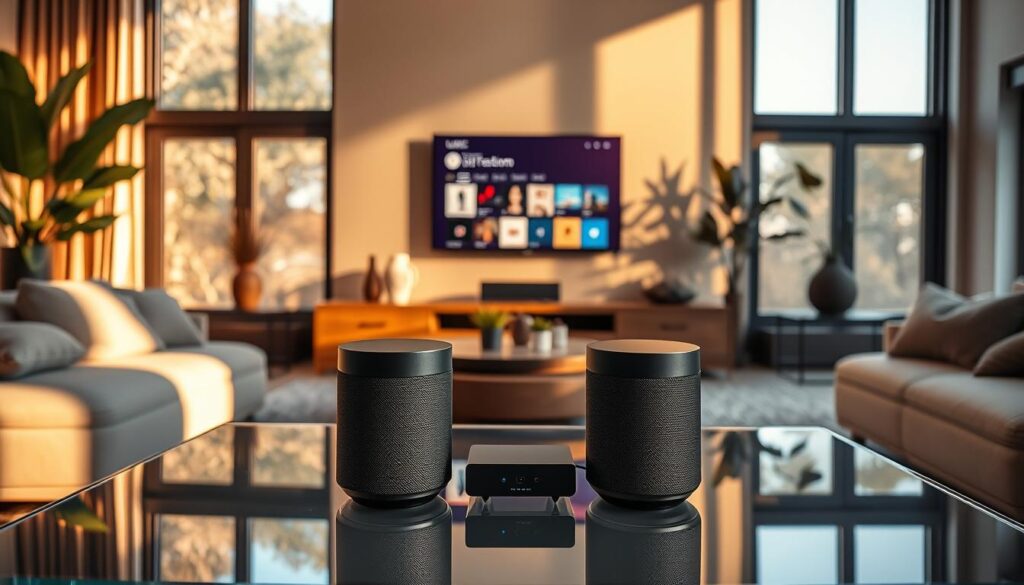
There are many great options for a smart home audio system. Amazon Echo devices run Alexa and offer deep Amazon Music integration. They also have many Alexa skills. Google Nest and Google Home devices use Google Assistant and pair well with YouTube Music and the Google ecosystem. Apple HomePod uses Siri and is best for Apple Music subscribers.
Choose devices that fit your music streaming habits. If you like Amazon Music, Amazon Echo music control is the smoothest. Google Home music control is best for YouTube Music or Google services fans. Apple device users will find AirPlay and Siri on HomePod useful for direct access to purchases and libraries.
Many third-party smart speakers and soundbars support smart speaker music control from these assistants. Look for products with multi-room playback, speaker grouping, and far-field microphones for reliable voice pickup. Bluetooth, AirPlay, and optional adapters let you connect legacy amplifiers or older speakers.
- Amazon Echo family: strong Alexa skill ecosystem and Amazon Music features.
- Google Nest/Home: great with YouTube Music and Google Assistant routines.
- Apple HomePod: optimized for Apple Music, AirPlay, and iPhone users.
- Third-party speakers and soundbars: often support Spotify Connect, AirPlay, and assistant integrations.
Streaming hardware ecosystems matter for playback control. Spotify Connect, Apple AirPlay, and dedicated integrations let you move audio between apps and devices with little fuss. Many devices also support hi-res formats or lossless tiers, so check the specs if audio fidelity is a priority.
Industry reviews show service strengths you should weigh. Apple Music shines for Spatial Audio and a large catalog. Spotify excels at playlists and podcasts. Tidal and Qobuz cater to listeners who want hi-res or lossless files. SiriusXM offers live channels and rewind features. Amazon Music remains compelling for owners who rely on Amazon Echo music control.
When choosing gear, balance sound quality, multi-room features, and the streaming services you use. Matching devices to your preferred platform makes smart speaker music control and Google Home music control or Amazon Echo music control more reliable and enjoyable in daily use.
Setting Up Your Voice Controlled Music System
First, connect your smart speaker to your home Wi‑Fi. Then, install the companion app, like Amazon Alexa, Google Home, or Apple Home. Sign in and follow the prompts to join your network and get updates.
Next, link your favorite streaming services. Open the app and connect Spotify, Apple Music, Amazon Music, Tidal, SiriusXM, or YouTube Music. This lets the assistant access your playlists and songs for hands‑free control.
Create speaker groups for playing music in multiple rooms. In apps like Amazon Alexa, Google Home, and Apple Home, you can make groups and name them. This makes your smart home audio system work seamlessly across rooms.
If you have old receivers or speakers, add a compatible adapter. AirPlay-capable receivers, Bluetooth adapters, and Chromecast Audio replacements can connect them to your voice system. This way, you don’t have to buy new speakers.
Remember, some music services might not be available in your area. Check the app before subscribing to avoid any issues with tracks or live feeds.
Finish by testing your voice commands and permissions. Try saying “play” and “pause,” grant microphone and location access if needed, and choose your default music service. This makes controlling your music hands-free easier.
- Install app, sign in, connect to Wi‑Fi
- Link Spotify, Apple Music, Amazon Music, or your service of choice
- Create speaker groups for multi‑room playback
- Add an adapter to integrate legacy audio equipment
- Test voice commands and set a default music provider
Voice Commands for Playing Music
Start listening quickly with simple commands. Try saying play [song name], play [artist name], or play . You can also ask for artist radio with play artist radio for [artist].
Use resume, pause, stop, next, and previous for basic control. Turn on shuffle or repeat with shuffle on, shuffle off, repeat on, and repeat off. These commands work with most services if your virtual assistant supports them.
Choose where music plays by naming devices. Say play music on Kitchen speaker or group living room and kitchen. You can also set volume with set volume to 50% or use turn the volume up for quick changes.
Target a specific source with commands like “Play [station name] on iHeartRadio,” “Play [podcast name] on Spotify,” and “Play [album] from Apple Music.” For live web radio, try play live radio [station or city] or tune to [station call letters or frequency]. Service limits may affect what works across devices.
Use context commands to reach saved content. Say play my Discover Weekly, play my liked songs, play top hits from [decade], or play similar music to [artist]. These commands tap into your profile and taste preferences with a virtual assistant music player.
Add or rate tracks hands-free with simple lines. Say add this song to my playlist, like this song, or dislike this track to train recommendations. Start a station based on a song or artist by asking the assistant to start a radio station for the current track.
Remember that advanced features depend on the service in use. Siri pairs best with Apple Music, while Spotify Connect helps with cross-device control. Knowing which app your device favors improves your hands-free music control experience.
Practice a few patterns so commands become natural. Clear phrasing reduces errors and speeds up voice command music playback across phones, speakers, and smart displays.
Integrating Streaming Services with Voice Control
To start with voice controlled music, link your streaming accounts in the assistant app. Open the Google Home, Amazon Alexa, or Apple Home app. Add services like Spotify, Apple Music, and more. This lets the assistant play your music with just your voice.
Each service has its own strengths for AI-powered music control. Apple Music is great for iPhone users, with lossless tracks and Spatial Audio. Spotify has a huge catalog and supports podcasts. Amazon Music works well with Echo devices and Prime benefits.
Tidal is for audiophiles, with hi-res streams and artist extras. YouTube Music is perfect for searching videos and audio. SiriusXM offers live channels and rewind buffers. Pandora creates personalized radio stations. Deezer has a wide catalog and a hi-fi tier.
Choose the right voice assistant for your service. Siri works well with Apple Music. Alexa supports Amazon Music and many third-party services. Google Assistant integrates well with YouTube Music and Spotify.
- Set a default music service in the assistant’s settings so you can say “Play jazz” without naming the provider.
- Remember free accounts may limit features: ads, fewer skips, lower audio quality, and restricted hands-free commands.
- Certain hands-free features and AI-powered music control options sometimes require premium subscriptions for full play, shuffle, or on-demand access.
After linking, check a few things. Make sure the account is connected in the app. Set your preferred default. Then, test a few voice commands. This ensures your voice activated music streaming works everywhere.
Discovering New Music with Voice Control
You can find new songs without touching your phone. Just ask your virtual assistant music player to “Play something I’ll like” or “Play music like Taylor Swift.” Short commands trigger streaming services to surface algorithmic picks or editorial playlists.
Use voice recognition technology to steer the results if you want a mood, era, or instrument highlighted.
Try commands like “Play new releases” or “Play top charts” to jump into fresh tracks. Spotify’s Discover Weekly and Release Radar, Apple Music’s curated playlists, and Pandora’s mixes respond well to such prompts. If you prefer AI-powered music control, say “Open my AI DJ” or “Play my mixes” to get machine-made blends tailored to your listening habits.
Podcasts and talk shows can appear alongside music suggestions. Ask for trending or exclusive shows by name or genre to explore related content. You might say “Play Love Trapped podcast” or “Play political commentary podcasts” and your voice controlled music setup will queue episodes from Apple Podcasts, Spotify, or Stitcher with no hands needed.
- Ask for local or national live radio to sample new stations.
- Request artist radio to hear songs similar to a favorite performer.
- Explore web radio directories like TuneIn and iHeartRadio through voice search.
Set a daily routine to automate discovery. Create a “music discovery” routine that opens with new releases, then moves to curated editorial lists and ends with an artist radio. Your virtual assistant music player can run that routine at a set time so you wake up to fresh tracks without lifting a finger.
Use simple feedback to refine recommendations. Tell the assistant “I like this” or “Not a fan” to tune its AI-powered music control. Clear, frequent feedback trains the system faster, making your voice controlled music feed more accurate and enjoyable over time.
Playing Radio Stations with Voice Commands
You can tune into AM, FM, and online channels without touching your phone. Just ask your assistant to play TuneIn, iHeartRadio, or SiriusXM. It will find national and local stations for you.
For web radio, say the city, call letters, or station name. For example, “Play WLTW 106.7 Lite FM” or “Play KEAN 105.1 FM.”
Smart speaker music control makes it easy to find artist-based stations and specialty channels. Try saying “Play artist radio for Harry Styles” or “Play Taylor Swift radio.” You can also ask for niche streams like SomaFM or Otto’s Opera House for unique listening.
Streaming apps handle radio differently. iHeartRadio combines live stations, artist radio, playlists, podcasts, and events in one place. TuneIn indexes thousands of local and international stations. You can say “Play [city] radio” to find local shows.
SiriusXM mixes live channels with on-demand content. It also lets you rewind or pause on supported live streams.
- Ask for a specific station: “Tune to Kool 97 FM.”
- Ask by frequency or call letters: “Play 106.7.”
- Ask for city radio: “Play Boston radio.”
Remember, assistant limitations vary by service and region. If a station doesn’t play, say the streaming app in your command. For example, “Play WLTW on iHeartRadio.” This helps the assistant know where to look.
Use live radio voice command phrases to control playback on supported services. Say “Pause,” “Rewind 30 seconds,” or “Skip back” when the platform supports buffering. For SiriusXM, you can rewind or resume a channel with simple voice prompts.
With a few clear commands, smart speaker music control makes radio discovery easy. Try mixing station names, artist radio, and web radio channels to find new favorites quickly.
Troubleshooting Common Issues
If your voice controlled music skips or won’t start, start with simple network checks. Make sure your smart speaker is on the same Wi-Fi network as your phone or streaming source. Try rebooting the router and the speaker to fix any temporary connection issues.
Account and linking errors can also stop hands-free music control. Check your Spotify, Apple Music, or Amazon Music login details in the assistant app. If needed, re-link your accounts and make sure your subscriptions are active and work in your area.
For playback problems, test audio directly from the streaming app. This helps you figure out if the issue is with the service or the smart speaker. Also, check the default music service settings in the assistant and update the app firmware if prompted.
Voice recognition technology might not work well in noisy rooms. Try retraining your voice profile if your device allows it. Move the speaker so its microphones have a clear view and reduce background noise to improve voice command accuracy.
- Multi-room hiccups: ensure every speaker is online and logged into the same app ecosystem.
- Recreate speaker groups when one device drops out to restore group playback.
- Remember that some commands need premium subscriptions or platform-specific support.
If problems keep happening, try these last steps: reboot devices, unlink and re-link streaming services, and then consider a factory reset of the speaker. If you need more help, check the vendor’s support pages or community forums for device-specific advice.
Enhancing Your Experience with Routines
Routines let you start a series of actions with just one phrase or at a set time. You can mix voice-controlled music with changes in lighting, temperature, and news updates. This creates the perfect mood for your home.
There are many routine ideas to make your life easier. A “Good morning” routine can play your favorite songs or a morning news update while the lights get brighter. A “Movie time” routine can dim the lights and start a special soundtrack in your living room.
A “Workout” routine can play an energetic playlist and adjust the volume in your smart home audio system.
Make routines using Alexa Routines, Google Assistant routines, or Apple Shortcuts. Connect your music service and choose the speaker or group for your music. You can pick specific songs, stations, or artists for a precise experience.
Customize routines to keep things interesting. You can start with a unique song, choose a live radio station, or have the assistant play new music. AI can create playlists that match your mood or suggest new artists.
Use routines for discovery and news by adding podcasts or live radio updates to your morning routine. This way, you get music and timely news without lifting a finger, all thanks to routines voice control.
- Set a wake-up routine that fades lights in and begins voice controlled music.
- Program a commute routine that plays traffic, weather, and your favorite radio station.
- Build a weekend routine that uses AI-powered music control to surface new tracks.
Routines make your smart home audio system more useful and personal. You get consistent, hands-free control and a smarter way to enjoy voice-controlled music all day long.
The Future of Voice Controlled Music
AI-powered music control will get better at matching your mood and surroundings. Virtual assistants from Apple Music, Spotify, and Amazon Music will learn your habits. Just say, “Play upbeat music for cooking,” and it will pick the right tracks for you.
Voice recognition tech will work faster and keep your data safe. This means quicker responses and better privacy. Cloud models will also improve over time, making your music choices even more personal.
Soon, you’ll be able to ask for high-quality audio like Dolby Atmos. Voice commands will let you switch to immersive modes or prefer stereo for specific songs.
Cross-service integrations will make it easier to use music across different platforms. You can start a playlist on your phone and easily switch to a speaker. The virtual assistant will help you manage your playlists and switch playback sources.
Live and interactive audio will become more accessible by voice. You can ask for live broadcasts, exclusive streams, or ticketed events. Voice control will make it easy to find and enjoy music, videos, and events together.
Voice controlled music will be everywhere, from cars to TVs. You’ll use the same voice commands at home and in your car. This makes listening hands-free consistent and reliable.
Privacy and personalization will be key in the future of voice controlled music. AI will become a helpful companion that respects your data while learning your music tastes.
- Smarter recommendations that adapt to activity and time
- Simpler high-res and spatial audio commands
- Smoother multi-device handoffs
- Better on-device privacy with cloud personalization
Final Thoughts on Voice Controlled Music
Voice controlled music has made listening easier and more natural. You can access on-demand streaming, live radio, podcasts, and discover new music without touching a device. This hands-free control is perfect for when you’re cooking, exercising, driving, or just busy with life.
To start, choose a smart speaker that fits your streaming service preferences. Set that service as your default. Link your accounts in the speaker’s app and try basic voice commands. Create a routine, like a morning playlist and news, to test it in real life.
Then, explore artist radio and discovery playlists to find new music you’ll love. Before you buy, think about the audio quality. If you want hi-res sound, consider Tidal, Qobuz, or Apple Music lossless. For podcasts and talk, Spotify or SiriusXM might be better.
Reliability is key. Keep your network strong and check that services stay linked. Update apps or firmware as needed. If problems arise, vendor support is there to help.
Voice activated music streaming is now common and will get even better. With a bit of setup and a simple routine, you’ll enjoy more music, radio, and podcasts with just your voice.