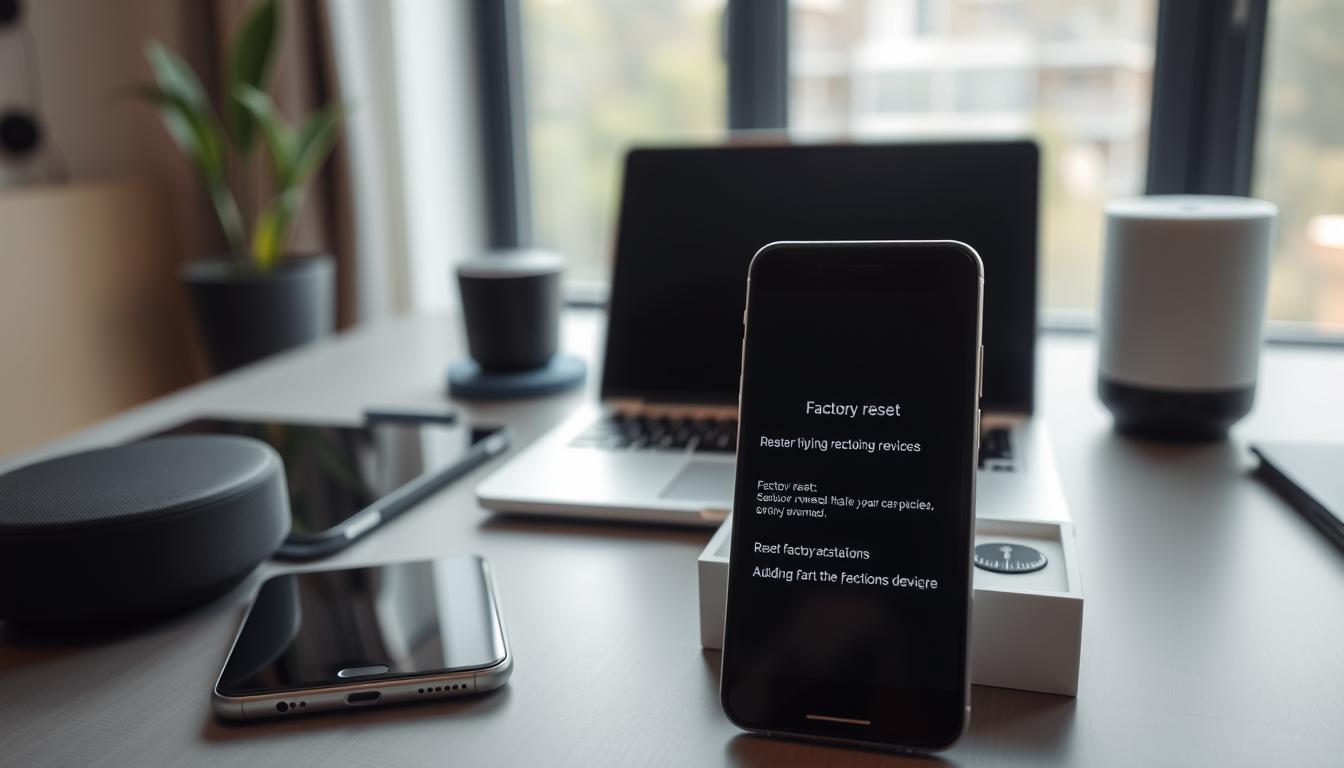
A factory reset takes your device back to its original state. It’s useful when your phone, tablet, smart TV, or other gadgets freeze or lag. This action removes apps, settings, and personal files, unless you’ve backed them up.
Resetting devices is a strong troubleshooting move, but it’s a last choice. Try restarting, booting into safe mode, or updating software first. These steps might solve the problem without a full reset.
Resetting devices depends on their operating system and model. For instance, Android resets differ on Android 14 and newer. Apple, Samsung, Sony, and Amazon each have their own reset steps. Always follow the manufacturer’s guide for specific instructions.
Remember, a factory reset may require your account details to sign back in. Devices linked to Google Accounts or Apple IDs need these to restore data and reactivate.
Plan ahead for a reset: it can take up to an hour. Make sure your device has enough battery or is plugged in. Also, back up important files before starting the reset.
Understanding Why Devices Need Resetting

When your phone, tablet, smart speaker, or TV starts acting strange, it might be time for a factory reset. Look out for signs like frequent crashes, apps that won’t open, and devices that get stuck at the logo. You might also see slow performance or network issues.
These problems usually come from a few main causes. A failed update can mess up system files. Rogue apps or incompatible ones can also cause trouble. Full storage or firmware glitches are other common culprits.
Devices that won’t fully boot are a special case. If your device gets stuck at the logo, it’s trying to load but fails. Try Safe Mode to see if a third-party app is the problem. Safe Mode runs only essential apps.
Not every issue requires a full reset. You can often fix problems by clearing cache, removing recent apps, or updating your system. These steps help without losing your data.
But remember, hardware issues can look like software problems. A bad battery or damaged storage might cause the same issues. If resets and safe mode don’t work, run hardware tests or get professional help.
Preparing for a Factory Reset
Start by making a factory reset checklist. A factory reset removes personal files, app data, and settings. Think of it as moving your device: gather login info, check backups, and plan for reconnecting.
Save contacts, calendars, and photos before the reset. On Android, back up to your Google Account. Use Google Photos for pictures and the built-in backup for contacts and calendars. Make sure the backup is complete and files are in your account.
Save app data if you can. Some apps store data only on the device. Note which apps will lose data and save important files or chat histories first.
- Know your account names and passwords: Google Account for Android, Apple ID for iPhone, Samsung Account for Samsung devices.
- Record screen lock PIN, pattern, or password so you can unlock after reset.
- Check wallet or payment apps for special steps; some Android versions may need extra handling for stored cards and transit passes.
Charge your device to at least 70% or keep it plugged in during the reset. A full reset and restore can take up to an hour. An interrupted reset might leave your device unusable.
Connect to Wi‑Fi or a mobile network before finishing your prep. Many restores need an internet connection to sign into cloud accounts and retrieve backups.
- Run the backup before reset and verify files in the cloud account.
- List linked accounts and confirm you know the passwords.
- Check manufacturer support pages for device-specific reset steps.
- Ensure battery level and network access for post-reset setup.
Follow manufacturer guidance from Apple, Samsung, or Google when available. This ensures a smooth reset and gives you a reliable checklist to avoid surprises.
Resetting Smartphones
When your phone has problems, a factory reset is often the solution. You can do this from the Settings app. On most Android devices, go to Settings, then System or General Management. Choose Reset and Factory data reset.
Steps can change based on the manufacturer and Android version. Some options are only for Android 14 and later.
If you can’t get to Settings, use hardware buttons. Many phones have a combination of Power and volume buttons to enter recovery mode. This lets you reset your phone. But, the exact button combination varies by brand. Check your device’s support page for the right steps.
Before resetting your phone, back up your data. Also, know your Google Account username and password. If you’ve changed your Google password recently, wait 24 hours. This avoids sign-in problems due to security locks.
If your device starts but gets stuck at the logo, try Safe Mode. Safe Mode can help find if a third-party app is the problem. If Safe Mode doesn’t work, you might need a recovery-mode reset to fix your phone.
After a factory reset, you’ll need to sign in to your Google Account. This is to restore your data and settings. Many phones require the account that was on the device before. Remember this when deciding to reset your device.
If you’re unsure, check the support pages of Apple, Samsung, Google, or your device’s maker. They have detailed guides and troubleshooting tips. These pages can help you reset your phone safely and correctly.
Resetting Smart TVs
Smart TVs from Samsung, LG, Sony, and Vizio have a factory reset option. You can find it in their system menus. Look for Settings > System or General > Reset or Initialize > Factory reset, then confirm the action.
When a PIN is needed, try 0000 or 1234. After resetting, you’ll need to sign in to streaming apps again. You’ll also have to adjust picture and audio settings.
If your TV won’t respond, try a power cycle. Unplug it for about 60 seconds, then plug it back in. Try the menu again.
Some TVs have a hardware reset button or a small pinhole. If power-cycling doesn’t work, check your manual. It will tell you where the reset button is and how to use it.
- Remember, resetting erases apps, accounts, channels, and settings.
- Make sure your TV is connected to power and your network before and after resetting. This helps apps and firmware update properly.
- If problems continue, check out troubleshooting guides from Samsung, LG, Sony, or Vizio. They offer specific advice for your model.
Resetting Smart Speakers
Most smart speakers from brands like Amazon Echo, Google Nest, and Sonos have a factory reset option. You can find it using the device’s physical buttons or the app. The steps vary by model, so check the support pages for your specific speaker.
To reset Amazon Echo units, press and hold the action or reset button until the light ring changes color or pulses. For Google Nest speakers, hold the microphone mute button or the reset button until it says it’s resetting. These are common steps, but always follow the model-specific instructions if you can.
A factory reset erases voice profiles, Wi-Fi settings, linked accounts, routines, and installed skills. After resetting Amazon Echo or Google Nest, reconnect the device in the app and sign in again. This will restore access and settings.
Before resetting, back up custom settings and document routines, linked smart-home devices, and integrations. Save important voice profiles or configuration notes. This way, you can quickly rebuild your setup after the reset.
After resetting, ensure the speaker is powered and close to your Wi-Fi network. Use the app to set it up again and re-link accounts, routines, and services. Follow this smart device reset guide for help.
Resetting Tablets
Tablets need a clean start just like smartphones. Make sure the battery is charged and Wi‑Fi is connected. Back up your files to iCloud, Google Drive, or a computer to keep them safe from a factory reset.
On an iPad, go to Settings > General > Transfer or Reset iPad > Erase All Content and Settings. You’ll need your Apple ID and password. After the reset, you’ll need these to reactivate your device.
For Android tablets, open Settings > System or General > Reset > Factory data reset. If your tablet won’t boot, use recovery mode by holding the right buttons. You’ll need your Google Account details to activate it after the reset.
If your tablet turns on but gets stuck, try these steps:
- Safe Mode on Android to disable third‑party apps and check stability.
- Force restart on iPad to clear temporary hangs before erasing.
If these steps don’t work, use recovery‑mode reset on Android or Apple Recovery for iPad. These options help when your system won’t respond.
Remember, resetting tablets deletes downloaded content, app data, and local files unless you back them up. Learning how to reset smart devices helps you handle other gear the same way, with attention to each brand’s UI differences.
When you decide to perform a factory reset tablet or reset iPad or reset Android tablet, follow prompts carefully and keep power connected until the process finishes. This reduces the risk of partial resets or further issues.
Resetting Smart Home Devices
Start by figuring out what kind of device you’re resetting. This could be a hub, thermostat, security camera, or sensor. Brands like Samsung SmartThings, Nest, Ecobee, Ring, and Arlo have their own ways of doing things. Always check the manufacturer’s support page for the right steps before you start.
There are three main ways to reset devices. You can use the in-app reset option if it’s available. Or, you might find a physical reset button that you need to press and hold for a certain amount of time. Sometimes, you’ll need to power off, hold a button, and then power on while holding it. These methods work for most resets.
Here are some tips to make resetting your devices easier:
- Write down your Wi-Fi details and hub credentials.
- Remember any automations and device names you want to keep.
- Make sure battery-powered sensors have fresh batteries before starting.
Resetting devices will erase Wi-Fi info, linked accounts, automations, and settings. You’ll need to re-add devices to your hub and set up automations again. Have your account passwords ready to make the re-setup process quicker.
If a device is acting up, try troubleshooting before resetting. Restart your hub, check your network strength, and update your app. Use a reset only when other fixes don’t work or when the maker suggests it.
After adding the device back, check for firmware updates and test its basic functions. For thermostats like Nest and Ecobee, make sure temperature schedules are set right. For cameras from Ring or Arlo, test live views and motion alerts. Also, check if sensors are working well and if their batteries are charged.
Managing many products? Keep a simple list of models and account names. This will make future resets and troubleshooting easier and less stressful.
Post-Reset Steps
First, plug your device into power and connect to Wi‑Fi. Then, sign back into your main accounts, like your Google Account for Android or Apple ID for iOS. This starts the restore process from cloud backups.
Follow the setup prompts to restore synced items. Contacts, calendars, and photos from Google Photos or iCloud should return. But, apps and local data will be gone; you’ll need to reinstall them and accept permissions again.
Some app data might not come back unless it was backed up to the cloud. For example, game progress or app settings could be lost if cloud sync isn’t enabled. This is a common issue in smart device troubleshooting.
Android users should know about Factory Reset Protection. You might need to enter your Google Account credentials. If you’ve changed your password, wait 24 hours to avoid lockouts.
- Reinstall key apps and set up system settings like display and privacy.
- Reconnect smart home devices and Bluetooth accessories.
- For smart TVs and speakers, re-add streaming accounts and voice profiles.
Update your device with the latest software and firmware. This improves security and fixes bugs that led to the reset.
Do a full reset follow-up test. Check calls, Wi‑Fi, Bluetooth, sensors, and smart home integrations. This confirms if the reset solved the problem or if more troubleshooting is needed.
When to Seek Professional Help
If your device won’t power on, is stuck in a boot loop, or shows signs of overheating, it’s time to seek help. These issues often point to hardware problems that simple resets can’t solve. Getting professional repair can prevent more damage and protect your data.
If safe mode, recovery-mode resets, and in-app resets don’t work, it’s time to escalate the issue. Contact the device maker’s official support or visit an authorized repair center. If your device is under warranty, repairs might be free or cheaper.
Privacy and security are important too. If you can’t remove activation locks, the manufacturer can help verify ownership. Be prepared with your device’s model, serial number, symptoms, reset steps, and backup status. This helps make the repair process faster and more accurate.