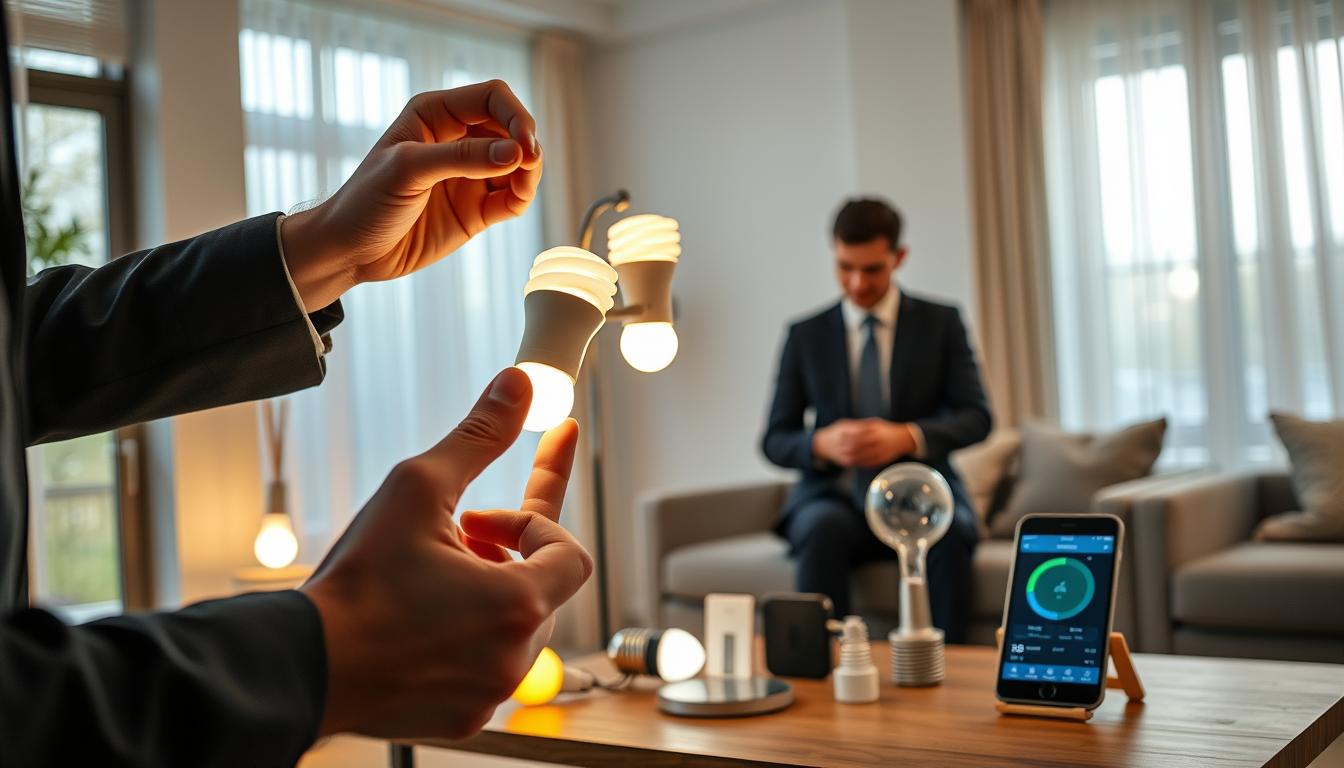
Smart lighting is easy to upgrade. Start by unscrewing a standard bulb. Then, install an Aqara LED Bulb T2 for color temperature and Matter support.
Or, swap a wall device for whole-circuit control with the Aqara Smart Wall Switch. Choose a smart plug like the Thread-enabled Aqara Smart Plug for lamps. Or, install integrated fixtures like the Aqara LED Ceiling Light T1M for a polished look.
Your smart light setup depends on the connection type. For Wi‑Fi bulbs, download the app, create an account, and join your network. Put the bulb in pairing mode. Bluetooth bulbs pair directly from the app after power-on.
Zigbee devices need a hub or bridge, like the Philips Hue Bridge, connected to your router. Then, add lights to your app for voice and automation control.
Core components include smart bulbs, switches, hubs or bridges, and apps or voice assistants. Follow manufacturer instructions, connect devices, and add them to your app. This lets you control your lights with voice commands or automation.
In real life, you can use routines for reading or schedule porch lights at sunset. You can also trigger motion-sensor automations or create scenes like “Movie time.” These simple steps make your lighting smarter, more efficient, and enhance your home’s ambiance.
Understanding Smart Lighting Technology
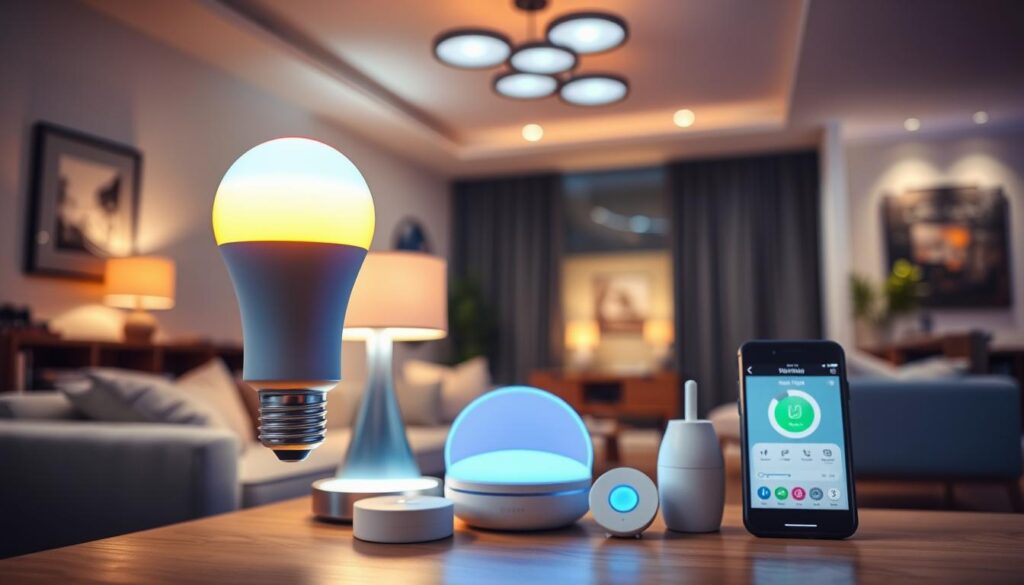
When you look into smart lighting, you’ll find three main types: Wi‑Fi, Zigbee, and Matter over Thread. Wi‑Fi bulbs, like those from Wyze, connect directly to your network. They need a 2.4GHz connection.
Zigbee devices, such as Philips Hue bulbs, use a hub like the Hue Bridge. This creates a low‑power mesh that works well for many lights.
Matter over Thread is the newest standard. It aims to make smart home lighting work across brands. Aqara and others support Matter and Thread. This improves how devices work together with Apple HomeKit, Google Home, Amazon Alexa, and Samsung SmartThings.
Different brands have their own ways of doing things. Wyze sells Wi‑Fi bulbs that connect to your router. C by GE uses Bluetooth bulbs that pair with your phone. You can add a C‑Reach bridge for more control.
Philips Hue uses Zigbee and needs a Hue Bridge. This adds a step but gives strong networking.
In a smart home lighting setup, each part has its role. Bulbs and switches provide light and control. Hubs or bridges help devices talk to each other. Apps and voice assistants let you schedule and control with your voice.
- Wi‑Fi: easy direct pairing, can crowd your home network, may need 2.4GHz.
- Zigbee: low energy, fast response, needs a hub but supports many devices.
- Matter/Thread: better reliability, reduced latency, stronger cross‑brand support.
Consider local versus cloud control when setting up smart lights. Zigbee or Thread setups with a local hub keep things running during internet outages. Wi‑Fi devices might lose access if the cloud service or internet goes down. But some Wi‑Fi bulbs can work locally for basic control.
Latency, reliability, and scalability differ by standard. For a big, responsive network, Zigbee or Thread with Matter is best. For quick, simple setups for a few lights, Wi‑Fi or Bluetooth bulbs are good.
Preparing for Your Smart Lighting Installation
First, figure out which method works best for you. If you rent, smart bulbs and plugs are a good choice. They don’t need rewiring. Homeowners might prefer smart switches for controlling many lights at once. Smart ceiling lights are a great option for a full upgrade.
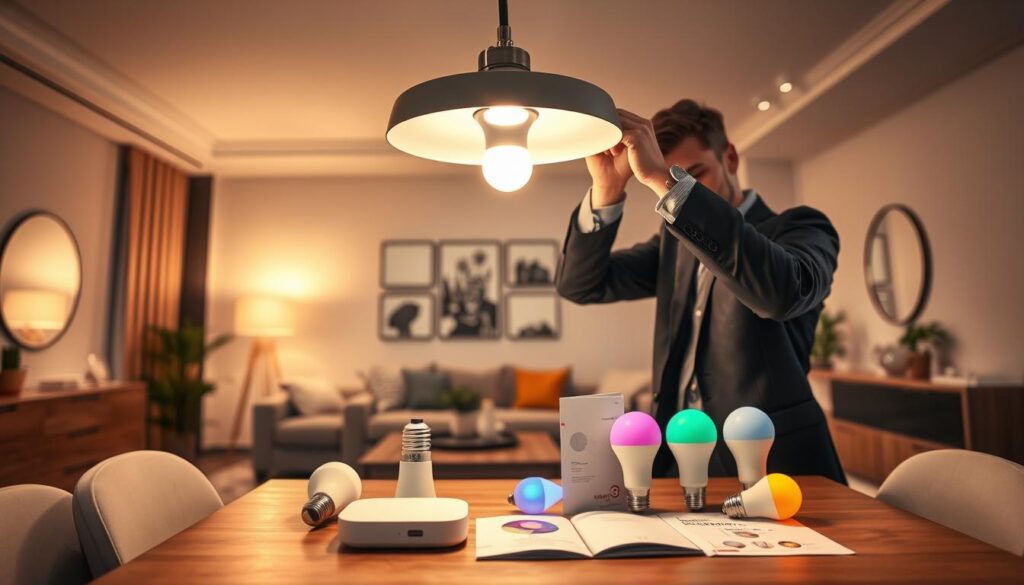
Before swapping switches, check for a neutral wire. Brands like Aqara offer options for both. This makes upgrades easier in older homes. Remember to label switches and save any current settings.
- Inventory lamp types: list plug‑in lamps and hardwired fixtures so you pick smart plugs for lamps and smart switches for ceilings.
- Decide on hubs or bridges: Philips Hue bulbs often need the Hue Bridge, while many Wyze and C by GE products can work via a hub or directly over Wi‑Fi.
- Consider Matter compatibility: plan whether you’ll use an Aqara Hub or a Matter bridge to link multiple brands smoothly in your smart light system setup.
Next, check your Wi‑Fi setup. Smart bulbs usually need 2.4GHz. Make sure your router broadcasts this band. Place the router in a central location for better coverage. Bluetooth bulbs might not reach far without a hub or a Google Nest speaker.
- Download the relevant apps ahead of time: Philips Hue, Wyze, Aqara, C by GE, and create accounts so setup flows smoothly.
- Plan scenes and automations in advance so you know which devices must live on the same hub or bridge.
- Turn off power at the breaker before swapping switches or fixtures. For any wiring beyond simple bulb replacement, hire a licensed electrician.
Remember, the key is to know how to install smart lights. A good plan, the right hubs, and safety will make the process easier and less stressful.
Choosing the Right Smart Lights for Your Needs
First, pick the right product for your needs. Smart bulbs like the Aqara LED Bulb T2 offer adjustable color and Matter/Thread support. They’re great for upgrading rooms easily.
For circuit-level control, consider smart switches like Aqara Smart Wall Switches. You can choose single or double gang models. They work with both neutral and no-neutral wiring.
- Aqara Smart Plug (Thread-enabled) fits lamps and plug‑in devices.
- Aqara LED Ceiling Light T1M works as an integrated fixture for whole-room control.
Think about cost and setup before buying. Wyze Wi‑Fi bulbs are affordable at about $8 each. They’re easy to install for single rooms. C by GE Bluetooth bulbs require a C‑Reach bridge for remote access and are pricier.
Philips Hue bulbs use Zigbee and often need a Hue Bridge. Setup takes a bit longer but offers strong scene control and a wide range of accessories.
Consider the app experience when setting up your smart lights. Some apps are simple and fast. Others, like Philips Hue, offer deep control but require more time to learn.
Check if devices work with your ecosystem and voice assistants. Make sure they support Google Assistant, Amazon Alexa, and Apple HomeKit. Choosing Matter-enabled products futureproofs your setup.
Think about energy efficiency and longevity. LED bulbs save energy and last longer than incandescent bulbs. Smart switches are often more cost-effective for rooms with multiple fixtures.
Use this guide to choose: bulbs for quick installs, switches for circuit control, plugs for lamps, and ceiling lights for room-wide control. Your choice affects the ease of smart bulb installation and app setup.
Gathering Necessary Tools for Installation
Before you start, gather the basics for a smooth install. For simple bulb swaps and most smart plug installation tasks, you only need a stable ladder and your smartphone with the manufacturer’s app. Many Wi‑Fi bulbs and plugs pair via the app without any extra hardware.
If you use hub-based systems like Philips Hue with a Hue Bridge, add an Ethernet cable and an open router port so the bridge can connect to your network. For Bluetooth models, check that your phone supports Bluetooth and that the app is installed before you begin.
Hardwired work calls for more equipment and care. For smart switches and ceiling fixtures, bring a voltage tester, screwdriver set, wire strippers, wire nuts, and electrical tape. Know how to switch off the correct circuit breaker and confirm local code before touching live wiring.
Pay attention to product variations. Aqara switches come in neutral and no‑neutral versions. Confirm which variant you need for your home prior to purchase to avoid returns and extra trips.
Include basic safety gear in your kit. Insulated gloves and protective eyewear protect you while testing and wiring. If wiring looks unfamiliar or local rules require it, hire a licensed electrician to complete the smart light setup tools and switch installations.
Set up your network for best results. Many Wi‑Fi bulbs perform better on a stable 2.4GHz connection, so check router settings and available bandwidth. Keep your smartphone and router close during initial pairing to reduce dropouts.
- For bulbs and plugs: ladder, smartphone, app — minimal smart bulb installation tools required.
- For switches and fixtures: voltage tester, screwdrivers, wire strippers, wire nuts, electrical tape, circuit breaker knowledge.
- For hub systems: Ethernet cable and open router port for bridge connection.
- Safety: insulated gloves, protective eyewear, and a licensed electrician if unsure.
A Detailed Guide to Replacing Standard Bulbs
Replacing bulbs with smart lights is easy. You can just unscrew the old bulb and screw in a smart one. This works with most lamps and fixtures, making it quick to install smart bulbs.
For whole-room control, swap the wall switch for an Aqara Smart Wall Switch. This converts the entire circuit. So, every bulb on that switch becomes smart without changing each socket.
Use an Aqara Smart Plug for plug-in lamps. It turns any lamp into a controllable device without rewiring. For a full fixture upgrade, consider the Aqara LED Ceiling Light T1M. It modernizes a room with integrated smart lighting.
Follow specific pairing steps for different protocols. This ensures a smooth setup. Below are common pair sequences.
- Wi‑Fi (Wyze): download the Wyze app, create an account, confirm your 2.4GHz Wi‑Fi, screw in the bulb, power cycle three times to enter pairing mode, enter Wi‑Fi credentials in the app, then connect and name the bulb.
- Bluetooth (C by GE): install the C by GE app, screw in the bulb and wait for its blink pattern, add device in the app. For remote access, buy a C‑Reach bridge or use a Google Nest hub as a bridge.
- Zigbee (Philips Hue): download the Philips Hue app, connect a Hue Bridge to your router, screw in the bulb and search for new lights in the app, press the bridge button when prompted to pair.
Practice safety when installing smart lights. Turn off power at the switch or breaker before replacing hardwired fixtures or switches. Read manufacturer instructions for your brand and model. Test each bulb after installation to confirm proper function.
Create groups and name rooms in the app right after pairing. Grouping makes daily control easier and speeds up automations like bedtime scenes or motion-triggered hall lights.
- Begin with a single bulb to learn the pairing steps before you replace bulbs with smart lights throughout your home.
- Try a real-life routine: program an Aqara T2 to dim over ten minutes for bedtime and set motion sensors to trigger hallway lights for night walks.
- Keep spare bulbs and the app credentials handy in case you need to re-pair or move devices later.
Smart bulb installation is straightforward when you match the device type to your needs. Pick the method that suits your fixture, follow pairing steps, and prioritize safety for a fast, reliable upgrade.
Connecting Smart Lights to Wi-Fi
You can connect smart lights using the app that matches your brand or a hub. First, pick the device type in the app—bulb, switch, or plug. Then, install or wire the device as the manufacturer instructs.
Download the Aqara app or the app recommended by your light maker. Open it and choose Add Device. Many apps will ask you to scan a QR code or put the device into pairing mode.
For a typical smart light Wi‑Fi setup, make sure your phone is on the 2.4 GHz network. Screw in the bulb, toggle the wall switch three times if the brand suggests that, and follow prompts in the app. You will be asked for your Wi‑Fi name and password.
The app may join the bulb’s temporary network to pass credentials. Allow the app that connection when prompted.
Some systems use a hub such as the Aqara Hub or a Matter/Thread bridge. This improves reliability and enables cross-brand control. If a hub is required, add the hub in the app first, then connect your lights.
Using Thread or Zigbee can let lights work locally without cloud access. This reduces latency and keeps routines running if the internet goes down.
Check router settings if pairing fails. Guest network isolation can block device pairing, and network security features may prevent devices from communicating. Place your router centrally or use a mesh system or extender for rooms far from the router.
Consider a separate SSID for IoT devices if you want network separation.
When you setup smart light app accounts, keep credentials handy and enable any firmware updates the app suggests. If a device struggles to pair, restart the router, reboot the bulb or switch, and try the pairing steps again.
If you cannot connect, consult the app’s troubleshooting tips or the manufacturer’s support for the specific model you own.
Integrating Smart Lights with Your Smart Home Ecosystem
First, figure out how you want your devices to work together. Choose products like Aqara, Philips Hue with a Hue Bridge, or Wi‑Fi bulbs from Wyze or Lifx. These are easier to connect because they support Matter.
Matter lets different brands work together. This means you can control lights, sensors, and switches in one place.
Some devices need a hub or bridge to connect. Philips Hue needs a Hue Bridge to join your Wi‑Fi network. C by GE Bluetooth bulbs need a C‑Reach Bridge or a Google Nest hub for remote control. Wyze and Lifx bulbs often connect directly to voice assistants after setup.
Link your manufacturer apps to your voice platform for voice control. Download the app, grant permissions, and then link it to Alexa, Google Home, or Apple Home. This lets you manage your smart home lighting from one place.
- Use Aqara motion sensors to trigger Aqara switches for hands-free lighting.
- Create arrival automations with door sensors to turn lights on when you enter.
- Set voice routines such as “Alexa, good morning” to run multiple lights and scenes.
Keep device names consistent across apps. Clear names help you group devices and avoid conflicts. A tidy setup saves time when adjusting automations later.
- Install the vendor app and complete the setup smart light app steps.
- Connect the device to your hub or Wi‑Fi, or enable Matter pairing when available.
- Link the vendor account to your preferred voice assistant and create rooms or scenes.
Test automations in small batches. Start with simple triggers like motion or wake-up scenes. Add more routines once everything works well with presence sensors, switches, and voice commands.
For better control, choose Matter-compatible gear and keep firmware up to date. Regular updates and a clear app setup ensure your smart lights work well with your smart home.
Customizing Your Smart Lighting Experience
You can make your smart lights fit your daily life and special moments. Use the Aqara app to connect sensors, switches, and bulbs. This way, you can set up routines like a porch light that turns on at sunset or hallway lights that turn on when you move.
Set up wake and sleep routines to mimic a sunrise for a gentle start. Create a single-button scene to turn off all lights when you leave. These automations make using smart lights easy.
Different brands offer unique tools for customization. Philips Hue is great for dimming, grouping, and creating scenes for different moods. Wyze is simple with on-off schedules. C by GE supports basic scheduling and works best with a hub for more advanced settings.
Start with a few scene presets and then fine-tune them. Try a reading scene at 300 lux, a dinner scene with warm tones, and a morning routine that gradually increases brightness. This helps you learn how to customize your smart lights to fit your lifestyle.
Voice assistants and apps work together for flexible control. Use voice commands to start scenes when your hands are full. Schedule automations by time, sunrise/sunset, motion, or presence to make your smart light system easier to use.
Test each automation and adjust the trigger conditions for reliability. Add short delay timers to avoid flicker from brief motion. Also, set brightness thresholds so lights only turn on when it’s dark. Small changes lead to consistent behavior you can rely on.
- Use Aqara routines for sensor-driven actions and single-button scenes.
- Leverage Philips Hue for advanced scene building and smooth dimming.
- Apply Wyze or C by GE for simple schedules and basic automation.
Keep tweaking until your smart light setup fits your daily life and special moments. A well-thought-out smart light system saves time, improves comfort, and makes your home more responsive to your needs.
Troubleshooting Common Smart Lighting Issues
When you face smart light setup issues, start with simple checks. Power-cycle the bulb, switch, router, and hub. Close and reopen the app on your phone and try pairing again.
If you use Zigbee or Thread bulbs with a hub, local automations may keep running without internet. Check the hub’s Ethernet connection, confirm the hub firmware is current, and verify the hub app shows the devices online. For Aqara hubs, update firmware in the Aqara Home app and ensure the hub stays connected to your router.
Wi‑Fi bulbs often fail when your phone is on the wrong band. Make sure your phone is on 2.4GHz during setup. Check router settings for AP isolation and disable it. Restart the router and the bulb, then re-enter Wi‑Fi credentials if pairing fails.
Bluetooth bulbs need short range during pairing. Move your phone closer to the bulb and retry. If you want remote access, add a hub like a Google Nest device or a compatible bridge that supports Bluetooth-to-cloud connectivity.
- For Zigbee bulbs: confirm the Hue Bridge or other bridge is plugged into Ethernet. Press the bridge button when pairing. Restart the bridge if new devices do not appear.
- For Wi‑Fi bulbs: verify SSID and password, disable guest network limits, and reboot router and bulbs.
- For Bluetooth bulbs: reduce distance and remove interference from other devices during setup.
To connect smart lights problems involving range, relocate the hub or add a repeater. Place the hub centrally and keep metal objects away from radio paths. Confirm the device stays within the hub or router range.
General fixes help most scenarios. Update app and bulb firmware, remove and re-add the device in the app, restart your phone, and confirm the bulb is on a supported platform like Philips Hue, LIFX, or Sengled. If wiring looks faulty, shut off the breaker and contact a licensed electrician before proceeding.
If issues persist, document error messages and consult manufacturer support for step-by-step diagnostics. This approach reduces downtime and makes troubleshooting smart lighting faster and less stressful.
Exploring Advanced Features of Smart Lights
Advanced smart lights offer more than just turning on and off. They use Thread and Matter for cross-brand automations. Motion and door sensors can start scenes. Aqara ceiling lights have high color quality and mood settings for different activities.
Brands like Philips Hue, LIFX, and Wyze take app control further. Philips Hue supports complex scenes and routines. LIFX and Wyze offer deep color customization and flexible schedules. Bluetooth systems can expand with a bridge for more features.
Automation helps save energy. You can set lights to turn off when no one is in the room. Schedules can be set for sunrise and sunset or to dim during busy times. These features make smart lights good for saving money and comfort.
Connect lights to other devices for better routines. Link lights with Nest or ecobee thermostats for temperature signals. Connect lights to Arlo or Ring cameras for motion detection. Use Google Assistant, Amazon Alexa, or Apple HomeKit for voice control and combining actions from different brands.
- Cross-brand automations: use Thread and Matter to run devices from different manufacturers together.
- Sensor triggers: motion and door sensors activate scenes and improve security response.
- App-driven routines: create dynamic lighting flows and large group controls with Philips Hue, LIFX, or Wyze.
- Energy automations: occupancy-based shutoffs and scheduled dimming cut waste.
- Integrated scenes: link lights with thermostats, cameras, and voice assistants for unified actions.
When setting up your smart light system, think about the advanced features you need. Plan how these lights will work with your devices. A good plan helps save energy, improve security, and make daily life better.
Maintaining Your Smart Lighting System
Keeping your smart lights in top shape is easy with a simple routine. Begin by updating your devices through their apps. For instance, use the Aqara app for Aqara devices and the Aqara Hub or a Matter bridge for updates.
Regularly check your lights’ connection. Make sure Wi-Fi or hub links are strong. Also, watch for app notifications about firmware updates. If Bluetooth bulbs stop working, check your hub or bridge first.
- Do a visual check on bulbs and hubs every month.
- Watch for dimming, flicker, or slow responses.
- Have spare parts like bulbs and plugs ready for quick swaps.
Know when it’s time to replace your smart bulbs. LED bulbs last a long time, but replace them if they start to flicker or dim. Replacing a bulb quickly keeps your home lit and your automations working right.
Expand your system slowly to avoid compatibility issues. Start with a few bulbs and a hub, test them, then add more. This method helps avoid device conflicts and makes maintenance easier.
- Check your automations and scenes every quarter.
- Test your backups and hub power sources twice a year.
- Reach out to support if problems last after basic fixes.
Regular care makes keeping your smart lights simple. Small checks and timely bulb replacements keep your home bright and ready for the future.
Embracing Energy Efficiency with Smart Lighting
Switching to smart bulbs from brands like Aqara, Wyze, Lifx, or Philips Hue cuts power use sharply. LED technology in these devices uses much less energy than incandescent bulbs. Replacing one incandescent with an LED can save tens of dollars a year.
Scheduling features prevent wasted runtime, boosting savings. Use schedules, motion sensors, and sunset-to-sunrise rules to save more. Aqara sensors and Thread-enabled plugs reduce lag and improve reliability.
Choose Matter-enabled and Thread-capable devices for better interoperability. Centralize control in your setup smart light app. Create low-brightness scenes for daily use and monitor usage patterns.