
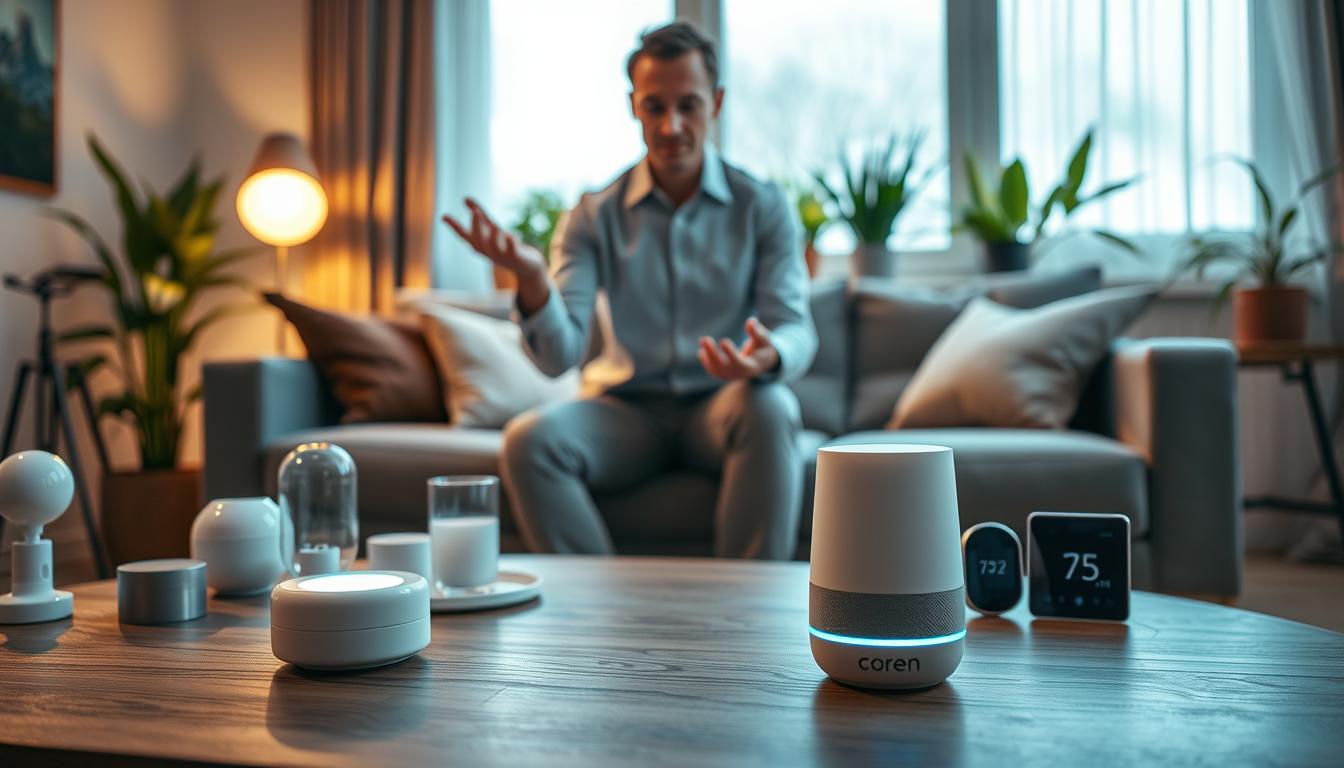
Turn your living room into a smart space with voice commands. Say “Turn on the lights and play some relaxing music.” You can control lights, curtains, temperature, security, and entertainment easily.
Voice control makes your home look better and cleaner. You can hide devices in cabinets or walls. This keeps your space looking modern and clutter-free.
Begin with simple devices like smart bulbs and plugs. Then, add fans or smart switches. Expand to curtains, doorbells, and appliances as you get more comfortable.
Using voice commands brings many benefits. You’ll enjoy more convenience, save energy, and have a cleaner home. It’s perfect for any home, big or small.
This guide will teach you about virtual assistants and smart speakers. You’ll learn how to set them up, customize them, and keep your home safe. Discover how to use voice commands to control your home fully.
What is a Voice Assistant?
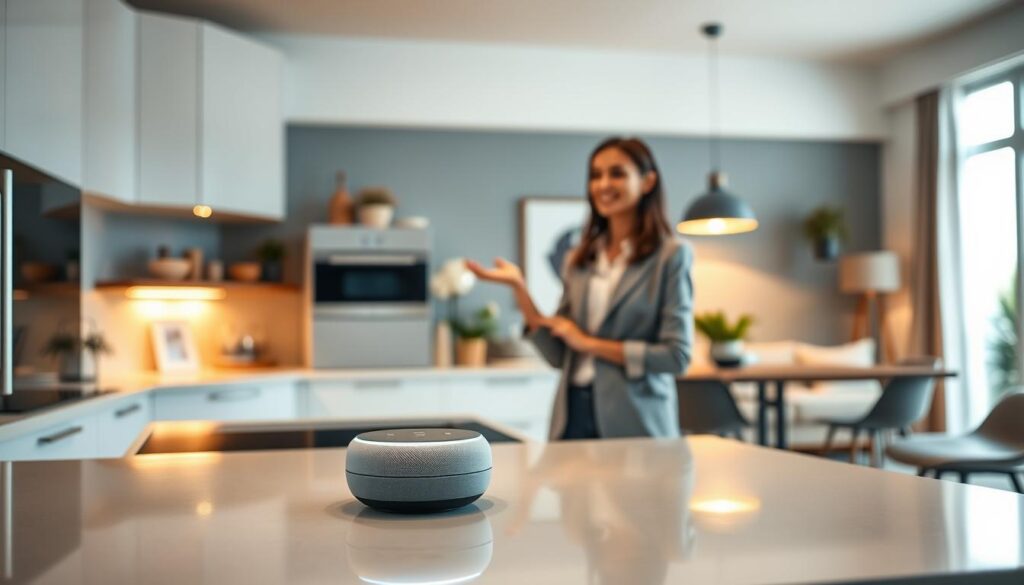
A voice assistant is software that listens to your natural speech and carries out tasks for you. Examples include Google Assistant, Amazon Alexa, Apple Siri, and Home Assistant Assist. These tools interpret spoken requests to answer questions, control devices, set timers, and run routines.
Core components make the system work. Wake-word detection or always-listening microphones catch your prompt. Natural language processing (NLP) turns your words into intent. Voice recognition or voice match personalizes responses for each household member. Integrations connect the assistant to music services, calendars, and smart home hubs.
You should know about processing options. Local processing keeps audio on-device for better privacy and lower latency. Cloud-based processing offers broader capabilities and access to large language models. Home Assistant Assist can run locally or through Home Assistant Cloud and can leverage LLMs when needed.
Voice assistants run on many devices. You will find them in smart speakers, smart displays, phones, tablets, and custom builds like ESPHome projects or Home Assistant Voice Preview Edition hardware. Each device type affects responsiveness and available features.
These tools matter because they simplify daily life. Hands-free control helps you manage scattered gadgets from a single point. Voice command functionality improves accessibility for people with mobility or vision challenges. You gain productivity benefits from reminders, dictation, and quick timers.
- Voice assistant basics: how they listen, process, and act.
- Virtual assistant technology: integrations that expand usefulness.
- Artificial intelligence assistants: personalization through voice match.
- Voice command functionality: real-world tasks you can automate.
Popular Voice Assistants in the Market
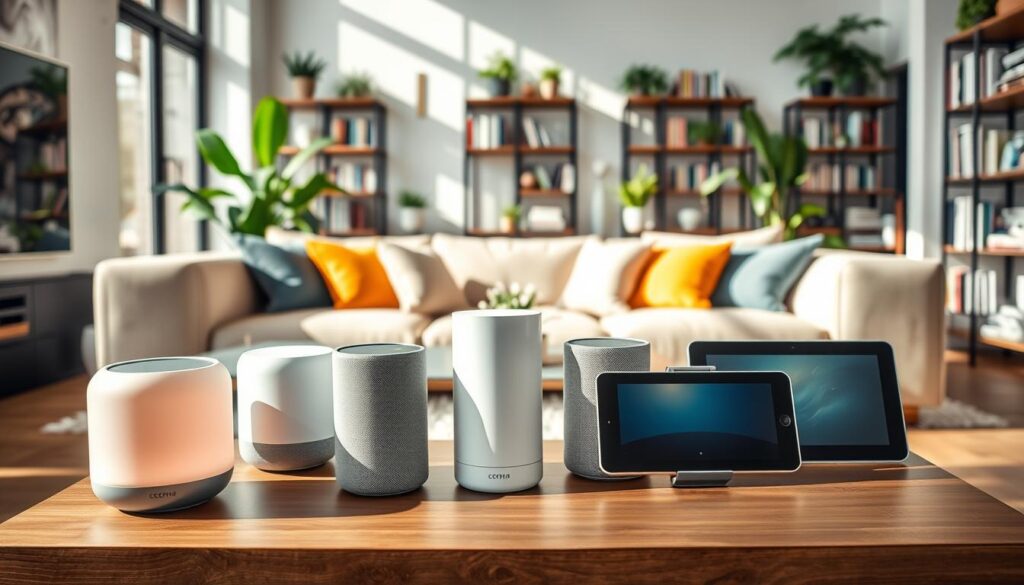
When you start with Voice assistant basics, you have many choices. Each one works with different smart speaker devices and systems. Choose what fits your habits and devices best.
Amazon Alexa is found in Echo smart speakers and many third-party skills. It’s great for smart home integrations and device compatibility. This means you can easily connect lights, locks, and routines.
Google Assistant is on Google Nest speakers and displays, and many Android phones. It’s good at search queries and understanding natural language. This makes talking to it feel more natural.
Apple Siri is inside HomePod speakers, iPhones, and iPads. It’s known for its tight integration with iOS, iCloud, and Apple services. This is helpful if you use Apple devices and HomeKit accessories.
Home Assistant Assist is for those who value privacy. It runs on local hardware and supports DIY projects. It also works with ESPHome remotes and community-driven extensions for custom automations.
- Hardware options: Echo, Nest, HomePod, smart displays, phones, tablets, and DIY units for advanced setups.
- Language coverage: Google Assistant and Alexa have broad regional support; Home Assistant Assist is expanding via community contributions.
- Local vs cloud: Home Assistant Assist favors local processing; major commercial assistants rely more on cloud services.
To make things easier, pick one main voice ecosystem. Link your accounts and devices to it. Staying with one platform keeps your routines smooth and avoids problems with controlling things like lighting, media, and security with your voice.
Setting Up Your Voice Assistant
First, set clear goals for your voice assistant. Think about where and how you’ll use it, and what tasks are most important. This helps narrow down your choices when picking devices and where to place them.
Next, pick a primary ecosystem based on what you need. Look at Google Assistant, Amazon Alexa, and Apple Siri. See which one fits your needs best for voice control and automation.
- Plan where to put your devices for the best sound.
- Avoid corners and enclosed spots that block sound.
- Keep background noise low from fans and traffic.
- Put devices in key areas like living rooms and kitchens.
- Test how well they pick up your voice from different spots.
Then, set up your wake words and privacy settings. Choose a unique wake word and adjust language and region. Decide if you want always-listening on or off. Also, set the volume and voice feedback so it’s clear but not too loud.
Train voice profiles for better results. Use voice match or voice profiles and record phrases in a quiet room. Make sure each person in your household has their own profile for better personalization.
Link your accounts to get the most out of your voice assistant. Connect your email, calendar, music, and smart home devices. Be careful with permissions to keep your data safe.
- For Home Assistant setup, use the app or Home Assistant Voice Preview Edition for easier trials.
- Choose between local processing or Home Assistant Cloud based on your privacy and speed needs.
- Use ESPHome for custom devices if you need specific sensors or switches.
After setting up, test it out. Ask about the weather, set a timer, and control a light. These tests help you see how well it works and if you need to make any adjustments.
Basic Voice Commands to Start With
Start with a simple command formula: wake word + action + object + location/time (optional). This makes Voice assistant basics easier to remember. It also helps your smart speaker devices respond more reliably.
Try straightforward examples: “Hey Google, turn on the lights in the living room,” “Alexa, set a 15-minute timer for pasta,” “Hey Siri, play relaxing music in the bedroom,” and “Alexa, add an event to my calendar for Friday at 3 p.m.” These simple voice commands cover lighting, timers, music, and calendar tasks.
Keep naming consistent. Use the same room and device names in your smart home app and when speaking to the assistant. Call rooms “office,” “kitchen,” or “bedroom” instead of creative nicknames. This keeps voice-first control accurate.
Use this starter list for common categories to build your daily routine:
- Lighting: turn on/off lights, adjust brightness, change color temperature, activate mood scenes like “Movie night mode.”
- Climate: set thermostat temperature, turn fans on or off, enable energy-saving modes.
- Curtains and shades: open or close with wake phrases such as “Good morning.”
- Entertainment: play music, control TV power and inputs, adjust volume.
- Timers and reminders: set timers for cooking, create reminders, add calendar events with time and date.
Write down a handful of daily-use prompts and practice them. Repeating a few natural phrases helps you tune how your assistant interprets voice-first control. It also improves overall voice command functionality.
As you get comfortable, expand from simple voice commands to short routines. Combine lighting, climate, and entertainment for smoother mornings and relaxed evenings.
Customizing Your Voice Assistant Experience
Begin with the basics of voice assistants to avoid feeling overwhelmed. Start with a few key routines, like saying “Good morning” to control your blinds, check the weather, and start brewing coffee. Test each step to ensure it works as planned.
Make your routines easy to remember and logical. Use short, simple commands for custom voice commands. Organize actions by context, like “Leaving home” or “Movie time.” This way, everyone can easily remember what to say.
Create voice profiles for personalized experiences. Your assistant can show your calendar, messages, and playlists. Train profiles in quiet places and have each family member set up their own account. This improves recognition on devices like Amazon Echo or Google Nest.
Give clear names to rooms and group devices by function. For example, saying “Turn off the lights in the kitchen” will work for all kitchen devices at once. This makes automation smoother and reduces mistakes.
Explore advanced personalization for more engaging interactions. You can create custom responses and AI personalities with tools like Home Assistant Assist. This makes your assistant’s replies more helpful or friendly, depending on the time.
- Conditional automations that use time, motion sensors, or door contacts to trigger actions.
- Custom shortcuts that map a short phrase to a complex sequence, saving time and keystrokes.
- Integrations with web services to run workflows across apps and devices.
Follow these tips for designing routines: choose memorable triggers, order actions logically, and test each step. Keep routines simple; long, complex routines can break if a device fails.
- Start small: build one useful routine and refine it over a week.
- Expand gradually: add more custom voice commands as you learn what works.
- Document names and groups so everyone in your home uses the same terms.
Use virtual assistant technology to link scenes across platforms and unlock time-saving automations. With regular updates, your setup will evolve from basic to a personalized system that fits your life.
Integrating Smart Home Devices
First, list the devices you want to add. This includes smart bulbs, plugs, switches, thermostats, locks, doorbells, curtains, sound systems, TVs, and sensors. Each device helps make your life easier.
Make a checklist when adding devices. Check if they work with your smart speaker and ecosystem. Set up each device in a room or group. Test it from the app and voice assistant to find any problems.
Adding devices makes your home better. You can hide wiring and remotes, and make your home look neat. Routines let you control many devices at once, making your home simpler.
To keep your network running smoothly, follow some tips. Change default passwords, update software, and use a separate network for IoT devices. These steps keep your home safe and efficient.
Try out some useful routines. For example, a “Movie night” routine can dim lights, close blinds, and set your TV. A “Leaving home” routine can turn off lights, lower the thermostat, and lock doors with one command.
- Assign rooms and groups for faster voice command functionality and clearer responses.
- Label devices with simple names so your voice assistant basics respond reliably.
- Test commands in short phrases to find what works best with your assistant.
If you like DIY, look into ESPHome or Home Assistant Voice Preview Edition. You can also use Assist on Android or make custom devices for about $13. This lets you control your home in new ways.
Start simple with your integrations and add more later. Build routines step by step and test each one. This way, you learn how to use voice commands and keep your smart home running smoothly.
Troubleshooting Common Issues
When your assistant doesn’t respond, start by checking the power and network. Make sure the microphone isn’t muted. Press any activation button on devices like Amazon Echo or Google Nest.
Restart the device and your router if the problem continues. This often solves the issue.
If your assistant mishears commands, speak clearly and at a natural pace. Try to reduce background noise from TVs or kitchen appliances. Make sure device and room names are simple and easy to recognize.
Retrain voice recognition in the companion app when available. This can help improve accuracy.
- Move smart speakers farther apart when the wrong device responds.
- Disable assistants on seldom-used devices to avoid accidental triggers.
- Change wake words if your model supports alternate options.
For smart home commands that fail, check if the device shows online in its vendor app. Verify room and group assignments are correct. Relink integrations such as Philips Hue, Ring, or Samsung SmartThings when controls stop working.
Test device control directly through its companion app. This helps isolate the issue from voice command functionality.
Plan device placement to improve reliability. Avoid placing several smart speakers in tiny rooms. Run pickup tests from the spots where you typically use voice control.
These steps reduce false triggers and make troubleshooting easier.
- Test new devices immediately after setup.
- Assign each device to a specific room in your smart home app.
- Keep a short checklist to restore settings quickly after updates or resets.
For extra help, consult the companion apps and manufacturer help pages from Amazon, Google, Sonos, or Nest. Use Home Assistant documentation for Assist-specific guidance and advanced integrations. Referencing these resources speeds repair and improves your understanding of Voice assistant basics.
Keep a habit of periodic checks for firmware updates and network health. Regular maintenance preserves voice command functionality and cuts down on recurring voice recognition issues.
Enhancing Security with Voice Assistants
First, learn the basics of voice assistants to secure your setup. Check the settings for recording and storage on devices from Amazon, Google, or Apple. Regularly review, delete, or limit stored voice recordings to avoid cloud clutter.
Use the mute button for quick silence. Disable unused features like in-app payments or voice calls. Limit third-party skills and integrations to trusted sources to enhance security.
Secure your accounts with strong, unique passwords and enable two-factor authentication for Amazon Alexa, Google Assistant, or Siri. Update passwords on smart bulbs, cameras, and routers. Also, keep firmware and app updates current to fix vulnerabilities.
Set smart devices on a separate guest or IoT network. This isolates them from other devices, improving security. It keeps laptops and phones safe from less secure gadgets.
- Run a quarterly privacy audit: check routines, permissions, linked accounts, and the device list.
- Remove unused skills and revoke access for outdated apps.
- Review connected services, like Nest or Philips Hue, to confirm only needed permissions are active.
Choose defaults wisely to balance convenience and privacy. Prefer local processing, like Home Assistant on a local hub. This reduces cloud exposure and boosts privacy without losing voice features.
Remember voice command privacy daily. Teach family members safe command habits and avoid sharing sensitive info aloud. Regular maintenance and strict permissions will strengthen your virtual assistant and smart home security over time.
Voice Assistants and Accessibility
Voice assistants make homes easier for people with mobility, vision, or dexterity issues. They let you control things without needing a phone or remote.
Accessibility voice control means you can navigate hands-free. It includes screen readers and text-to-speech. Use voice commands for phone and computer tasks, like dictation and typing, to avoid repetitive actions.
Setting up devices is key. Place them where you can easily speak to them. Turn on assistive features on your iPhone, Android, Amazon Echo, or Google Nest. Create routines for lights, temperature, and reminders with just one command.
For those with partial hearing, choose devices with displays or light rings. Use short chimes or brief visual cues instead of long spoken answers to avoid overwhelming them.
- Train caregivers and family on core commands and simple troubleshooting.
- Document a few go-to phrases for alarms, calls, and emergency contacts.
- Keep device firmware and apps updated for the best virtual assistant technology support.
Some platforms offer wide language support and specialized assistive features. Home Assistant, for example, lets users improve language support and custom sentences. This can expand accessibility options.
Begin with simple voice command routines for daily needs. Test them with the user and tweak the phrasing for clarity. Small successes build confidence and make voice assistants a vital tool for accessibility.
Exploring Advanced Features
Once you get the hang of basic voice commands, it’s time to dive deeper. Start with conditional automations that work based on time, location, or sensor data. For instance, lights can dim when no one is moving, or blinds can close when it’s sunny.
Custom automations let you link short phrases to complex tasks. Imagine a shortcut that starts your day by turning on the kettle, checking your calendar, and playing a Spotify playlist. Test each part separately to fix any issues fast.
Link your virtual assistant to web services for managing projects and logging data. With a single command, you can create a Trello card, log time, and send a Slack message. Focus on a few key automations that you use often, not dozens of rare ones.
LLM integrations make your assistant smarter. Many platforms now use large language models for better conversations. Home Assistant Assist supports these models and can run on your device, giving you control over how your data is processed.
Discover voice-controlled workflows for tasks you do every week, like reports or publishing. Use rules so actions only happen when conditions are met, like publishing only if a file checks out.
Custom hardware can lead to creative solutions. Use ESPHome to make small voice remotes or 3D-printed controllers. Android phones can even detect wake words, making a low-cost interface. You can even create an analog assistant that only listens when you lift the phone.
- Document custom commands and automations so others in your home can use them.
- Test automations incrementally and log results for easy troubleshooting.
- Focus on a handful of powerful routines, not many niche ones.
As you explore advanced voice assistant features, remember to keep things user-friendly and private. Make sure your powerful integrations are well-documented and tested. This way, you’ll have a system you can rely on every day.
The Future of Voice Assistance Technology
Expect big changes in voice assistants as they learn more languages and dialects. They will process information locally, keeping your data safe and responses quick. This will make your virtual assistant feel more like a personal friend.
Large language models will make conversations smoother and more natural. Your virtual assistant will predict what you need before you ask. It will adjust to your daily routine, location, and past actions to save you time.
Design and technology will blend together. Smart speakers will blend into your home, like furniture or light fixtures. They will have hidden microphones and speakers, keeping your home stylish and functional.
Open platforms like Home Assistant will give you more choices. You can create your own hardware, run local models, and customize your assistant. This will make advanced voice features more accessible to everyone.
- Improved voice recognition for accents and varied speech patterns
- Multimodal feedback combining voice with visual cues
- Context-aware automations that learn routines
Accessibility will get better with personalized profiles and adaptive feedback. Artificial intelligence assistants will support users with hearing or vision differences. They will use voice and on-screen prompts for better support.
Think of your setup as a living system. Regular updates and small experiments will unlock new features. By staying curious and hands-on, you’ll get the most out of your smart speaker and voice-first home control.
Tips for a Smooth Voice Assistant Experience
Start with clear goals and keep your setup simple. Choose your top three priorities, like lighting, music, and security. Focus on these to begin.
Picking one primary ecosystem, like Amazon Alexa, Google Assistant, or Apple Siri, helps. It avoids confusion and makes routines easier. This foundation covers voice assistant basics and sets you up to use voice command functionality reliably.
Place devices for best microphone coverage: avoid corners, busy kitchens, and rooms with constant background noise. Configure wake words, language, and voice profiles early so each household member is recognized. Name rooms and devices consistently and assign new gear to rooms or groups as you install it. These smart speaker devices tips reduce misheard commands and wrong-device responses.
Create a few high-impact routines first—Good morning, Movie time, Leaving home—and expand slowly. Secure accounts by changing default passwords and enabling two-factor authentication. Review recording and storage settings and run quarterly checks for firmware and app updates. These virtual assistant technology best practices will keep daily reliability high and protect privacy.
Keep a short troubleshooting checklist: check power and network, confirm the microphone isn’t muted, rephrase misheard commands, and verify the correct device is targeted. Try DIY options like ESPHome remotes or Home Assistant Assist only after core setup is stable. Practice core commands, document custom automations, and adapt the system as your household needs change to maintain smooth, long-term performance.