This guide teaches you a useful vocal command list for home safety. You’ll learn voice control phrases that work with Amazon Alexa, Google Assistant, and Apple Siri. These commands make your home safer and more comfortable.
Voice commands are great because they save you from fumbling with small screens. They let you call for help, turn on lights, and check locks easily. This makes your daily life safer and more independent.
Alexa and Google Assistant work well with many smart-home devices. Siri is perfect for iPhone and HomePod users. You’ll see how voice commands differ from automation, which runs on a schedule or trigger.
For instance, ADT’s Pulse/Control works with Alexa and Google Assistant. You can arm security modes, control lights, locks, thermostat, and garage door by voice. This shows how voice commands fit into a bigger home safety system.
As you continue reading, you’ll find practical voice command lists for safety, health, communication, entertainment, customization, and troubleshooting. We aim to give you short, easy-to-use commands to try today. They’ll make your home safer.
Introduction to Voice Command Technology
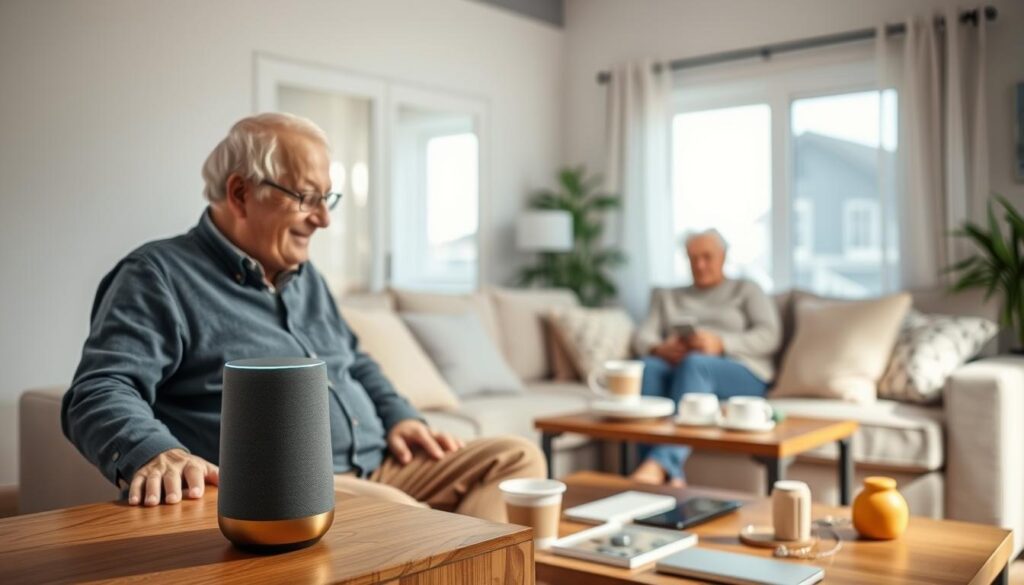
Voice assistants like Amazon Alexa, Google Assistant, and Apple Siri make life easier. You can call, message, set reminders, check the weather, control smart devices, and play music without touching anything. These features simplify daily tasks for seniors.
These systems use always-listening microphones and a mix of local and cloud processing. Local processing handles quick tasks and keeps things private. Cloud processing handles complex tasks like understanding natural language and large knowledge queries.
Accessibility features are built into these assistants. Text-to-speech helps those with low vision. Voice control is great for those with limited dexterity. Adjustable audio, captions, and clear repeated prompts support hearing and cognitive needs.
It’s important to know the difference between voice control and automation. Voice control means you give a command, like “Alexa, turn on the porch light.” Automation works without speaking, like lights turning on at sunset. You can mix both by teaching Alexa to start an ADT “Away” routine with a single phrase.
Where you place devices matters for safety and usefulness. Put one in the bedroom, living room, kitchen, and a bathroom area outside the shower. A bedroom device can call for help at night. A kitchen unit can control lights and appliances to prevent accidents. Spread them out so your voice commands work from common areas.
Remember to check privacy and security settings. Review recorded interactions in the Alexa, Google, or Apple apps and delete unwanted items. Disable unnecessary features and use a strong password with two-factor authentication. These steps help protect your data when using voice commands.
To start, make simple voice command lists and a spoken command list for your home. Keep phrases short and consistent. Repeating clear commands makes the system easier to learn and more reliable for everyday safety and convenience.
Key Voice Commands for Smart Home Devices
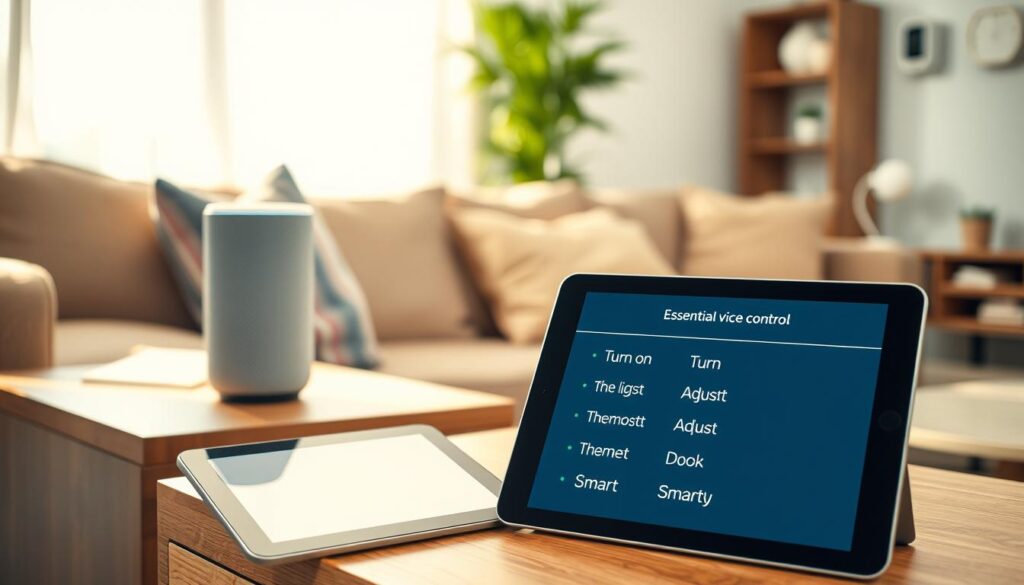
Start with simple voice control phrases for everyday tasks. Try saying, “Alexa, turn on the bedroom light,” or “Hey Google, turn on the kitchen lights.” These commands are easy to remember.
Use clear, consistent names for devices and groups. Google Assistant organizes devices by room names. Alexa learns device names from the app or ADT integration. Choose simple labels like “bedroom light” or “kitchen thermostat” to avoid mistakes.
Common thermostat lines work well for temperature control. Say, “Alexa, set the kitchen temperature to 75 degrees,” or “Hey Google, turn the heat up by two degrees.” These commands keep your home comfortable without needing to get up.
For garage access, use integrated commands once you add a smart garage controller. A routine example is “OK Google, close the garage door.” This command can be part of your vocal command list for safety checks from bed.
Linking ADT with a smart speaker expands what you can say. After enabling the ADT skill in Alexa, you might say, “Alexa, arm ADT in away mode.” This command can trigger locks, cameras, lights, and sensors when set up correctly.
- Discovery and setup: connect devices to Wi‑Fi and run app discovery with phrases like “Alexa, discover my devices.”
- Rename and group: place items into rooms and give them simple names for easier voice assistant commands.
- Enable skills: turn on ADT or other skills in the Alexa app to add security voice control phrases to your routines.
These steps make a practical vocal command list for seniors. Use voice control phrases to avoid trips in the dark, to adjust temperature without stairs, and to close or check the garage from the bedroom. Small habits like naming and grouping devices pay off in reliability.
Emergency Voice Commands
You can set up clear voice command examples that call for help fast. Try phrases like “Alexa, call my daughter” or “Hey Google, call Mary” after you preload contacts with plain names. Use a spoken command list when you test each entry so the assistant recognizes the label every time.
Program routines or shortcuts that trigger emergency numbers or a caregiver contact with one phrase. For ADT integration, test commands such as “Alexa, is ADT armed?” and “Alexa, disarm ADT” only when you know the consequences. On Google Assistant, use commands like “Hey Google, arm the security system Away” after confirming your system supports that spoken command list.
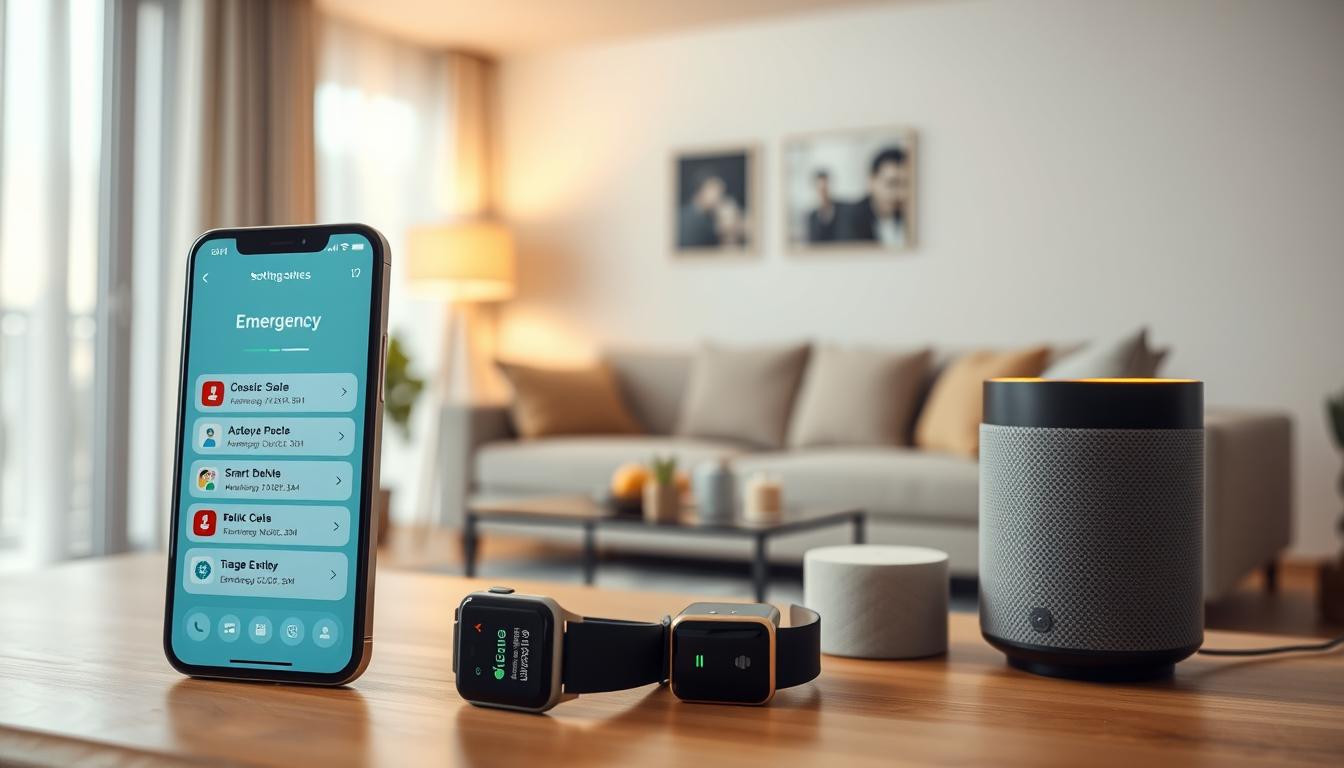
Voice-activated emergency assistance helps when mobility is limited. You can summon help without reaching a phone and share location if you enable that feature. Pair voice recognition commands with monitored fall-detection devices and bedside alert buttons to create redundancy in case one system fails.
Follow a clear setup process. Pre-load emergency contacts with simple names like “Daughter Mary.” Run voice dialing tests and adjust labels until recognition is reliable. Link routines or skills to the right services so a single phrase launches the intended response.
Protect against false activations by adding confirmation steps or a second phrase when the platform allows it. Use PIN confirmation for critical routines and restrict who can enable or edit emergency shortcuts in shared household accounts.
Document a short spoken command list for family and caregivers. Include primary phrases, alternate commands, and testing notes. Regular drills help you verify that voice recognition commands work under stress and that everyone knows how to trigger help.
- Call a contact: “Alexa, call my daughter”
- Call a number: “Hey Google, call 911” where supported
- Security check: “Alexa, is ADT armed?”
- Arm system: “Hey Google, arm the security system Away”
- Custom routine: “Siri, I need help” if a shortcut is configured
Personal Assistance Commands
Learn a few voice commands for everyday tasks. Use simple phrases like “What time is it?” and “What’s the date today?” This way, you can check the time without touching a screen.
Set reminders with clear phrases. Try saying “Remind me to take my medicine at 8 p.m.” or “Set a daily reminder for my pills at 9 a.m.” Use the same words each time so the assistant knows what you mean.
Use basic alarm and timer commands often. Say “Set a timer for 10 minutes” or “Wake me up at 7 a.m.” Practice these commands until they feel natural.
Manage appointments with short requests. Ask “What is on my calendar today?” or say “Add dentist appointment for Monday at 2 p.m.” These commands make scheduling easy and accurate.
- Program recurring reminders for meds and routines.
- Adjust speaking speed and voice feedback volume to match hearing needs.
- Practice a few core phrases before adding complex commands.
Set up these features step by step. Open the device app, create an account, then add reminders and calendar events. Enable speaker feedback and test reminders aloud.
Using voice command lists helps with memory and taking medication. Seniors miss fewer doses and use fewer paper lists with clear reminders.
Family caregivers can help by setting up accounts and keeping login info safe. Use remote management features from Google Assistant, Amazon Alexa, or Apple Siri to add or adjust reminders for someone you care for.
Know the limits of offline versus cloud features. Some reminders and calls need internet access. Check if a device supports basic local functions offline before relying on it for emergencies.
Start with the few phrases you use most. Repetition builds confidence and makes voice assistant commands part of your daily routine.
Health and Wellness Commands
Setting reminders for medication, staying hydrated, and moving more can be easy. Just say things like “Remind me to take my medication at 8 a.m. every day,” “Set a daily reminder to drink water at 3 p.m.,” or “Remind me to stretch every two hours.”
Logging symptoms is simple with voice commands. Saying “Take a note: had a headache after lunch” logs it for your doctor. This saves time and keeps your records accurate.
Need to call your doctor? Just say “Call Doctor Emily Nguyen” or “Call my healthcare provider.” It’s quick and easy, making it simpler to get care.
- Pair voice assistants with smart medication dispensers to get alerts when doses are missed.
- Link a smart scale or blood pressure monitor so voice alerts trigger when readings fall outside your normal range.
- Enable shared reminders so caregivers receive notifications and can update schedules by voice.
Use voice commands to record notes after doctor visits. Dictate updates like medication changes and send them to your team. This helps avoid missed doses and improves care coordination.
Remember, voice assistants are not a replacement for medical alert systems. Use them as a helpful tool in your care plan, but always have a dedicated system for emergencies.
Voice Commands for Entertainment
Make entertainment at home simple and fun with voice commands. Smart speakers and TVs can play music, radio, podcasts, audiobooks, and streaming shows. You don’t need to touch a remote.
- Music: “Alexa, play Frank Sinatra.” “Hey Google, play my jazz playlist.”
- Radio & Podcasts: “Play NPR.” “Play the latest episode of The Daily.”
- Audiobooks & Reading: “Alexa, read my book.” “Hey Google, read my messages.”
- TV & Streaming: “Alexa, turn on the TV.” “Hey Google, play The Crown on living room Chromecast.”
These voice commands make finding content quick and easy. Teach family or caregivers with a clear list. Keep a list on the fridge or near the speaker for easy access.
Link accounts like Spotify, Amazon Music, and Audible for more features. Check volume and captions for hearing support. Name devices for group commands, like “living room speaker” or “bedroom TV.”
- Set up music and audiobook services in the app for your Alexa or Google Assistant.
- Create playlists and library links for quick access with a vocal command list.
- Practice a few voice command examples with the senior who uses the device most.
Many smart speakers from Amazon and Google and most smart TVs support these features. Voice commands can reduce isolation with music and stories. They make finding content easy and encourage daily media engagement.
Home Security Voice Commands
You can manage locks, cameras, and alarm modes with voice commands. Try saying, “Alexa, lock the front door” or “Hey Google, lock the front door.” These commands make checking your home fast and simple.
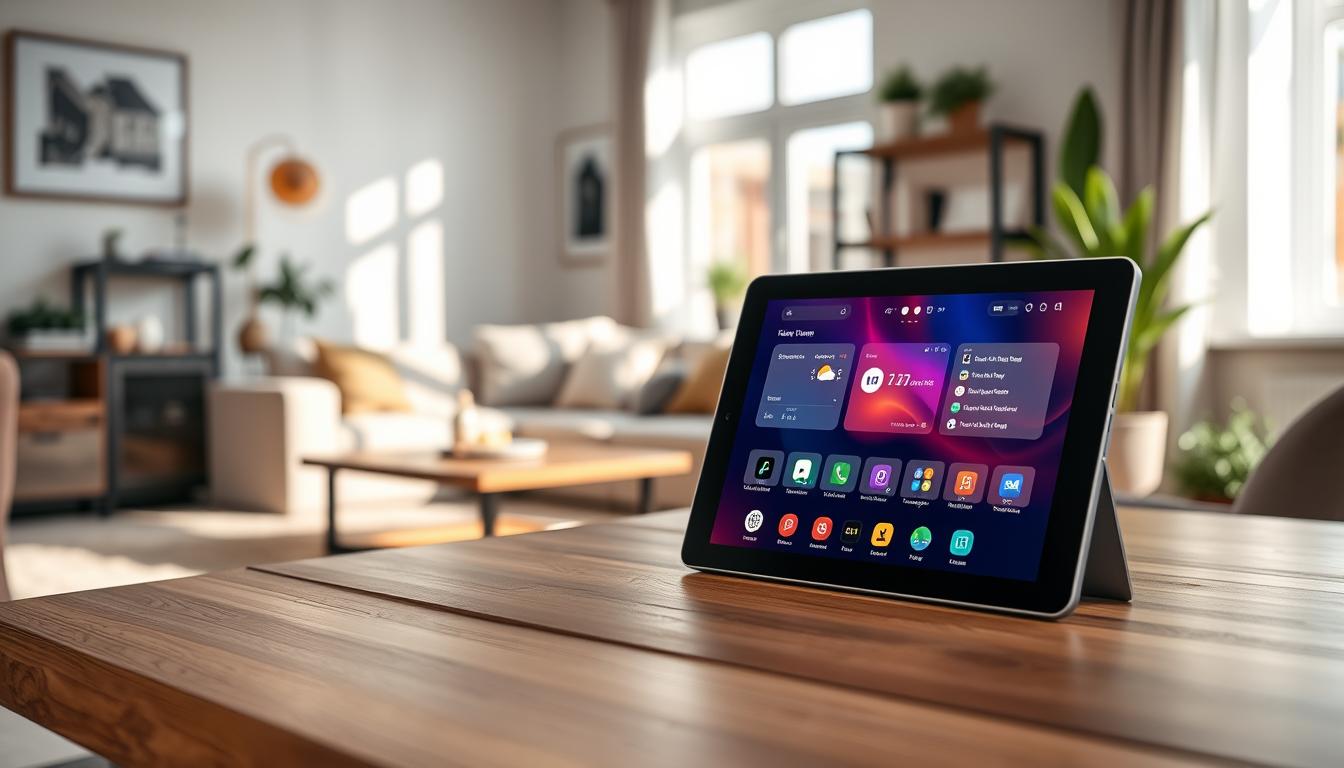
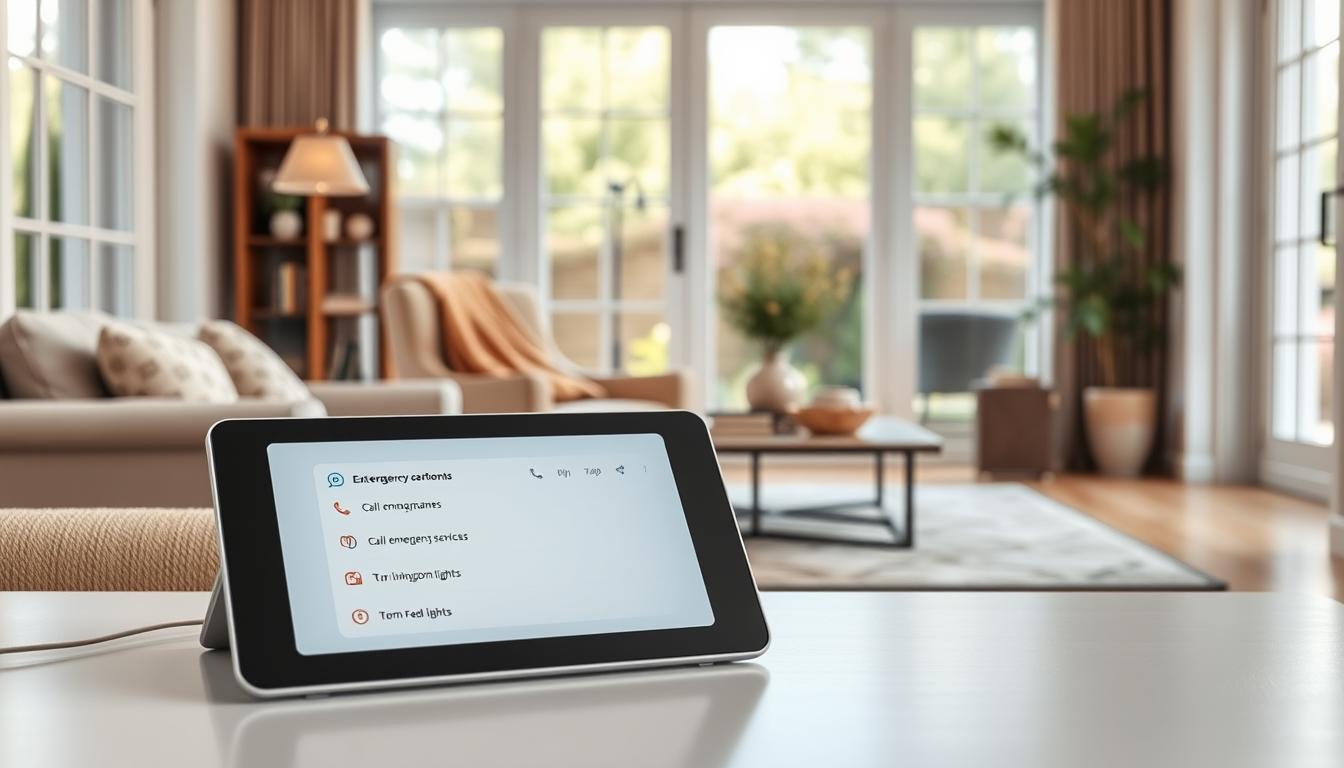
For cameras, use voice commands to see live feeds on devices like Echo Show or Google Nest Hub. Say, “Alexa, show me the front door camera” to see who’s at the door. This way, you can avoid risky trips at night.
To control your whole system, add ADT integration and enable the ADT skill for Alexa or pair Google Assistant with ADT Pulse. Then say, “Alexa, arm ADT in away mode” or “Hey Google, arm the security system ‘Away.’” You can also check the status with commands like “Alexa, is the front door locked?”
Set clear device names when you configure devices so voice recognition commands work well. Test each command after setup to make sure your system understands it. Keep a short list of voice commands that you can easily remember and use often.
- Locks: “Alexa, lock the front door.”
- Cameras: “Alexa, show me the front door camera.”
- Security modes: “Hey Google, arm the security system ‘Away.’”
- Status checks: “Alexa, is the front door locked?”
Protect disarm and unlock commands with a voice PIN or require app confirmation. This prevents accidental or unauthorized unlocking if someone nearby speaks near your assistant.
Voice commands are very helpful for seniors. You can check cameras before answering, confirm locks without bending or walking, and arm the system from any room. A simple spoken command list makes complex security tasks easy.
Communication Voice Commands
Use simple voice commands to stay in touch with family and caregivers. First, add contacts with clear names like Daughter Mary, Doctor Smith, or Caregiver Lisa. This helps your device understand your voice commands better.
Here are some commands you can try:
- Calls: “Call Daughter Mary.”
- Calls: “Call caregiver.”
- Calls: “Redial last number.”
- Messages: “Send a message to John: I’ll be there at 2 p.m.”
- Video calls: “Alexa, video call Doctor Smith.”
- Read and respond: “Read my messages.”
- Read and respond: “Reply: I’m OK.”
Test these commands on your phone, tablet, or Echo Show. Find out which ones work best for you. Use short and consistent labels to avoid mistakes and frustration.
Make sure your voice calling works well. Check if your internet is on. Also, ensure your device’s software is updated.
Using voice commands can make staying in touch easier. It helps you call or message more often. This reduces loneliness and gives your loved ones peace of mind.
Voice Command Customization
You can tailor voice assistant commands to fit your daily life. Use clear names and groups for devices. Create digital rooms in Google Home or groups in Amazon Alexa to control many items with one command.
Routines let you combine actions into one phrase. For example, saying “Good night” can turn off lights, lock smart locks, and arm ADT security systems. Make sure devices are compatible before adding ADT to a routine.
IFTTT can do more than native skills. It lets you trigger actions across brands. For example, link a Ring doorbell event to a Sonos announcement or adjust a Nest thermostat with a custom phrase.
Improve voice recognition by creating voice profiles and re-teaching the assistant. This is helpful for soft speech or accents. Re-run voice training after changes in hearing or speech to keep accuracy high.
- ADT devices: ADT Command supports over 250 devices, including carbon monoxide detectors, Sonos speakers, smart bulbs, Kwikset locks, Nest thermostats, and Ring doorbells. Confirm compatibility when building routines.
- Ownership and control: Make voice control optional for sensitive actions. Disable voice triggers for items you prefer to schedule or automate without verbal input.
Make a list of vocal commands for everyday tasks. Share it with caregivers. Keep a printed cheat sheet of custom phrases and test routines together so the senior recognizes the phrasing.
- Name and group devices clearly.
- Create routines for multi-step actions.
- Use IFTTT for cross-platform automation.
- Train or add voice profiles to improve recognition.
- Limit voice control where privacy matters.
When setting up custom commands, use short, natural phrases and avoid jargon. Test voice recognition commands in the room where they will be used. This helps catch false triggers and refine timing for the best reliability.
Troubleshooting Common Issues
If your smart speaker or hub mishears you, start by speaking clearly at a normal volume. Reduce background noise and test a few voice command examples like “turn on kitchen light” or “call my daughter” to check response accuracy. If errors persist, retrain the voice model in the device app or use simpler phrases from your vocal command list.
When devices fail to respond, check Wi‑Fi strength and confirm all devices are on the same network. Some voice recognition commands need cloud access while others run locally. Restart the router and the device, then update the app and device firmware to rule out software glitches.
Use discovery tools to solve device naming problems. Say commands such as “Alexa, discover my devices” or open the Google Home app to run discovery. Rename devices in the manufacturer app and group them logically to avoid ambiguous replies when you use the same phrasing from your vocal command list.
To prevent accidental activations, learn how to cancel or stop commands immediately. Enable confirmations or set a PIN for sensitive actions like unlocking doors or disarming alarms. Turn off unnecessary purchasing features to avoid unintentional orders. Test safety flows with a few voice command examples.
- Restart device and router before deeper steps.
- Update firmware and the controlling app.
- Check linked services and skills, such as ADT or Philips Hue, and reauthorize if needed.
- Test critical actions—call an emergency contact or lock a door—and log the results.
Caregivers should keep account credentials accessible and run short practice sessions with seniors. Limit features gradually if frustration occurs, focusing on core voice recognition commands first. Maintain a simple vocal command list for daily needs and expand it as confidence grows.
Conclusion
Using voice command lists can make life safer and simpler for seniors. You get faster alerts and easier control over lights and locks. It also makes talking to family clearer and boosts independence.
Start by learning 5–7 core voice control phrases. Use them for calls, lights, emergency contacts, and reminders. Place devices in key areas and practice until it feels natural.
Remember, safety is key. Use voice commands with medical alert systems and require PINs for sensitive actions. Always check privacy settings and make sure devices work with security systems like ADT.
This article gives you voice command lists and examples. Use them to make your home safer and life easier. Start small, practice often, and your smart home will be a reliable partner in safety and independence.