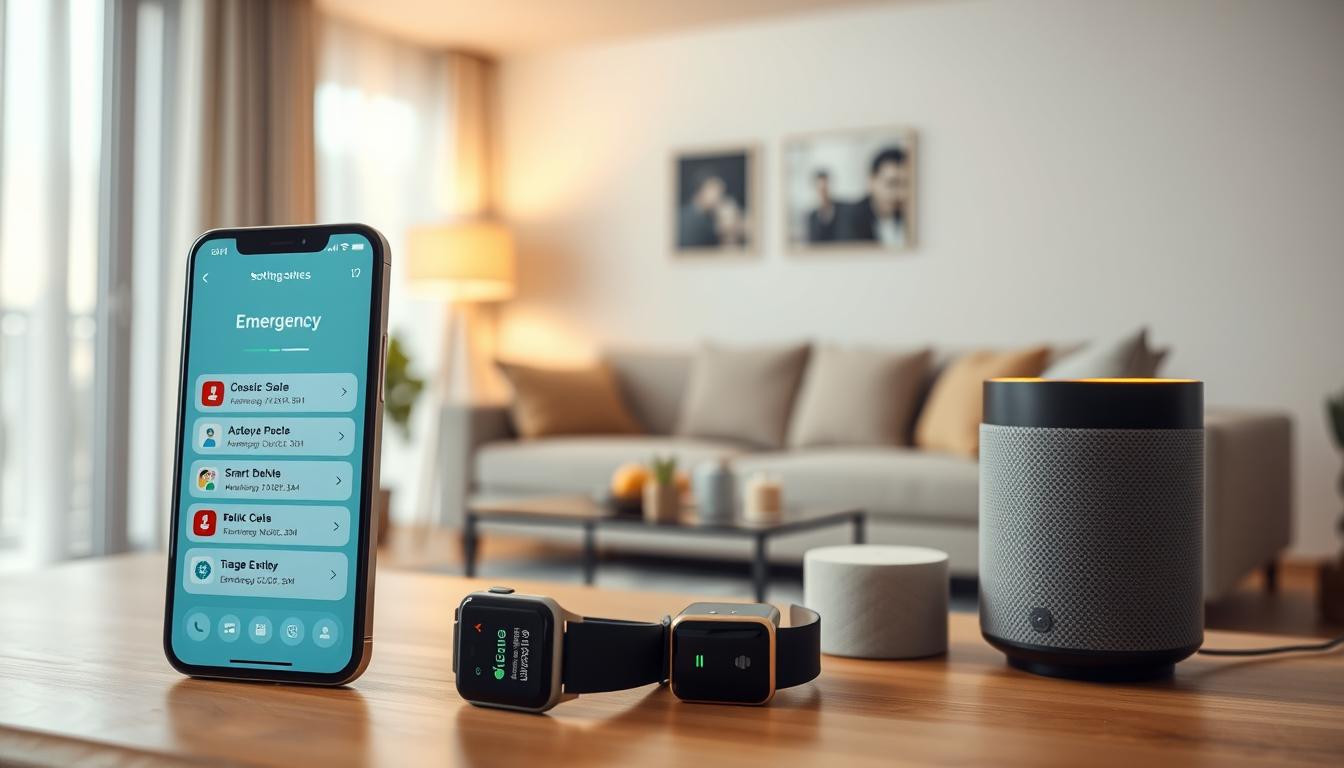
Make sure to set up health alerts and emergency contact notifications on your phone, tablet, and smartwatch. This way, help can find you quickly. Devices from Apple, Samsung, and many Android makers have tools for emergency calls and sharing your Medical ID.
These tools help in monitoring your system health. They also make it easier for responders and loved ones to get important information.
On Samsung Galaxy phones, you can turn on Emergency SOS, Emergency sharing, and Wireless emergency alerts from Settings > Safety and emergency. These options let you send your location, photos, and short audio clips to emergency contacts. They also allow emergency calls even without cellular service nearby.
This feature is great for travel, medical conditions, or just for peace of mind.
Apple iPhone and Apple Watch pair to offer Emergency SOS and Medical ID functions. Set your emergency contacts in the Health app and enable Show When Locked. This way, first responders can see your information.
Apple Watch models and iPhone variants can also notify contacts and share your location after an SOS call. This is helpful for setting up health notifications for family or caregivers.
Many Android phones have Emergency Information that shows from the lock screen. You can add medications, allergies, blood type, and contacts. This way, people can act quickly.
If your device doesn’t have a full Medical ID feature, a custom lock screen message and emergency contacts can help. This improves your health alert management.
Setting up health alerts on your devices can reduce response time. It ensures your medical details and location are shared when needed. Remember, menus and features can vary by carrier, software version, and region. So, review your device settings and test emergency contact notifications after setup.
Understanding Health Alerts and Their Importance
Health alerts are messages sent by devices in urgent situations. They can alert you or your emergency contacts about emergencies. Examples include Emergency SOS, fall detection, and earthquake alerts.
These alerts can send automated calls, texts, or share your location. This helps emergency services respond quickly.
Timeliness is key. Some devices let you call 9-1-1 or local numbers directly from the Lock screen. Samsung phones and many Android models can call without a SIM if a carrier signal is nearby. Apple Watch Ultra 3 can use satellite to reach help when you’re off-grid.
Life-saving features work automatically in emergencies. Apple Watch fall detection can call emergency services if you don’t move for about a minute. Crash Detection starts a countdown before calling for help.
Samsung Emergency SOS sends a photo, a short voice recording, and location updates every 15 minutes for up to 24 hours when triggered.
Location sharing is a key function. Many SOS tools temporarily enable Location Services to send your current coordinates and follow-up updates to emergency contacts. Emergency Location Service on select Android and Samsung devices can forward your position to responders automatically when supported in your region.
Lock-screen access helps first responders. Medical ID on iPhone, Emergency Information on Android, and Samsung’s Emergency contacts/Medical info let responders view allergies, medications, blood type, and call listed contacts without unlocking the device.
Distinguish system health monitoring from emergency alerts. Routine checks like battery-saving modes and driving-silence features differ from active alerts that contact services or people during crises. Proper health alert configurations ensure the device acts only when needed.
Region and technical limits affect performance. International emergency calling and satellite SOS depend on device model, watchOS or Android versions, and regional support. Emergency messages may fail if a preferred messaging app is removed or not supported.
- Set up health alert management to keep contacts informed.
- Use careful monitoring alert triggers to avoid false alarms.
- Practice configuring alert thresholds so alerts trigger at appropriate levels.
The Types of Smart Devices for Health Alerts
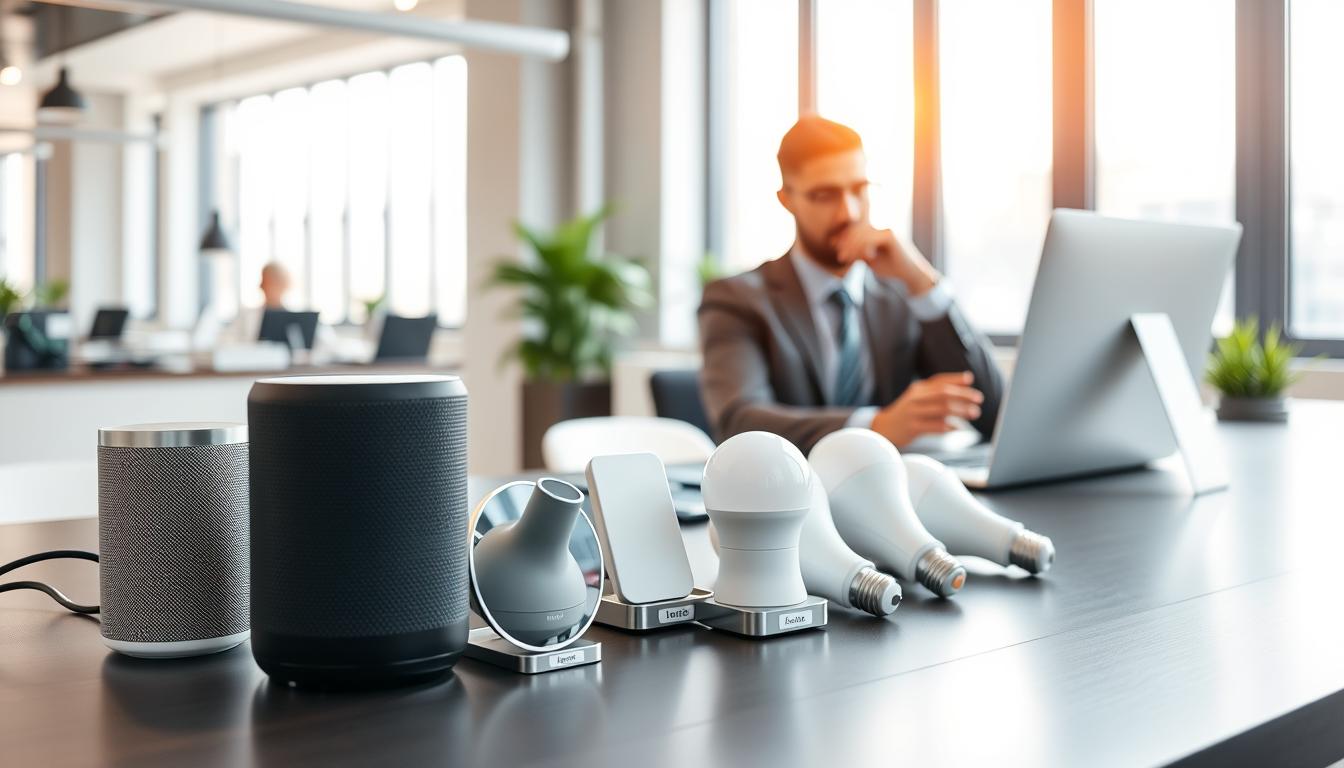
There are many devices to choose from for health alerts. Smartphones and tablets, like the Apple iPhone and Samsung Galaxy, have features like Emergency SOS and Medical ID. They can also get wireless emergency alerts.
These devices are great for showing Medical ID data on the lock screen. They also make it easy for first responders to access your information.
Smartwatches, such as the Apple Watch SE and Samsung Galaxy watches, have cool features too. They can detect falls and crashes automatically. They can even call for help or share your location, even if you can’t.
Some Apple Watch models can even call out on their own, without needing a phone.
Wearables and connected health devices offer a lot too. Heart monitors, oxygen sensors, and fitness bands can track your health. They can send alerts to your phone or cloud services.
Each brand has different features, so it’s important to check how they work. See how they handle monitoring alert triggers and send important data.
- Phones/tablets: Medical ID visibility, manual SOS, and AMBER or weather alerts.
- Watches: Automatic fall/crash detection, on-wrist SOS, and independent calling if cellular-enabled.
- Wearables: Continuous metric tracking and cloud-based alert forwarding to contacts or providers.
Remember to think about compatibility and connectivity. Some features need a SIM, a plan, or a nearby iPhone to work. For example, Samsung SOS alerts need an active SIM to send messages.
Apple Watch cellular models might need specific support for international calls.
Choose devices based on how you plan to use them. Carry a phone for visible Medical ID in public. Wear a watch for automatic fall detection if you’re alone.
Use a tablet for sharing emergencies when your phone is not around. You can mix devices for better system health monitoring. Customize health alerts across different apps and platforms.
Initial Setup for Health Alerts
First, make sure each device is ready. Update your iPhone to the latest iOS and your Apple Watch to the matching watchOS. For Android, install the latest Android build from Google. If you have a Galaxy watch or phone, apply Samsung updates.
Software version and device model are important for setting up health notifications and configuring health alerts.
Open the Health app on your iPhone and fill out your Medical ID. Go to profile > Medical ID or Settings > Health > Medical ID. Turn on Show When Locked and enable Share During Emergency Call. On Android, search for “Emergency” in Settings and fill out Emergency Information. Samsung users should go to Settings > Safety and emergency > Medical info.
Add emergency contacts from your Contacts app. This ensures emergency messages and calls reach the right people.
Learn how to trigger Emergency SOS on each device. On iPhone, use the side + volume buttons or repeated side presses. On Apple Watch, set SOS behavior in the Watch app or on the watch itself. For Samsung phones, enable Send SOS to emergency contacts, set the countdown and warning sound, and choose whether a swipe is required.
Grant location and sharing permissions for SOS to work. Allow Location Services and enable Emergency Location Service on Android or Samsung if available. iPhone temporarily enables location when SOS is triggered. Proper permissions are vital for health alert management and accurate responder routing.
Confirm messaging and contact sync next. Make sure Messages on iPhone is the default for emergency texts. On Android, verify SMS capability and that contacts sync with Google or Samsung accounts. These checks prevent missed alerts during an emergency.
Consider battery and power behavior before relying on alerts. Some devices use battery-saving themes that limit background activity. Note that emergency sharing may include low battery status to your contacts. Keep devices charged and set power settings that allow SOS functions to run.
Follow on-screen prompts when granting permissions for SOS. When a device asks to allow Send SOS to contacts or access location, approve those requests and add contacts when prompted. Completing this flow is a key item on your health alert setup checklist and simplifies later configuring health alerts.
- Prepare devices and update OS/software.
- Complete Medical ID or Emergency Information.
- Enable and test Emergency SOS triggers.
- Allow location and sharing permissions.
- Verify messaging and contact sync.
- Adjust battery settings to support SOS features.
Configuring Emergency Contacts
Choose people who are available and can act quickly. This could be family members, close friends, caregivers, or designated Check In contacts. Make sure each person is saved in your Contacts app before you start.
On iPhone, open the Health app, tap Medical ID, and select Edit. Under Emergency Contacts, add people from Contacts. Turn on Show When Locked so first responders can access your Medical ID from the Lock screen. Your Apple Watch mirrors these entries and will send texts after an SOS call.
On Android, go to Settings > Emergency or open your Contacts app and find the Emergency contacts section. Add contacts from your Contacts list. For Samsung phones, go to Settings > Safety and emergency > Emergency contacts and add people there.
Samsung devices offer Emergency SOS that sends alerts to your emergency contacts when an SOS is triggered. Emergency sharing can send photos, audio, location, and low battery warnings to selected people. Note that SOS texting requires an active SIM to send the initial alert.
Be aware what data may be shared during an emergency. Samsung may send a photo, voice clip, and your location the first time, then update location every 15 minutes for 24 hours. iPhone and Apple Watch send your current location and update it while SOS is active. iPhone also sends text messages with location after an SOS call ends.
Keep contacts current after major life changes like a new caregiver, a move, or travel plans. Edit emergency entries in the Health app on iPhone or in Emergency contacts settings on Android and Samsung. Regular reviews make health alert management effective.
Think about privacy before enabling extensive sharing. Confirm you want location, photos, or audio to be sent to people and to emergency services. Inform your primary contacts that you listed them and explain what information they might receive as part of your health alert customization.
- Who to add: available, able to act, and listed in Contacts.
- iPhone steps: Health app > Medical ID > Edit > Emergency Contacts; enable Show When Locked.
- Android/Samsung steps: Settings > Emergency or Safety and emergency > Add emergency contacts.
- Data shared: location, photo, voice, and periodic updates—confirm permissions.
- Maintenance: review and update emergency contacts regularly for reliable health alert configurations.
Customizing Health Alert Settings
Make your devices respond better in emergencies by customizing health alerts. Start by adjusting SOS triggers and delays. This way, calls start only when you’re ready.
On Samsung, use the Countdown setting and Require swipe to call to avoid false alarms. On Apple Watch, disable automatic countdown dialing if you do not want Hold Side Button to place a call.
Adjust sound and vibration to fit your daily life. Samsung Emergency SOS has a Play warning sound toggle. Wireless emergency alerts let you choose Vibration, Alert reminder, and Speak alert message. Apple Watch plays warning sounds during countdown unless you use the Emergency Call slider.
- Enable or disable specific alerts like Extreme, Severe, AMBER, and Test on Android and Samsung phones.
- Turn Earthquake alerts and Unknown tracker alerts on or off under Safety and emergency settings on Samsung.
Manage detection features so automatic calls happen only when you want them. Toggle Fall Detection and Crash Detection in Apple Watch settings. Crash Detection shows an alert and then auto-calls after 30 seconds unless you cancel. Verify these are enabled if you expect automatic detection to trigger help.
Understand location sharing and update frequency before setting expectations. Samsung sends location updates every 15 minutes for 24 hours after an SOS. Apple Watch also sends location updates after SOS for a limited period. These intervals are mostly fixed by the platform, so plan ahead when setting up health notifications.
Decide what details to share during an emergency. Samsung Emergency sharing can attach pictures and a five-second audio clip. Toggle Attach pictures and Attach audio recording to balance privacy with utility. Choosing fewer attachments can protect privacy while providing responders useful context.
- Silence notifications while driving to reduce distractions, but keep emergency alerts audible.
- Check international emergency call settings on Apple Watch if you travel, and confirm satellite SOS availability for Apple Watch Ultra 3 in supported regions.
As you work on configuring alert thresholds and monitoring alert triggers, test each setting in a safe way. This helps you understand how they work. Small checks ensure alerts send the right data at the right time, keeping your emergency workflow reliable.
Testing Your Health Alert System
Before you count on smart devices in an emergency, do a thorough test. First, check Emergency SOS, Medical ID, and your emergency contacts. Make sure your health alert settings match your emergency contacts.
On iPhone and Apple Watch, try accessing Medical ID from the lock screen. Go to Lock screen > Emergency > Medical ID. For Emergency SOS, open the SOS interface and cancel before it calls 9‑1‑1. Use test messages or Apple’s help to test texts without calling 9‑1‑1.
Android and Samsung devices let you view Emergency Information from the lock screen. Swipe up > Emergency > Emergency Information. Make sure you can call contacts from a locked device. For Samsung Emergency SOS, turn on “Require swipe to call” or start the countdown and cancel to avoid calling emergency services.
Check if messages send and receive correctly. Send a test text to an emergency contact. Make sure they get any location updates or attachments you expect.
- Confirm location sharing works after a simulated SOS.
- Verify that photos and audio share correctly when you test emergency sharing sessions.
- Check that automatic detection features, like Fall Detection and Crash Detection, are turned on in settings.
You can’t fully mimic a real fall or crash, but check the settings for those features. Use device demos when possible. Samsung devices may have an Emergency alert history under Settings > Safety and emergency > Wireless emergency alerts > Emergency alert history; check the logs to see if alerts show up.
Inform your emergency contacts before testing so they know what to expect. Pick a time, explain the test, and ask them to confirm they got the message. This helps you see if notifications are reaching people as they should.
- Review health alert configurations in each device’s settings.
- Run non-call tests that show the SOS interface, cancel before sending a live call.
- Confirm messages, location links, and any media arrive at the contact’s device.
- Check logs or alert history to verify the system recorded the test.
Write down any problems you find and update contacts, apps, or permissions. Do tests again after making changes. Regular testing keeps your system working well and gives you peace of mind when setting up health notifications for emergencies.
Staying Informed About Updates
Keep your devices up to date to protect emergency features. Apple, Samsung, and Google often release updates. These updates can change how Emergency SOS, fall detection, and Emergency Location Services work.
Check the release notes after installing updates. This will tell you what’s new in health alert settings.
Look at support pages from Apple, Samsung, and Google for local details. The availability of features like international emergency calling can vary by country and carrier. Make sure to check if these services are available where you live.
Make sure alerts work when you need them. Check your device’s permissions for location, Contacts, and Messages. For example, on an iPhone, the Messages app must be allowed to send texts for auto-notifications to reach emergency contacts.
- Read update release notes for changes to Medical ID, sharing mechanics, or SOS behavior.
- Keep your Wi‑Fi Calling emergency address current with your carrier to ensure local emergency routing.
- Check carrier and regional rules that may change how emergency numbers behave in your area.
Use a simple checklist to remember how to trigger SOS actions on each device. Also, know how your emergency contacts will be notified. Update this checklist whenever you change devices, phone numbers, or plans.
Subscribe to official guidance and local government alerts for the latest instructions. This keeps you informed about health alerts and boosts your confidence in managing them.
Best Practices for Using Health Alerts
Make sure your Medical ID or emergency info is up to date. List allergies, medications, blood type, and a recent photo. This helps responders get the right info. Update this after doctor visits, changes in medication, and big life events.
Pick emergency contacts who can be reached and act quickly. Save their numbers in your phone before adding them to emergency contacts. Test these entries to make sure calls and messages go to the right people.
- Enable safeguards against accidental triggers, such as swipe-to-call or countdown options on Samsung devices.
- Turn off automatic Hold Side Button dialing on Apple Watch if accidental SOS calls are a concern.
Think about privacy when sharing photos or audio in emergencies. Media can help first responders understand the situation. Share sensitive content only with people you trust.
Teach family and caregivers how to access your Medical ID and SOS features. A quick demo can be very helpful in stressful moments.
Regularly check your emergency settings. Do this after traveling, changing devices, or updating apps. Make sure messaging apps can send alerts.
Manage your device’s battery to keep SOS features working. Know how power-saving modes affect alerts. Carry a power bank for long trips and enable features that keep emergency functions active.
Use more than one device if you can. Wearing an Apple Watch with an iPhone, or pairing a phone with a Garmin or Fitbit, increases the chance of getting help in an emergency.
Learn about emergency response in different places. Check local emergency numbers when traveling. Make sure your device can call internationally or use satellite SOS in remote areas.
- Practice health alert customization: personalize which alerts go to which contacts and what information is shared.
- Review configuring alert thresholds so sensors trigger alerts at sensible levels for your health profile.
- Keep monitoring alert triggers to avoid false alarms and ensure genuine events prompt a response.
Resources for Further Assistance
For detailed help, start with official vendor support pages. Apple Support offers guidance on Emergency SOS, Medical ID, and more. Samsung Help explains safety and emergency features like Emergency SOS and earthquake alerts.
Google and Android makers like Motorola and OnePlus also have help. They cover Emergency Information and Emergency SOS for Pixel and other devices.
For carrier and regional questions, contact your wireless provider. They can help with Wi‑Fi Calling emergency addresses and emergency call routing. Local emergency management sites provide info on wireless alerts, AMBER messages, and severe weather.
Use built‑in demos and official tutorials for safe practice. Try Samsung’s earthquake demo or Apple’s Medical ID walkthroughs. These help you test lock screen access to emergency information.
If alerts don’t send or location fails, contact Apple, Samsung, or your phone maker and carrier. They can help with troubleshooting. Check accessibility pages for configuring alerts for people with disabilities.
Keep a personal checklist to stay on track. Update software, verify emergency contacts, test features safely, and review privacy settings regularly. This ensures effective health alert management and ongoing support.