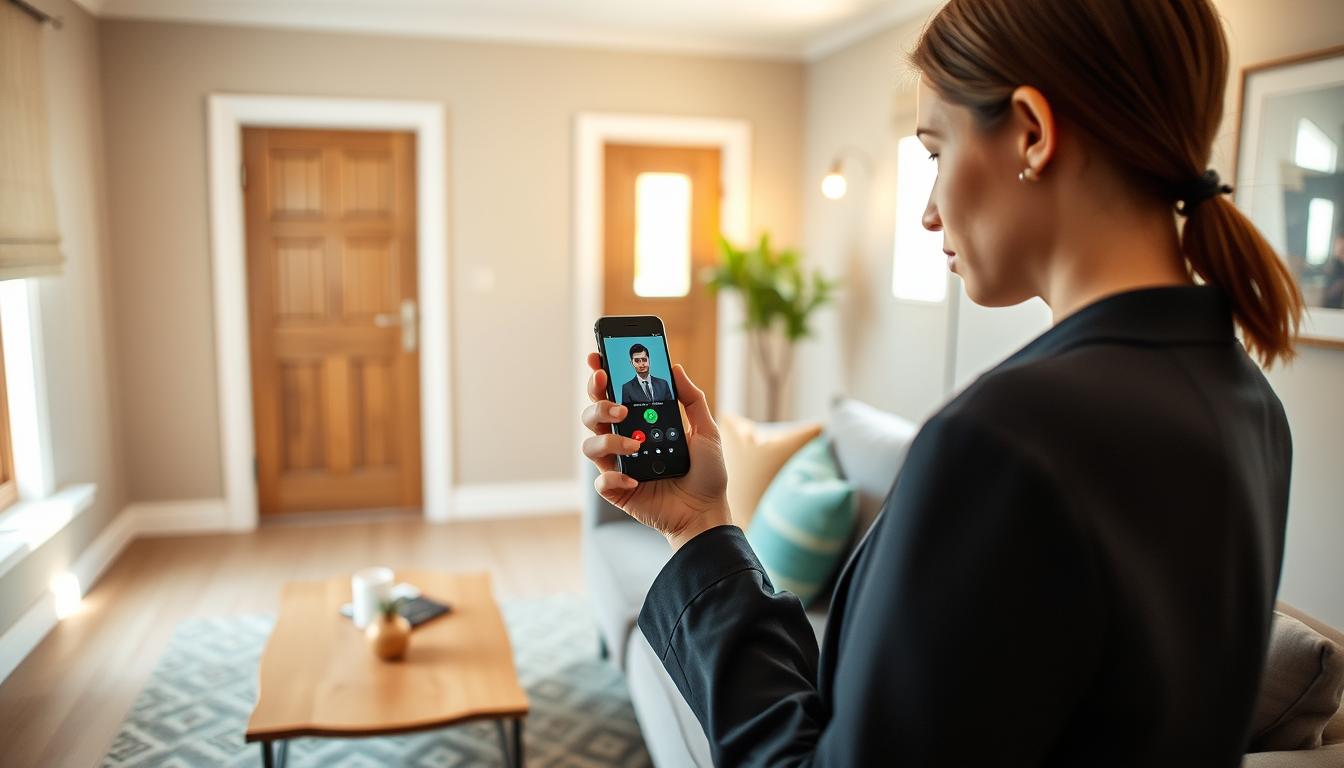
Video calls keep you close to elderly relatives. They let you check on their health and see their surroundings. With the pandemic, more families use smartphones, tablets, and laptops to stay in touch.
Older adults might find modern devices hard to use or have memory issues. Choosing the right tools can make a big difference.
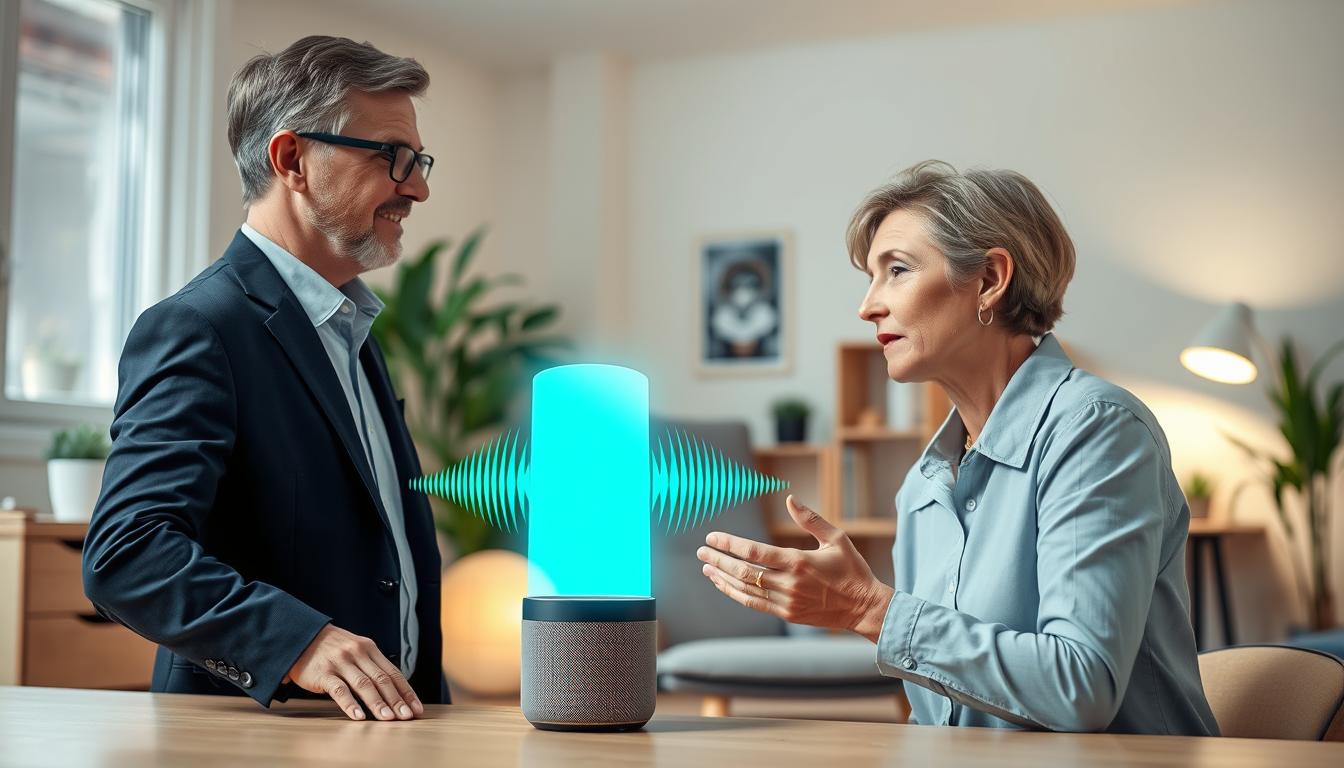
Simple devices and apps make it easy. CallGenie and ONSCREEN turn TVs into call hubs that auto-answer and only accept trusted contacts. Komp and Amazon Echo Show have large screens and voice controls for easy use.
These options show that setting up virtual meetings doesn’t have to be complicated. You can also use FaceTime, Zoom, WhatsApp, Google Meet, Skype, Messenger, Viber, and Oscar Senior. Each has its own benefits.
FaceTime is built into Apple devices, while WhatsApp and Viber offer secure encryption. Google Meet works in a browser and uses calendar links. The best app for your family depends on your devices and comfort level.
Next, we’ll show you how to set up video calls and start them easily. We’ll also share tips for a comfortable and private setup. Think about the screen size, sound, and if an auto-answer feature or companion app will help your loved one join more easily.
Why Video Calls Are Important for Seniors
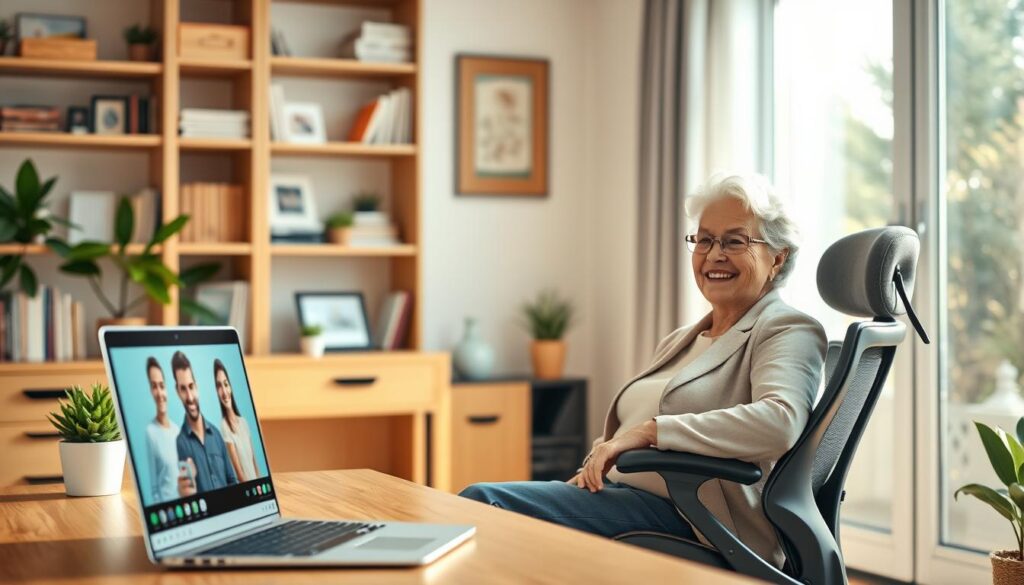
Video calls are more than just talking on the phone. They let you see your loved ones’ faces. This helps you notice their mood and any changes in their home. Sharing small moments, like having a cup of tea, is also possible.
Seeing each other’s faces supports emotional well-being. It also helps reduce feelings of loneliness.
After the COVID-19 pandemic, many older adults started using video calls to stay in touch. Family gatherings, doctor visits, and casual chats moved online. This made online meetings a regular part of their lives.
Some seniors face challenges like limited vision, hearing, or cognitive issues. Smart solutions make setting up video calls easier. TV-based systems, one-button devices, and automatic answers help. They make it simple for people with dementia to stay connected.
Using familiar hardware helps too. A big TV screen and loud speakers make it easier to see and hear. Tools like simple remotes and guided setup make starting a new video call less frustrating.
Video calls also allow for shared activities. You can read a story together, look at family photos, or enjoy a hobby. These moments strengthen your bond and offer a way to check in on safety.
Choosing the right platforms and devices makes setting up video calls easier. Look for clear sound, big displays, and simple interaction. This way, you can focus on the people, not the technology.
Choosing the Right Video Call Platform

First, match the platform to the device your senior uses. Devices like Amazon Echo Show and Komp are simple and TV-friendly. They’re great for seniors with limited mobility or dementia.
Then, consider the app’s ease and compatibility. FaceTime is easy for Apple users. Google Meet works in a browser and syncs with calendars. WhatsApp and Messenger Lite are good for all devices. Zoom and Skype are best for big family calls.
Think about privacy and control too. WhatsApp and Viber encrypt chats for safety. Choose software that supports end-to-end encryption for a private network. Decide if you need automatic answers or manual control.
Consider screen size and hands-free needs. TV-based calling is easy with platforms that work with onscreen automation. Solutions like ONSCREEN automatically join Zoom meetings. This makes starting calls easier without using a tablet or phone.
- Check device compatibility: TV, tablet, or smartphone.
- Balance simplicity with security and encryption needs.
- Pick cross-platform tools if family members use different systems.
- Consider automation or auto-answer for hands-free use.
Test different options with your family before deciding. Try Zoom or Google Meet and compare them to FaceTime or WhatsApp. Choose the software that everyone can use easily and often.
Preparing Your Device for Video Calls
First, check how your device connects. Some need Wi‑Fi, while others like Komp use 4G. TV systems like CallGenie use HDMI, and Echo Show installs itself with Alexa.
Make sure your webcam is HD or Full HD. Also, ensure the screen and speakers are good for your eyes and ears.
Keep your devices charged during calls. Close apps in the background for smooth performance. Update Zoom or FaceTime before your call.
Use a bigger screen if you can. Tablets or TVs are better for seeing faces. A sturdy stand keeps the camera steady.
For TV setups, keep the TV on and ready. Make sure you can enter meeting codes easily. Set up automatic-answer features with a trusted list and timers.
- Update device and app versions for reliable performance.
- Create a trusted contacts list so only known callers connect.
- Test camera position, lighting, and microphone before inviting family.
- Consider webcam covers and privacy settings for safety.
- Schedule remote or in-person setup help if you prefer a hands-on test.
Do a quick test call with a family member. Check the video and sound quality. Make small changes until it feels right for everyone.
Creating a Comfortable Setup
Choose a spot where you can sit comfortably for long talks. Use your favorite chair and make sure the screen is at eye level. This makes remote chats feel natural and keeps the conversation relaxed.
Use a sturdy stand or mount for tablets and phones. For better views, try a tablet or a TV-based device like Komp or CallGenie. These options give you clearer images and louder speakers, making it easier to follow faces and expressions.
Face a window or a lamp for good lighting. Avoid sitting with bright light behind you, as it will darken your face. Good light makes you look better on screen and helps family connect with you.
Reduce background noise by choosing a quiet room and closing doors. For hearing challenges, try a portable Bluetooth speaker or raise the TV volume. These small steps improve remote video communication for everyone on the call.
Keep the device plugged in for long conversations. Clear visual clutter by closing unused apps. Make sure remote controls are handy to accept or cancel incoming calls and that any on-screen countdowns are easy to see.
- Position the TV or screen so you can go hands-free and enjoy the call.
- Choose wall-mounted or freestanding displays that match your room layout.
- Test audio and video once before family time to apply simple video meeting tips.
These adjustments make your virtual meeting setup comfortable and private. You will find video calls more enjoyable when the space is set up for ease and clarity.
Step-by-Step Guide to Setting Up a Video Call
First, pick the right device or app for your senior. You can choose from Amazon Echo Show, ONSCREEN with Zoom, CallGenie mini‑PC, Komp, tablets, or smartphones. Make sure it fits their needs and your comfort level with video call software.
Next, get everything connected. Plug the device into a charger and connect to Wi‑Fi or use a 4G SIM. For TV setups like CallGenie, connect the mini‑PC and webcam to the TV’s HDMI port. This will get the screen ready for online meetings.
Then, set up accounts and add contacts. Download the app on tablets or phones, sign in, and add family contacts. For Komp, power it on and add family via the app so they get messages and calls automatically.
Configure auto-answer and trusted contacts if possible. CallGenie can auto-answer known callers and turn on the TV for calls. Komp may auto-answer after a 10-second ring unless you disable it. ONSCREEN requires the primary account holder to enter the Zoom meeting code once so the TV can join the meeting.
- Enable camera and microphone permissions on tablets and phones.
- Link Alexa and the Alexa app for Echo Show so family can call with simple voice commands.
- Adjust auto-answer timers or drop-in permissions to match privacy preferences.
Test the camera, mic, lighting, and call flow. Place a tablet or phone on a stand and check the camera shows the senior clearly. For TV setups, confirm the webcam angle and that the TV returns to its previous program after the call ends.
- Run a test call with a family member to practice starting a video call and check audio and video quality.
- Confirm that auto-answer or drop-in works as expected for online virtual meetings.
- Adjust volume, lighting, and background to reduce distractions during the call.
Provide simple training and written steps for the senior to follow. Show short voice prompts or one-sentence instructions for common actions. Offer remote support or an in-person demo. Schedule a few practice sessions to build confidence with video call software and setting up video calls.
Sending Video Call Invitations
When you set up a family call, choose one clear way to invite everyone. For Google Meet, use Google Calendar to send scheduled links and reminders. For Zoom and Skype, create the meeting, copy the link or code, and add the password if needed.
For devices like Echo Show, tell family which Alexa account or device to call. For ONSCREEN or TV-based platforms, start a Zoom meeting and add the meeting code. The primary ONSCREEN account only needs to enter that info once, so the senior’s TV joins automatically at event time.
Closed family devices such as Komp or CallGenie use companion apps to add trusted contacts. These devices accept calls only from known people, removing the need to send an invite to the senior directly.
Use simple instructions that show how to start a video call step by step. Include time zone notes, a short list of joining steps, and a one-click link when possible. Test a brief call before a larger event so everyone knows their audio and camera work.
- Send calendar reminders and an SMS the day of the call.
- Include a short joining checklist for less tech-savvy relatives.
- Note any passwords and meeting codes in the invite.
These small steps make Setting up video calls smoother and reduce confusion during online virtual meetings. Clear invitations let you focus on the visit instead of technical problems and keep your family connected.
Essential Tips for a Successful Video Call
Make sure the lighting is in front of the senior to avoid shadows. Use a big screen or tablet so everyone’s face is clear. Use an adjustable stand to keep the device steady and prevent shaky video.
Start with a simple routine before the call. Check the camera angle, test the sound, and remind everyone to speak slowly and clearly. These tips help everyone understand the conversation better.
- Charge devices or keep them plugged in during the call.
- Boost Wi‑Fi with a range extender if signal drops in the room.
- Close background apps to improve performance on phones and tablets.
Improve sound by pairing a Bluetooth speaker or raising the TV volume when the senior watches on a smart TV. Use captions or larger text chat to aid hearing and reading.
Set privacy measures before calls. Use apps with end-to-end encryption like WhatsApp or Signal for private chats. Limit incoming calls to trusted contacts on closed networks and check device permissions.
- Consider webcam covers for privacy when the camera is not in use.
- Configure automatic answering with devices such as CallGenie, Komp, or ONSCREEN for easy access.
- Test auto-answer flow, set trusted contacts, and add a countdown so the senior is prepared when a call connects.
Keep the environment quiet and free from distractions. Ask family to mute when not speaking on group calls and to spotlight the senior occasionally so they feel seen.
- Limit call length to match the senior’s energy and attention span.
- Confirm TV returns to its previous program after the call ends when using smart devices.
- Review auto-answer settings for dementia care to balance ease and safety.
When Setting up video calls, choose reliable video call software that fits the senior’s tech comfort level. Test the chosen app ahead of time and walk through the virtual meeting setup with a family member for added confidence.
Encouraging Family to Join Video Calls
Stress the emotional value of seeing faces and sharing moments. Tell relatives that remote video lets seniors join in on birthdays and watch grandkids. It also lets them feel present during small milestones.
Make setting up video calls easy for family members. Offer a one-page guide for starting calls on phones, tablets, TVs, and computers. Keep the steps short and clear for quick understanding.
- Ask one person to volunteer for initial setup and another to host a practice session.
- Rotate call organizers so no single person carries the load.
- Use automatic-answer devices like Komp, ONSCREEN, or CallGenie to remove technical barriers for callers.
Use tips that reduce friction in video meetings. Suggest entering Zoom meeting codes once on TV-based platforms for seniors to join automatically. Encourage scheduled gatherings like weekly check-ins or holiday events to create a steady routine.
Share alternatives to long live calls to keep seniors engaged. Send short video messages, rotate themed sessions such as storytelling or music, and share photos through Komp or ONSCREEN. This sparks conversation without tiring anyone.
- Create a simple, printable sheet that shows how to start a video call on common apps.
- Hold a 10-minute practice call where someone walks the senior through joining and muting.
- Agree on a regular schedule so the family knows when calls will happen.
When you combine easy instructions, automatic-answer solutions, and thoughtful scheduling, families join more often. Small changes in setting up video calls and following basic video meeting tips make it easier for everyone to connect regularly.
Exploring Alternative Video Calling Options
There are many options beyond the usual apps to keep in touch with family. Devices like CallGenie, Komp, and Amazon Echo Show cater to different needs. CallGenie lets you answer calls automatically with just a TV.
Komp has a 21″ screen and works with 4G and a private network for easy calls. The Echo Show adds Alexa voice control and extra features for a multifunction device.
App alternatives offer flexibility for virtual meetings. Oscar Senior has a user-friendly interface and auto-answer. FaceTime is great for Apple users.
Google Meet is good for browser or calendar users. Messenger Lite, WhatsApp, and Viber are lightweight and secure for private chats. Zoom and Skype are top picks for group calls.
Onscreen options turn your TV into a central hub. ONSCREEN supports auto-answer, Zoom, photo sharing, and YouTube. It’s perfect for a big screen and easy use.
When choosing, consider network needs, features, and privacy. Think about ease of setup, remote support, screen size, and subscription costs. These factors affect how easy it is to set up video calls.
- For dementia or impaired capacity: automatic-answer TV systems work best.
- For tech-savvy seniors: Echo Show or tablets with FaceTime and WhatsApp add voice control and extra services.
- For cross-platform family reach: WhatsApp, Zoom, or Google Meet are strong picks among the best video call apps.
Find the right tool for your needs and test it with family. A trial call shows network issues, ease of use, and comfort. This ensures your virtual meetings are smooth.
Making the Most of Your Video Calls
Choose the right device and keep things simple to make calls feel natural. TV-based systems and one-button tablets cut down on hassle. This lets you connect more often. When shopping, look at warranties and subscription options to keep your device reliable.
Set up for comfort: raise the screen to eye level, use soft front lighting, and test sound before the call. These tips make conversations clearer and less tiring. If you run into trouble, have a standby contact or remote support ready to help.
Expand the experience beyond live chat. Share photos, short videos, or YouTube clips through platforms like ONSCREEN or by linking Zoom for larger family events. Plan themed calls—music nights or photo show-and-tell—and let family send messages between sessions to keep the bond strong.
Protect your privacy and keep devices updated. Use end-to-end encrypted apps for sensitive talks, set trusted contacts, and maintain firmware and app updates. With the right setup and a few remote video communication habits, you’ll find how to start a video call that’s effortless, safe, and meaningful.