If you have a Withings, Fitbit, Eufy, or Wyze smart scale, this guide will help you connect it to your health apps easily. You’ll learn how to choose the right app and device, maintain your scale, and solve common issues. We’ll also cover privacy and sharing your data with doctors.
Sync your smart scale with Apple Health or Google Health Connect for automatic tracking. Wi-Fi scales send data in the background, while Bluetooth scales need your phone nearby. You can also use apps like Health Sync or FitbitSync to connect different devices.
Smart scale technology offers valuable insights when paired with fitness trackers. This helps you track your progress and stay motivated. It’s great for fitness goals or health monitoring.
Before starting, ensure your phone is updated and apps are installed. Also, make sure Wi-Fi is stable for Wi-Fi scales and Bluetooth is on for Bluetooth models. We’ll discuss how iOS and Android differ and the privacy practices of manufacturers and developers.
What Are Smart Scales and Why Use Them?
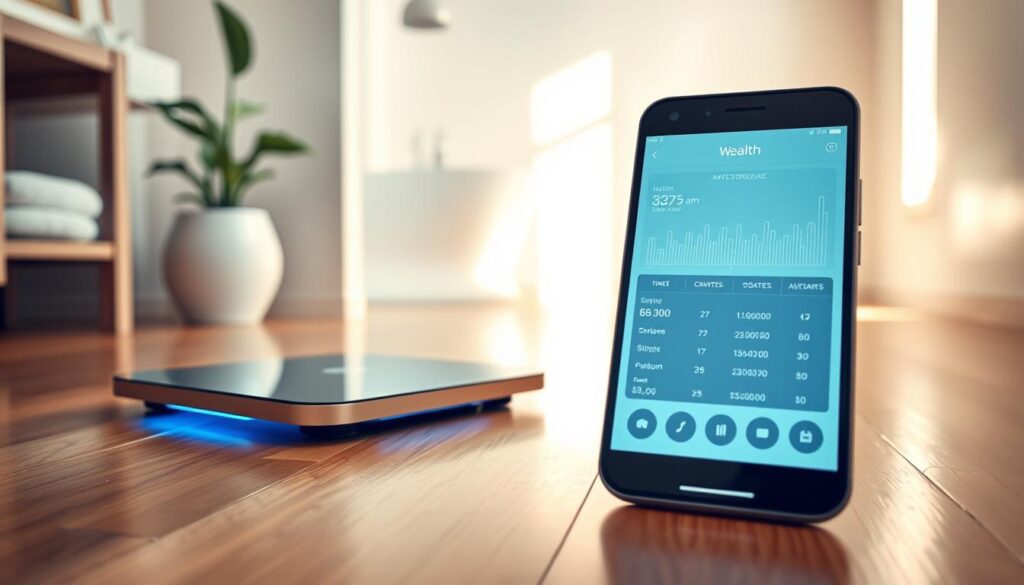
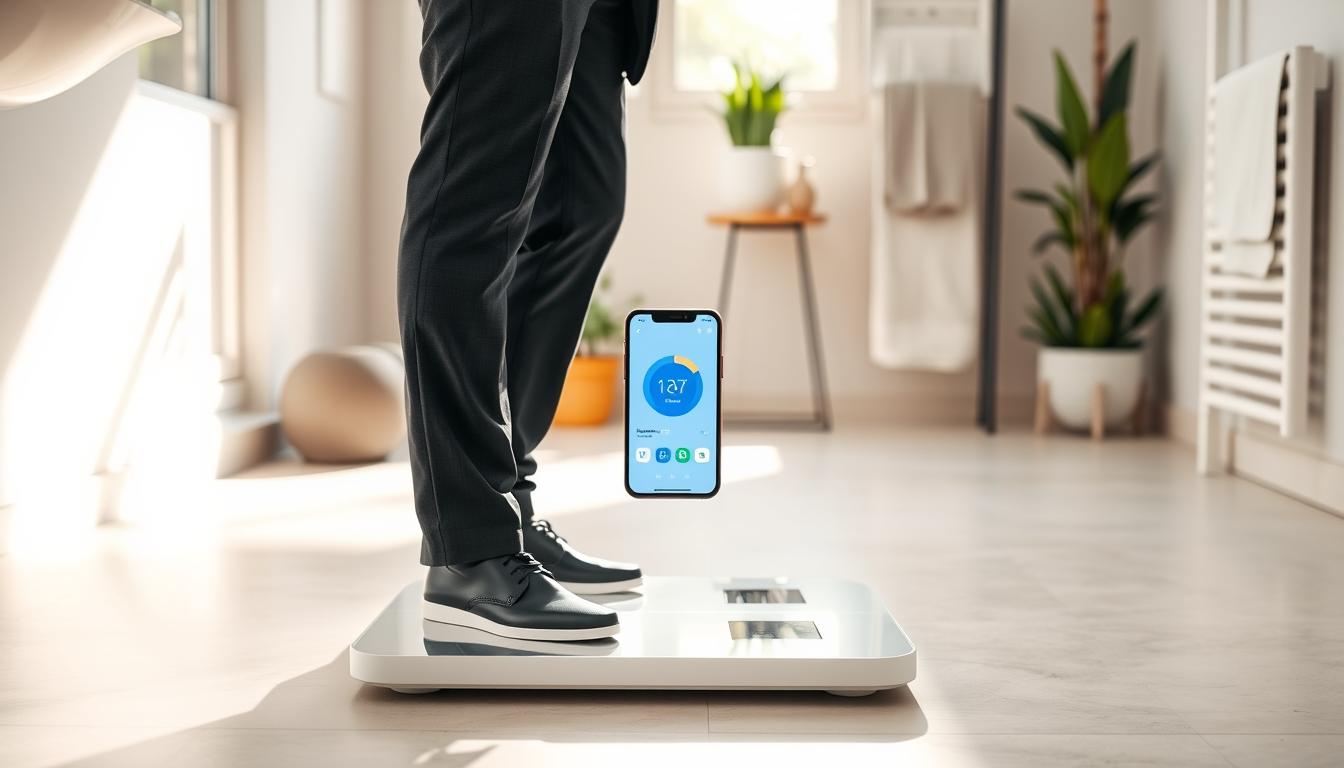
Smart scales are digital bathroom scales that measure your weight and body composition. They use bioelectrical impedance analysis (BIA). When you step on the scale, it estimates your body fat percentage, lean mass, and more.
These scales usually show your weight, BMI, and visceral fat. Some models from Withings, Fitbit, and Garmin give even more insights. They sync your data to apps or HealthKit and Google’s Health Connect.
Connectivity is key for convenience. Bluetooth scales need your phone nearby to sync. Wi-Fi models upload data to the cloud automatically, so your data reaches apps even when your phone is elsewhere. Hybrid designs offer both options for more flexible smart scale technology and easier syncing.
You can use a smart scale for fitness progress, strength training, and daily logging. Multi-user recognition is common; scales from Eufy, Renpho, and Withings can auto-assign profiles. This keeps each person’s data separate.
Smart scale compatibility with platforms like Apple Health, Fitbit, and Google’s Health Connect lets you see how your weight changes with activity. This combined view helps you understand plateaus or gains better and supports lifestyle adjustments.
Remember, these tools are for tracking trends, not for medical diagnosis. Accuracy can vary with hydration, recent meals, and scale placement. Use a hard, level surface and consistent timing for the best comparisons when using smart scale technology and smart scale devices.
Preparing Your Smart Scale for Connection
First, unpack and check the scale’s hardware. Place it on a hard, level floor. This ensures accurate measurements.
Charge the scale or put in new batteries. Turn it on and watch for pairing mode signals on the screen or LED.
Download the app from the App Store or Google Play. Look for apps like Withings Health Mate, Fitbit, and EufyLife. Make sure they work with Apple Health or Health Connect.
Ensure your phone’s OS is compatible with the app. Some apps need iOS 14.5 or later. Enable Bluetooth for pairing or connect to Wi-Fi for stable connection.
Create user profiles in the app. Enter your age, height, and gender. This helps with body composition and Apple Health accuracy.
Be careful with app permissions during setup. Allow access to Apple Health or Health Connect as needed. Make sure the app only gets the data it needs.
If you live with others, set up profiles for them too. Enable automatic recognition if possible. Test it by having everyone step on the scale once.
Consider importing historical data if you have it. Apps like Fitbit and Health Sync can import data to Apple Health or Google Health Connect. Follow the app’s prompts to add your old data.
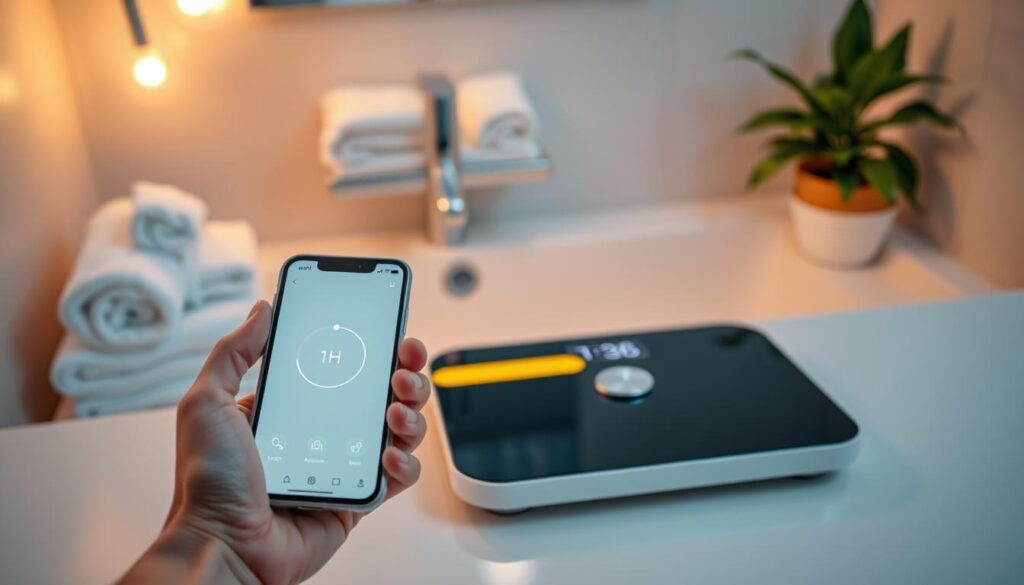
- Verify smart scale compatibility with your phone and health platform before pairing.
- Confirm Bluetooth and network settings to avoid issues with wireless scale connectivity.
- Test a full sync after setup to ensure connecting scales remotely works as expected.
Choosing the Right Health App for Your Needs
If you have an iPhone, check if the health app is compatible with Apple Health. Many smart scales and apps say they work with HealthKit. Choose a scale that says “Works with Apple Health” to make setup easier.
Android users should look for Health Connect support. Google is moving towards this platform. Apps that support Health Connect will keep your data flowing smoothly as services evolve. Make sure the app shares the metrics you need, like weight and body fat.
Android users might need third-party apps for syncing. Tools like Health Sync can connect Fitbit, Garmin, and Withings to Health Connect or Google Fit. These apps offer features like batch syncing and CSV export to protect your privacy.
Check out the app’s licensing and trial options before buying. Some apps offer free trials or one-time licenses. Vendor apps might require subscriptions for advanced features. Test the app’s syncing during the trial to see if it works for you.
Look at the app’s privacy policy and how it handles data. Choose apps that store data locally and don’t send it to the cloud. This keeps your sensitive information safe and under your control.
Use this checklist when selecting an app:
- Compatibility with your specific scale model
- Support for the metrics you care about (weight, fat, BMI)
- Ability to sync historical data
- Reliable background syncing
- Clear privacy and local processing options
Plan ahead by choosing Health Connect on Android and Apple Health on iOS. This way, your data stays synced across devices and app updates without needing to reconfigure often.
Step-by-Step Guide to Connecting Your Scale
Follow these steps to connect your smart scale with health apps like Apple Health or Health Connect. This ensures reliable wireless scale connectivity.
-
First, install the companion app. You can download apps like Withings Health Mate or Fitbit. If you need a bridge, install Health Sync on Android or FitbitSync on iOS. Then, sign in or create an account.
-
Next, enable connectivity. For Bluetooth scales, turn on Bluetooth and put the scale in pairing mode. For Wi‑Fi scales, run the app’s setup to connect to your home network.
-
Now, create user profiles. Enter your height, age, and gender. Choose athlete or pregnancy modes for better body composition estimates.
-
Then, grant Health permissions. Allow the app to write weight and body composition data to Apple Health or Health Connect. On iOS, open the Health app and set read/write permissions.
-
Test a measurement. Step on the scale to sync data. For Bluetooth, keep your phone nearby. For Wi‑Fi, wait a few minutes for data upload.
-
Check your Health app. Open Apple Health or Health Connect to see if weight and composition metrics are correct.
-
Configure auto-sync or background sync. Enable Auto-Sync if available, like FitbitSync Auto-Sync. Use manual sync if automatic sync doesn’t work.
-
Import historical data if you want. Use in-app options or bridge apps like Health Sync to add past readings to Apple Health or Health Connect. Historical sync may run in batches and could be rate-limited by APIs.
These steps will help you connect your smart scale. It makes syncing data easier and keeps your scale connected for daily tracking.
Troubleshooting Common Connection Issues
If your scale won’t sync after a weigh-in, start with simple checks. Make sure Bluetooth is on and your phone is close to the scale. Try a manual sync after toggling Bluetooth or restarting your phone.
For Wi‑Fi models, ensure the scale is on a 2.4 GHz network. Routers can lose signal in bathrooms and basements. If you changed your router or password, update Wi‑Fi in the app to connect scales remotely.
If the app shows “Something went wrong” or manual sync fails, check for app updates. Older iOS versions can cause issues. Update your phone’s OS and the app. If problems continue, contact app support, like Fitbit or the app’s help channel.
Historical sync may be slow or partial due to third-party APIs. Health Sync and similar tools send data in batches. Expect imports to take time when connecting scales remotely across services.
Data mismatch or missing fields occur when platforms differ in data types. Huawei Health may read many metrics but write few. Garmin Connect limits certain entries like water intake. Check smart scale compatibility lists in your companion app to see which fields transfer.
In homes with multiple users, recognition errors are common. Verify profiles match height and age settings. Test recognition and, when needed, manually select the correct profile in the companion app before you step on the scale.
- Restart the scale by power cycling it.
- Restart your phone and toggle airplane mode if needed.
- Unpair and re-pair the device in Bluetooth settings.
- Reinstall the companion app and check app permissions for Apple Health or Health Connect.
- Update firmware on the scale and the companion app.
Follow these steps in sequence to handle most issues quickly. If repeated attempts fail, gather app logs and contact the scale maker or app support for deeper diagnosis of smart scale compatibility and persistent sync problems.
Maintaining Your Smart Scale
Place your scale on a hard, level surface for accurate readings. Clean the tempered glass or platform with a soft cloth and mild cleaner. Make sure to avoid getting it too wet and never soak it.
Keep an eye on your scale’s battery health. Follow the manufacturer’s advice for when to replace or recharge it. A weak battery can lead to bad readings and trouble connecting to apps like Apple Health or Fitbit.
Update your scale’s firmware through the app as new updates come out. These updates fix bugs and make sure your scale works well with apps. Set your scale to update automatically so you don’t miss out.
Check your privacy settings and the manufacturer’s policy on data storage. Some apps store data locally, while others use cloud storage with encryption. Know how to delete or export your data to keep your privacy safe.
- Save your weight records by exporting them as CSV or FIT files. You can share them with doctors or store them on Google Drive or your computer.
- Use in-app tools like Health Sync to move data between services or make backups.
If your scale keeps having problems after updates and power cycles, try a factory reset. Remove and re-add the device in the app to fix pairing issues and restore compatibility.
By taking good care of your scale and keeping it updated, it will last longer and stay accurate. Regular maintenance means you can trust your measurements over time.
Tracking Your Progress Over Time
Use your health app’s graphing tools to follow long-term trends. Apps like Apple Health and Health Connect let you smooth daily swings. This way, you can see weekly or monthly changes better.
Combine weight and composition with activity and sleep data from Apple Watch, Fitbit, Garmin, or Oura. Seeing how steps, workouts, heart rate, and sleep quality change helps. It shows how lifestyle patterns affect results.
Import historical records to build a continuous timeline. Tools such as Health Sync or FitbitSync can sync past entries. But, some services limit how far back you can sync. Check each app’s rules before you begin to ensure a complete view.
- Weigh consistently: same time of day, after the bathroom, before eating.
- Use activity filters to focus on specific workouts or rest days.
- Enable pregnancy or postpartum modes on compatible scales when needed.
Export data for deeper study in Excel or Google Sheets. Exported CSV or FIT files let you run custom calculations or charts. Detailed offline review supports tailored plans for fat loss while preserving muscle mass or for monitoring pregnancy trends.
Track specific use cases for clearer goals. For example, monitor body fat and lean mass alongside resistance training to protect muscle. Share clean trend charts with your clinician at appointments to support informed care.
You can set the scale to sync smart scales automatically to reduce manual steps. Regular syncing keeps your timeline uninterrupted and improves the quality of smart scale data analysis over weeks and months. Small, consistent habits yield clearer insights into your progress.
Sharing Your Data with Healthcare Providers
Make your doctor’s visits more useful by sharing your smart scale data. This data shows trends over time, not just one reading. You can export a CSV from your scale’s app or use Apple Health’s export to create a file. Then, you can upload it to a patient portal or email it to your doctor.
Doctors like to see daily weight logs and trends in body fat and lean mass. They also look at resting heart rate patterns. These details help them understand conditions like heart failure, diabetes, and nutrition needs. By showing trends, you help your doctor catch changes that might be missed in a single visit.
Only share what your doctor needs. Give them read-only access and remove personal info before sharing. Check if your scale or app is HIPAA compliant and can connect with clinical portals.
Here are some easy steps to share your data:
- Export CSV or FIT from your companion app or Health Sync on Android.
- Use Apple Health’s export for a detailed health record.
- Upload files to the clinic portal or attach them to a secure message.
- Add brief notes about timing, recent fluid changes, medications, or illness.
When you connect your smart scale for ongoing monitoring, ask your doctor which metrics they want. Some clinics can accept data from premium medical-grade scales. Make sure to check privacy safeguards before allowing continuous access.
Always add context to your reports. A note about when you measured, if you’ve exercised recently, or if you’ve taken any new meds helps your doctor understand any changes. Clear context means fewer questions and faster care decisions.
Integrating Smart Scales into Your Fitness Routine
Make a routine you can follow. Weigh yourself at the same time every day. Morning after waking up and before eating is best.
This helps keep your weight trends steady. It also makes your progress easier to see.
Look at body fat percentage and lean mass too. These numbers show how strength training or fat-loss plans are working. Smart scales give you these details.
- Track weekly averages instead of daily readings to avoid overreacting to normal fluctuation.
- Set milestones and celebrate small wins to keep motivation high.
- Enable reminders in the companion app for consistent weigh-ins.
Link your scale to activity data for a better view. When you sync smart scales with Apple Health or Health Connect, you get a full picture. This includes workout intensity, calories burned, and steps taken.
Use app features that make sense of trends. Many apps offer graphs, goal tracking, and insights. These tools help you use your scale data to improve your workouts or diet.
Keep your data private while staying accountable. If you live with others, use multi-user modes. This way, everyone’s data stays private. You can set shared goals or challenges without sharing personal numbers.
- Review composition changes monthly to adjust plans.
- If weight holds steady but body fat drops, maintain protein and strength work to preserve muscle.
- If fat rises, reduce calories slightly and increase cardio intensity while tracking responses.
When you sync smart scales, focus on trends and the story behind the numbers. Use composition data, activity syncs, and app insights. This helps you make better choices for training and nutrition, keeping you on track to your goals.
Updating Your Smart Scale and Health App
Make sure your smart scale’s firmware is up to date. This will help with accuracy and fix any connection issues. Always check the scale’s app for updates and follow the instructions to install them.
Don’t forget to update the health app and any bridge apps like Health Sync or FitbitSync. New app updates can fix compatibility problems after operating system changes. They also add new features that make it easier to connect your scales to your health apps.
Keep an eye on your phone’s operating system. Some apps require iOS 14.5 or later. Android users should watch for Google’s move to Health Connect. Plan to switch before 2026 to avoid losing sync paths.
- Read release notes for bug fixes and known issues that affect auto-sync and background operations.
- Export data as CSV or FIT if an app discontinues support, so you can import it into an alternative service.
- Keep developer support contacts handy, for example StepsApp support email or the app developer page, to resolve persistent problems.
Have a backup plan ready. Bridge apps often have tools to export your data. This makes it easier to keep your history if you need to switch services.
By managing updates to your smart scale software, apps, and platforms, you protect your data. This ensures reliable smart scale compatibility for connecting across apps and devices.
Frequently Asked Questions About Smart Scales
Does every smart scale sync with Apple Health or Health Connect? No. Only devices that support HealthKit or Health Connect will sync directly. Some scales need a third-party app like Health Sync to work with your health apps. Always check if a scale says it works with Apple Health or Health Connect before you buy.
Should you use Bluetooth or Wi-Fi to connect your scale? Bluetooth is great for quick connections when your phone is close. Wi-Fi is better for updates and connecting without your phone. Scales that use both offer the best of both worlds.
Can you add old data to your scale’s app? Yes, many apps let you add historical data in batches. But, be aware that rate limits might slow things down. Body composition readings use bioelectrical impedance to track changes. They’re useful but not as accurate as clinical tests.
What about privacy and sharing data with your doctor? Always check the privacy policy of the scale’s app. Only give the HealthKit or Health Connect permissions you need. If an app stops syncing with Google Fit, use Health Connect or a bridge to keep your data flowing. To share data with your doctor, export CSVs or Health app reports and send them securely.