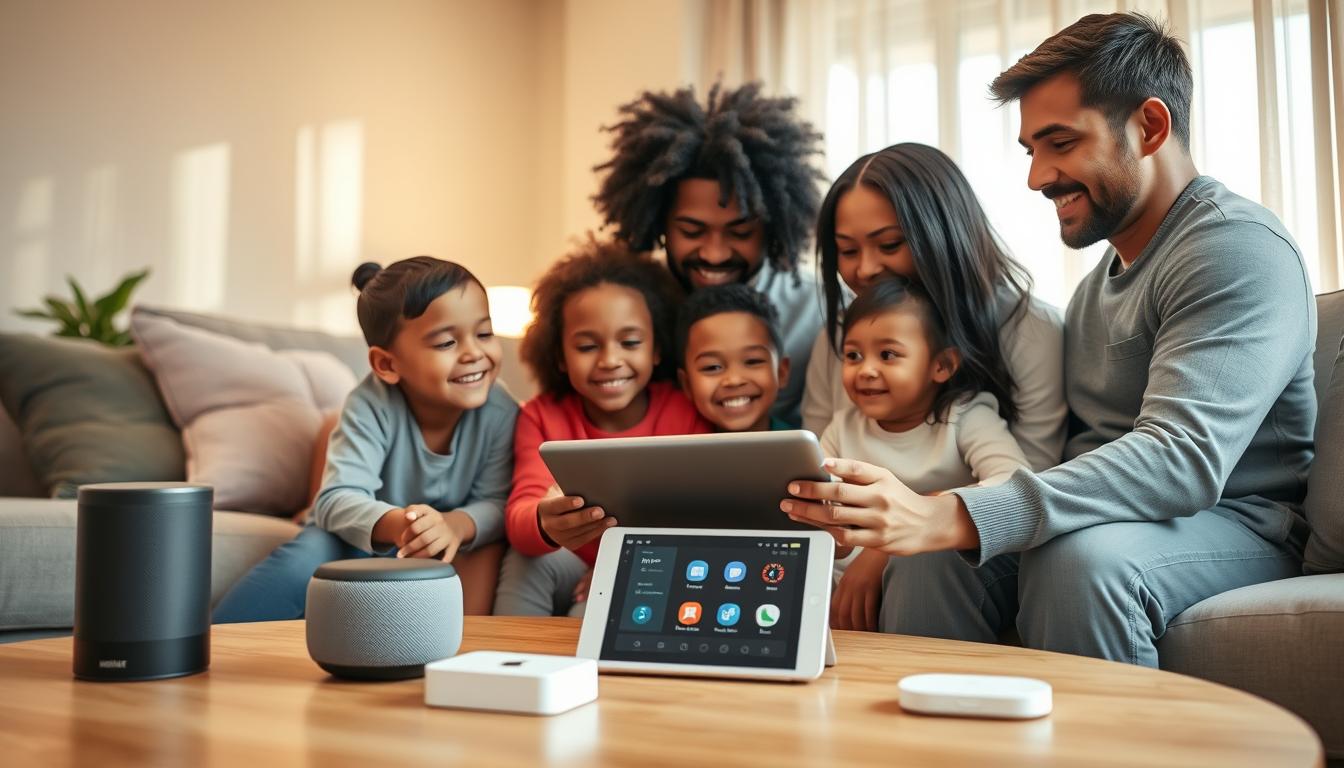
Smart homes make life easier, but sharing control with kids requires care. Family access sharing lets kids use lights, locks, and speakers safely. You’ll learn how to balance safety and convenience with secure sharing practices.
Platforms like Apple Home and Google Nest offer role-based permissions. Apple Home lets you invite people and set roles like Residents or Guests. Google Nest has roles like Owner and Home Entry Only, and limits membership per home.
Using a family sharing app offers benefits like shared routines and reminders. This article will help you set up profiles, choose devices, manage permissions, teach safe habits, and solve problems. Your smart home will stay private and secure.
Understanding Family Access Sharing in Smart Homes

Sharing control of smart devices needs clear roles. Family access sharing assigns roles with specific permissions. This stops mistakes and keeps automations working right.
Apple Home uses Residents and Guests. Residents can control devices locally and remotely with a home hub. Guests can only access certain security devices on set schedules.
Google and Nest have Owner, Full Access, and Home Entry Only roles. The Owner can grant Full Access and invite others. Home Entry Only lets people use a passcode for Nest × Yale Lock.
Invitations work differently on each platform. On Apple, you add people, choose a role, and send the invite. Nest invites come from [email protected] and need acceptance with the same email.
What you can share depends on the platform. Apple users can’t add certain devices for shared access. Nest needs the Google Home app for some tasks.
Use unique accounts for each person. Sharing a login can mess up automations. Separate accounts keep things clear and secure.
Look into family sharing platforms before inviting others. Compare features like role options and device restrictions. Choose the best setup for your family’s needs.
Security Protocols for Smart Home Devices
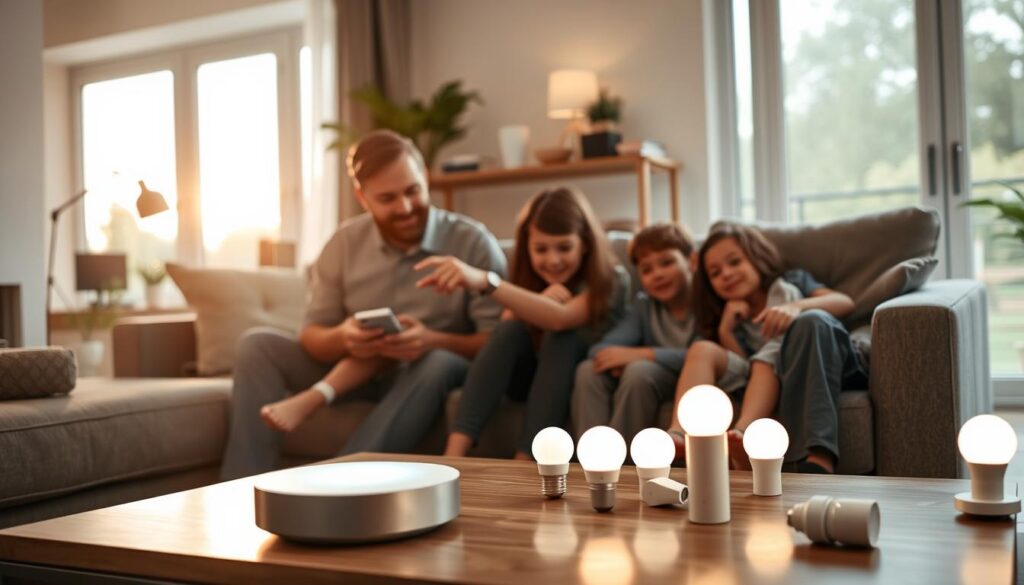
Make sure each family member has their own account. This stops problems with shared logins. It keeps automations working right and avoids false Home/Away events.
Use different Apple IDs or Google Accounts for everyone. This keeps things running smoothly and securely.
Turn on two-factor authentication for Apple ID and Google Account. This adds extra protection. It keeps your family’s devices safe when they sync with iCloud Keychain or Google services.
- Assign least-privilege roles for children and guests.
- Use Home Entry Only or Guest options when available to limit control.
- Toggle remote control permissions like Control Accessories Remotely in Apple Home.
Check who’s listed in Home Settings on Apple devices or Family & Guests in Nest often. Remove anyone you don’t know or who’s no longer with you. This keeps your family sharing safe.
Set up a home hub like Apple TV 4K or HomePod mini. This lets you control devices remotely and supports Matter devices. Make sure all devices have the latest firmware and app updates.
Update your iPhone, iPad, and Mac often. Also, update any apps you use. This keeps your devices and family sharing safe.
Removing someone from the Home app might not remove access in other apps. Check each device app and remove accounts there too. Or, contact the maker if you need help.
- Check device-level app permissions after changing home membership.
- Revoke shared links and reset passwords for third-party services when necessary.
- Turn off voice purchasing and limit camera sharing to password-protected streams if you want tighter controls.
Remember the limits of your platforms. Nest has limits on homes and people per home. Plan who gets access before inviting to avoid hitting these limits.
Be careful with camera and sensor sharing. Use stream-only links to share views without giving full access. These steps help keep your family’s sharing safe and secure.
Choosing the Right Smart Home Devices
When choosing devices for your home, look for brands with clear family sharing features. Apple HomeKit devices are great with the Apple Home ecosystem. Google Nest products work well with Google Home. Amazon Echo and Alexa-compatible gadgets offer wide third-party support.
Make sure the device supports role-based sharing and scheduled access. Look for locks like the Nest × Yale Lock that allow Home Entry Only passcodes. Check if cameras can be shared per device, so you can give a babysitter access without opening the whole home.
Check if smart speakers and displays have parental controls and child-friendly features. Google Home and Amazon Echo have timers, reminders, and educational skills for kids. They also have explicit-content filters and voice recognition to limit what children can access.
Confirm if the device is compatible and if a hub is required. Look for Matter support for better cross-brand connections. Check if remote sharing needs a home hub; Apple Home often requires a HomePod or Apple TV.
Choose devices with safety-focused features for cameras and locks. Opt for cameras that allow single-stream sharing with password protection. Pick locks that let you issue temporary or scheduled codes for older children and guests.
Test the family sharing app and platform before buying. Set up a child account and try role-based permissions, scheduled access, and per-device sharing. Make sure notifications, remote control, and revocation are easy. A clear, reliable family sharing platform makes your household secure.
Setting Up User Profiles for Your Children
Make a separate account for each child. Use their own Apple ID or Google Account. This helps keep their activities separate and lets them accept invites easily.
On Apple Home, add People from your home settings. Choose if they are a Resident or Guest. Decide if they can control accessories remotely or add and edit them. This limits what younger kids can do.
For Nest devices, go to Settings → Family & Guests → Add a person. Choose if they have Full Access or just Home Entry Only. Set up passcodes and schedules for locks. Use time windows and expiration dates to control when kids can use devices.
- Use Guest/Home Entry Only schedules to define daily times and specific days.
- Set start and expire dates for temporary access during visits or travel.
- Keep permissions minimal for younger users and expand them as trust grows.
Invite kids from your contacts using their Apple Account emails or Nest invites sent to email addresses. Make sure they accept the invite with the same email you used. If an invite fails, update the app and OS, reinstall the app, or try a different device or browser.
If a child can’t accept an invite, check blocked contacts and account settings. Confirm iCloud or Google account status and update home firmware. If accessory permissions persist after removal, delete access through the accessory’s app or contact the device manufacturer for support.
Think about using a family sharing app. It can help manage permissions and view activity logs. Choose one that fits your family’s needs. This way, you can enforce schedules without constantly checking every device.
Educating Your Children about Smart Home Safety
Begin with basic rules for talking to voice assistants. Teach your child to say please and thank you when using Google Home or Amazon Echo. This helps them learn good manners and avoid accidental commands.
Discuss the limits of voice assistants. Explain that these devices listen and send data to companies like Google and Amazon. Show how to turn on voice recognition, enable child accounts, and set filters for age-appropriate content.
- Show how to disable voice purchasing and lock shopping features in the device settings.
- Practice asking the assistant to set timers, check simple math, or spell words so your child sees constructive uses.
- Encourage trying work first, then using the assistant to verify answers to build critical thinking.
Explain camera and microphone boundaries. Define where devices may record or stream, and set rules about recording guests or classmates. Teach your child to tell you immediately if an unexpected notification or camera feed appears.
Use the family sharing app features to show account controls. Walk through family access sharing settings so children understand who can see activity and who can change preferences. Point out family sharing benefits like shared calendars, reminders, and parental controls.
- Set clear times and places for device use.
- List allowed request types and forbidden actions, such as purchases or sharing personal details.
- Review camera and microphone rules every few months.
Practice responses for odd prompts. Role-play what to do if a device asks for payment, shows unexpected content, or requests account info. Make sure your child knows to pause, ask an adult, and not share passwords.
Keep revisiting settings and features as devices update. Regularly check family access sharing and family sharing features so rules match current capabilities. Doing this helps you keep kids safe while they enjoy the educational benefits of smart tech.
Managing Screen Time and Device Usage
Smart speakers like Google Home and Amazon Echo can help with daily habits. They can set timers, reminders, and routines for screen breaks. Voice-driven activities can replace video watching, encouraging family movement.
Set specific times for device use on smart TVs, tablets, and consoles. Use a family sharing app to control streaming times. Smart plugs or entertainment outlets can turn off devices during device-free times.
- Apple Home automations and Screen Time can start downtime scenes. These scenes dim lights and turn off entertainment outlets at bedtime.
- Google Nest routines can change thermostat settings or lock schedules based on Home/Away status. This ensures consistent limits.
- Lock passcode windows can start and expire on a schedule. This helps manage access.
Use a shared family calendar and reminders for tasks. Block study times, chores, and device-free evenings. This shared plan helps everyone follow the rules.
Get kids involved in making rules. When they help plan, they’re more likely to follow the rules. Review usage and adjust schedules monthly to keep things working.
- Create daily schedules for school days and weekends.
- Use voice assistant prompts for short exercise breaks or active games.
- Monitor device habits and adjust automation settings as needed.
Choose apps that support family access sharing and role-based controls. A family sharing app with clear dashboards helps track screen time and adjust routines. Use these tools with gentle coaching to make limits fair.
Make changes simple and clear. Check logs, update the shared family calendar, and explain changes to your kids. This way, you protect focus and rest while keeping everyone involved in the plan.
Identifying Trusted Contacts
Choose who gets full control and who just needs to peek in. Give Full Access to those living with you who handle devices and subscriptions. For Google Nest, use Full Access roles. For Apple Home, assign Resident privileges with remote control only when needed.
Use temporary roles for short-term helpers. Assign Home Entry Only or Guest roles for visitors and helpers. Set passcodes and expiration dates for Nest × Yale Lock. For Apple Home, schedule-limited access or local-only Guest access where available.
- Long-term caretakers and older teens: consider Full Access, require two-factor authentication, and provide basic training on security practices.
- Neighbors or extended family: give Home Entry Only passcodes or time-limited Guest roles to limit exposure.
- Service personnel: prefer one-time codes or scoped family sharing features that restrict device control.
Regularly check who can enter your home. Look at Family & Guests lists in Nest and People in Apple Home. Remove access when it’s no longer needed. Remember, removing someone from Apple Home may not revoke permissions inside accessory-specific apps; revoke access there too.
Use a clear naming convention and notes within your family sharing platform. This helps track why access was granted and when it should end. It makes audits faster and reduces mistakes.
Pair delegation with secure family sharing habits. Enable two-factor authentication, review activity logs, and limit device-level permissions. These family sharing features help you maintain secure family sharing while keeping daily life simple.
Using Apps for Family Access Management
You can use a family sharing app to give kids the right level of access without risking security. Apps like Apple Home and Google Nest let you invite people and set permissions. You can control lights, locks, cameras, and thermostats.
Follow the app-specific flows to avoid mistakes. In Apple Home, choose Add People, pick the role, and send the invite via the recipient’s Apple account email. Manage permissions under Home Settings for Control Accessories Remotely and Add/Edit Accessories. Remember that shared users cannot add HomePod or Apple TV and remote sharing works best when you have a home hub and Matter devices.
In the Nest app, open Manage Family & Guests to add people with Full Access or Home Entry Only. You can generate passcodes and schedules for Nest × Yale Lock. The Owner retains unique privileges such as billing, subscription control, and invite management. Confirm the invite email matches the recipient’s Nest account when they accept.
- Resend invites if they don’t arrive. Check the recipient’s Junk or Spam folder.
- Update or reinstall the app when acceptance fails. Try a different device or browser if the problem persists.
- Create a new account with a different email only when limits or conflicts prevent access; Nest homes can be limited to three per account.
Use a family sharing platform to coordinate calendars, shared lists, and parental controls alongside device apps. These platforms can centralize family sharing features so you manage routines and permissions in one place.
If a Nest home is missing from your list, confirm you selected the correct home, check whether access was removed, or ask the Owner if the home was deleted. For persistent problems, step through account settings and invite histories before creating new accounts or changing owners.
Think of the family sharing app and platform choices as tools. Match family sharing features to your household habits, set clear roles, and review permissions regularly to keep access safe and predictable for your children.
Troubleshooting Common Issues
If you can’t get someone to join your smart home, first check the emails. Make sure the email you sent the invite from matches the one they use. For Google Nest, look in Junk or Spam for messages with the subject “Welcome Home.”
Update the Nest or Google Home app to the latest version. If the invite doesn’t arrive, try deleting and reinstalling the app. Or, accept the invite on a different device or browser. These steps often fix glitches in family access sharing.
For Apple devices, ensure iCloud Home is enabled. Also, make sure the Home app and iOS or macOS are current. Check if the inviter and invitee haven’t blocked each other. A home hub might be needed for some family sharing features.
If a home is missing from your list, check the Nest menu. If it’s gone, the Owner might have removed you or deleted the home. Contact someone with Owner or Full Access to re-invite you.
When permissions stay after you stop sharing, check apps from Ring, Philips Hue, or others. Remove any leftover users. If settings are unclear, consult the device manuals. For tough cases, contact the device maker.
Know about account limits. Nest has limits on homes and people per home. If you hit these limits, you might need a new account or role changes for secure family sharing.
If access was removed by mistake, talk to household members with Owner or Full Access quickly. They can re-invite you through the family sharing app or platform tools. For ongoing issues, use platform help centers. Have your account details and error messages ready when you contact support.
- Double-check emails and spam folders for invite messages.
- Keep Home and Nest apps plus device firmware up to date.
- Review accessory apps to clear residual permissions.
- Plan around account and home limits to avoid surprises.
- Use owner-level contacts or platform support to recover lost access.
Future-Proofing Your Smart Home
Update your iPhone, iPad, Mac, and apps regularly. This keeps your smart home safe and up-to-date. It also ensures your family can share easily with new features.
Choose devices that work with Matter. Use a reliable hub like Apple TV 4K or HomePod mini. This makes adding new products or switching brands easier.
Check roles and permissions every six months. Move kids from Guest to Resident as they grow. This keeps your home safe and organized.
- Keep a clear record of who owns what. This includes subscriptions like Nest Aware.
- Store recovery keys and emails in a safe place. Parents should have access.
- Have a few trusted contacts for account help.
Stay updated on privacy policies and camera settings. Adjust settings if needed to protect your family’s privacy.
Choose a family app that supports changes and audits. It should make managing access easy and secure.
Backup important account info in two safe places. This ensures a smooth transition when ownership changes.
Conclusion: Empowering Families with Smart Home Technology
Smart home systems make life easier for your family. But, you need to set rules and use the right tools. Use Apple Home roles or Nest levels to limit access for each person.
Require unique accounts and turn on two-factor authentication. This makes sharing safe and reliable. Keep devices and hubs updated for smooth remote sharing and Matter support.
Use parental controls on smart speakers and create separate child accounts. Enable content filters and purchase protections. Treat locks and sensitive devices with extra care.
Set expiration dates, use passcodes, and audit access regularly. This is important in your family sharing app and any accessory-specific apps.
Start by reviewing the People or Family & Guests lists in Apple Home or Nest. Create child accounts and schedule lock access. Enable 2FA and update firmware and apps.
Teach your children to use voice assistants respectfully. Follow rules about purchases and privacy. Regular reviews and simple routines keep sharing safe and predictable.
By following these steps, you’ll see the benefits of family sharing. It brings convenience, safety, and teaches kids responsibility. Use available tools and make small changes to keep your smart home working for everyone.