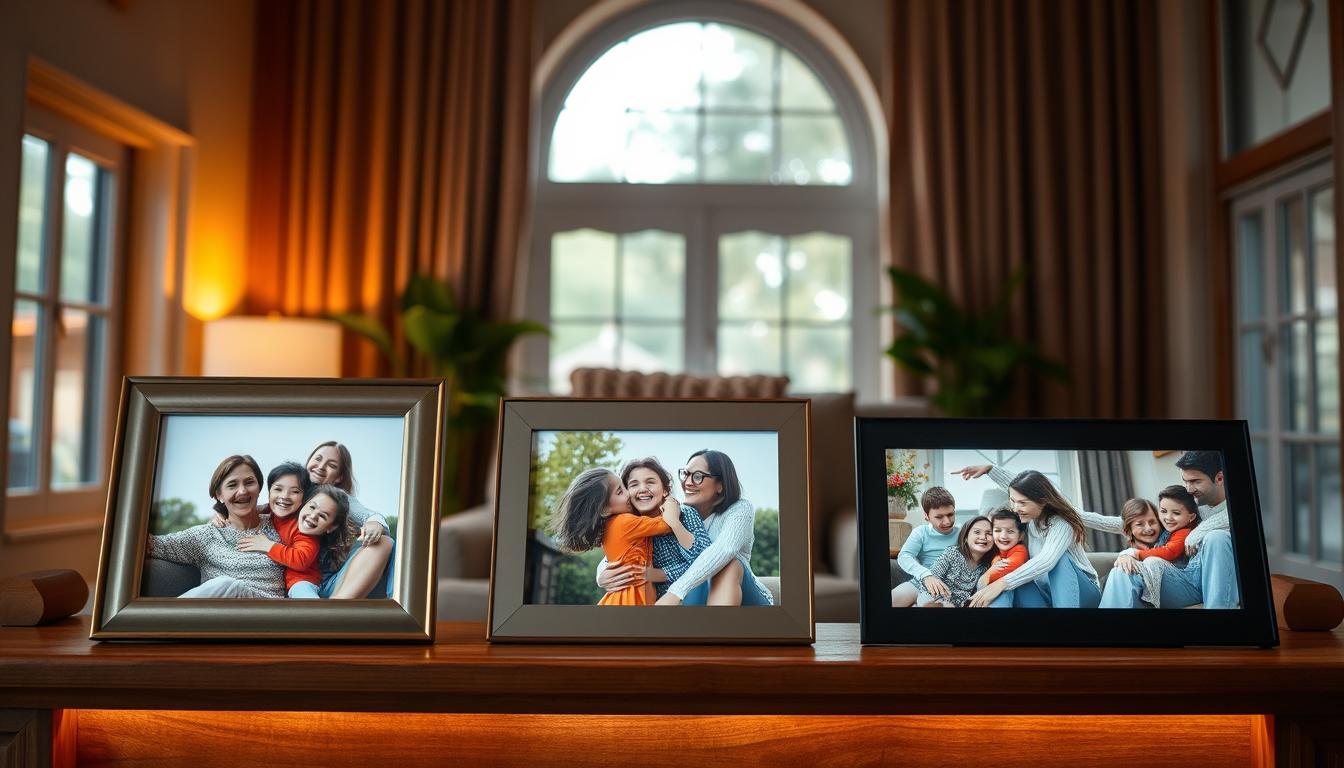
Keeping loved ones close is easy when you’re far apart. This guide shows how smart displays and digital photo frames can help. They make sharing photos fast and personal, keeping everyone connected.
Today’s digital photo frames have cool features like remote upload and cloud connectivity. You can send photos or videos from your phone, and they appear instantly. This makes sharing easy, reduces the need for prints, and is simple for everyone to use.
Brands like Aura and Frameo show how smart displays work well. Aura frames have features like collaborative sharing and video integration. Frameo frames offer an easy-to-use touchscreen and Wi-Fi connectivity.
Many families enjoy the benefits of real-time sharing and ease of use. They also like the idea of having frames in different rooms. Plus, these devices make great gifts.
Next, we’ll cover how to pick the right frame, set it up, and customize it. You’ll learn how to send photos, use voice assistants, and boost family interaction. We’ll also talk about troubleshooting and the future of smart display technology.
Introduction to Digital Photo Frames
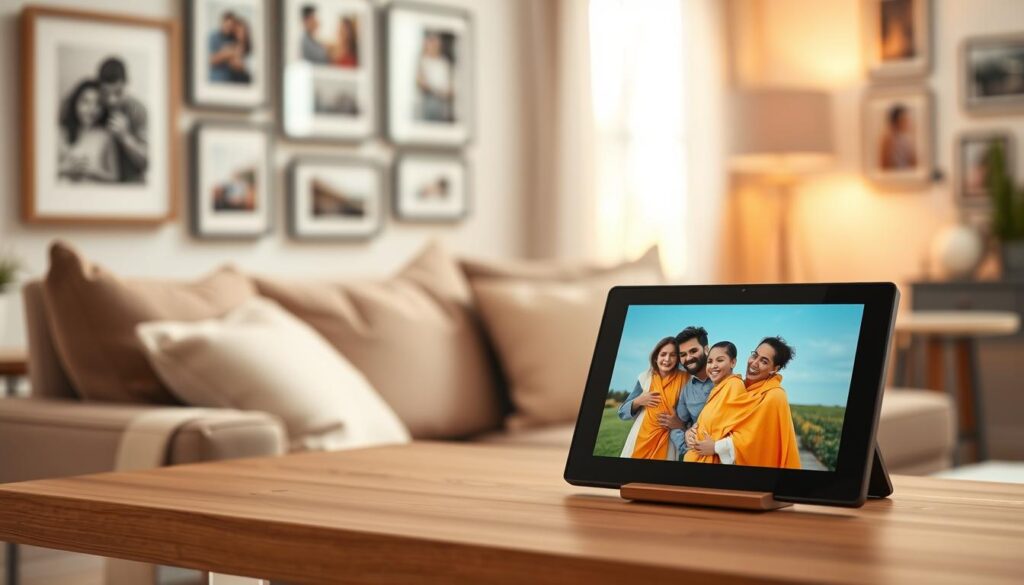
Digital photo frames are cloud-connected screens that show photos and short videos. You control them with apps or a unique email address. Brands like Aura and Frameo make it simple to share moments without social media accounts.
Using smart displays means you can upload from anywhere. Frames connect to home Wi‑Fi and sync with apps or email, so new photos appear within minutes. Some models link to Google Photos or iCloud for automated updates.
Core technical features affect image quality and usability. Look for Full HD (1920×1080) or higher and IPS panels for wider viewing angles. Many frames include internal storage of 8GB or more and offer cloud storage options.
Power choices matter for placement. Some frames run on constant AC power for steady use. Others use a rechargeable battery so you can move them around the house.
Accessibility is a major benefit of smart display technology for older relatives. Easy setup wizards help non-technical users get started. Grandparents who avoid social networks can receive family photos in real time.
Brands offer distinct features to match your needs. Aura supports a collaborative network and a Web Uploader for family contributions. Frameo uses a touchscreen, auto-rotation, and portrait or landscape versatility for flexible display options.
Privacy and security are built into many services. Apps often require invited accounts to send photos, and some, like Frameo, state GDPR and CCPA compliance. Unique email addresses for frames can be restricted to approved senders to keep your family photos safe.
Understanding the benefits of smart displays helps you decide how to use them at home. Using smart displays can strengthen family ties by sharing daily life with a simple, private setup.
Choosing the Right Digital Photo Frame
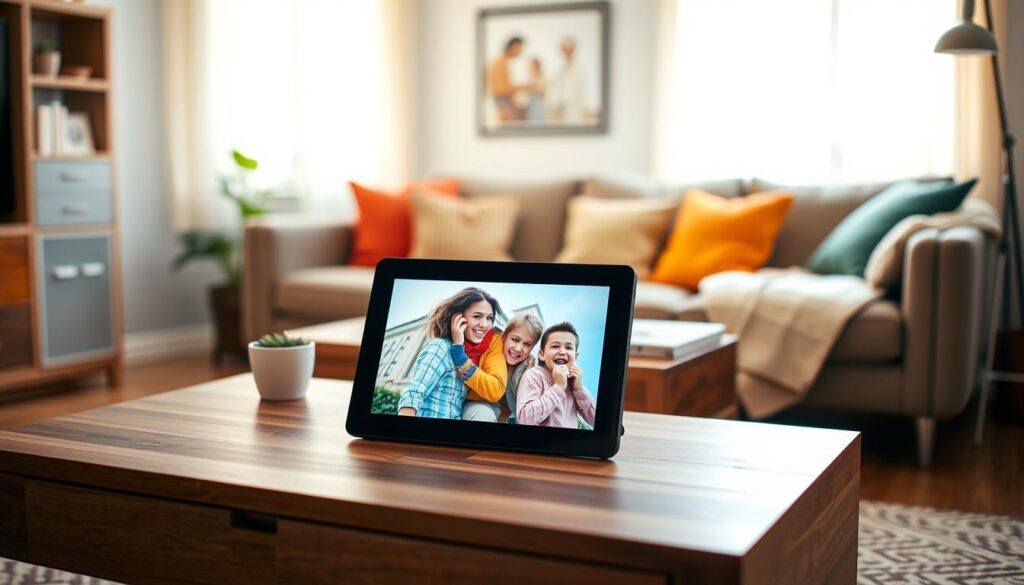
First, match the screen quality to how you’ll use the frame. Look for at least 1920×1080 resolution and IPS panels. These ensure true colors and wide viewing angles. A clear panel makes photos stand out in any room.
Consider the size based on where you’ll place it and how far people will view it. For nightstands and desks, 7–8 inch frames work well. For larger spaces, choose 10–15 inch or bigger frames so everyone can see the photos from afar.
- Connectivity is key: choose frames with Wi‑Fi support on 2.4GHz, app uploads, email-to-frame options, and cloud sync.
- Make sure the frame supports your favorite apps and services. Frameo and Aura make uploading photos easy for families.
- Look for smart display optimization in the firmware and apps. This ensures smooth uploads and slideshows.
Consider if you want video and audio. Some frames play short clips and have built-in speakers. Aura’s newer models support brief video snippets, adding motion to your photos.
Think about how family will add photos. Frames with multi-user access and invitation controls let many relatives contribute. Many Aura frames get regular updates from several contributors, boosting interaction.
Choose between local storage and cloud plans. Typical internal memory is about 8GB. Check if unlimited cloud storage or advanced filters require a paid subscription before buying.
- Ease of use is important: touchscreens and setup wizards make it easy for less tech-savvy relatives.
- Senior-friendly features like auto-rotation, clock and weather displays, and large controls make the frame accessible for everyone.
Look at the build and design for long-term value. Aura’s Mason Luxe and Carver Luxe models offer premium finishes and clean lines. The materials and thickness of the frame affect how it fits your décor.
Consider extra features that might sway your decision. Nixplay’s motion sensors save power. Automatic photo enhancement tools refine images before display. App reaction tools increase family engagement during slideshows.
Compare costs between budget and premium frames. Budget frames under $100 are good for occasional use. Premium frames above $300 offer better screens, regular updates, and stronger support. Think about long-term value when choosing.
Lastly, prioritize smart display customization. Tailor layouts, transitions, and playback schedules to keep the display fresh. This ensures your frame fits your daily life and family routines.
Setting Up Your Digital Photo Frame
First, place the frame near your Wi‑Fi router for setup. Choose a spot based on size and power needs. Make sure there’s room for cables and a clear path for voice assistants.
Turn on the frame and open its app. Follow the setup wizard to connect to your network. Frames like Frameo and Aura work best on 2.4GHz Wi‑Fi for updates and photos.
- Create an account in the app and invite family members to join your frame network.
- Confirm invite rules: some brands require invited senders to have their own accounts before they can send photos.
- Set up a unique frame email if the model supports email‑to‑frame delivery and share simple rules for senders.
Preload images and a surprise video or audio message for gifting. Aura lets you add short audio clips on certain models. Test uploads from different devices to ensure formats work right.
Adjust privacy settings to only allow invited accounts. Manage contributor permissions, enable parental controls, and set content filters. These steps help keep your photo stream safe and suitable for all.
- Enable helpful features such as auto‑rotation, clock, and weather modules.
- Turn on video and audio support when desired, then set volume or picture‑only video modes in the app.
- Check for firmware and app updates to install the latest security patches and feature improvements.
If the recipient lacks home Wi‑Fi, use a mobile hotspot for setup. Frames usually download updates automatically after connection.
Test sending photos from various devices and confirm they show up on the frame. Try different file types and short videos. If uploads fail, check your network settings and app permissions. For more features, consider pairing the frame with other home hubs.
Keep a checklist handy for setup: router proximity, account invites sent, initial photos uploaded, privacy settings set, and firmware updated. This makes setup quick and future updates easy for everyone.
Customizing Your Digital Photo Frame
You can make your frame fit your home and family perfectly. Start by using the app to create themed slideshows. You can set photo order, display time, and choose transitions that match your mood.
Use tools to enhance and curate your photos. Aura and other brands offer automatic improvements and face recognition. This way, your favorite moments will show up first.
- Captions, filters, and decorative borders make images feel personal.
- Trim videos to supported lengths and set audio on or off for frames with speakers.
- Enable reactions and animated responses to create a private social feed that encourages engagement.
Set display modes and schedules for family hours and sleep time. Motion-sensor activation and time-based rules help save power and reduce distractions.
Create groups with upload privileges to manage who can add photos. Use web uploaders for bulk transfers and easy reminiscence.
Choose finishes and styles that match your decor. Aura’s premium models come in polished wood and metal, blending with your living space.
- Keep image resolution and aspect ratio consistent for the best look.
- Use auto-rotation or crop tools to avoid awkward orientations.
- Test slideshow timing and transitions on the device before sharing with family.
Focus on features like captions, reactions, and video handling to boost interaction. Smart display optimization comes from regular curation, right-sized media, and scheduled display modes.
With thoughtful customization, your frame will feel alive, stay organized, and keep moments meaningful for everyone.
Sending Photos to Family Members
Send photos and short videos easily by installing the companion app for your frame. Use the Aura app or Frameo on iOS and Android to upload from your phone. App-based uploads are fast and keep albums current for every member of the family.
Set up the email-to-frame option when available to let relatives email images directly. Aura supports email uploads after an invitation and account setup, which helps maintain privacy and control over who can contribute.
- Use web and desktop uploaders to add archived photos in bulk from hard drives or organized folders.
- Upload short videos to capture milestones; recent Aura models and Frameo support brief clips with optional sound.
- Invite multiple contributors and create simple guidelines for image size, orientation, and content.
Encourage reactions and comments in the app to boost engagement. Emoji reactions in the Aura app let family acknowledge moments with a single tap, creating instant connection across generations.
When gifting a frame, preload photos and add a surprise message or short video before delivery. This workflow gives the recipient a fully curated experience on day one and invites others to continue adding memories.
Keep privacy tight by limiting uploads to invited users only. Both Frameo and Aura emphasize invited access so random uploads are prevented and family content stays secure.
If Wi‑Fi is an issue, bring a mobile hotspot during setup or use offline-synced uploads that transfer when the frame reconnects. Check cross-device compatibility so contributors can upload from phones, tablets, or desktops without friction.
Make smart display integration part of your routine for a smoother experience. Teach family members to use smart display applications that work with your frame and to follow simple collaboration rules like rotating themes or weekly highlights. These habits keep the photo stream fresh and meaningful for everyone.
Integrating Voice Assistants
Voice control with Amazon Alexa or Google Assistant makes your digital photo setup easier. You can ask a smart display to show a specific album, start a slideshow, adjust volume, or pause and resume playback with simple phrases.
Not every digital photo frame comes with built-in voice support. Many tablets and smart screens have native voice assistant features. Check the manufacturer’s specs before you buy. Look for units that mention Alexa or Google Assistant if voice interaction is important to you.
Typical commands are short and clear. Try “show family photos,” “play slideshow,” “turn off display,” or “fade brightness.” These phrases make daily use easier for older adults and people with limited mobility.
If a frame lacks direct voice integration, pair it with a nearby Echo or Google Nest device. Use a smart plug or a paired smart display to control power and routines. This workaround gives you voice-powered control without replacing the frame.
Privacy is key when choosing. Voice assistants may record interactions unless you change settings. Look for frames with microphone mute options or disable voice access if you prefer stricter controls.
Expect deeper convergence as smart home systems evolve. Future features may include voice-initiated photo requests, short voice messages attached to images, or voice search across a frame’s archive. These developments will broaden smart display applications and smart display solutions for family sharing.
Practical tip: if voice integration matters, choose models with explicit voice assistant support or plan a setup that uses smart plugs and routines. This approach keeps your system flexible and ready for new smart display integration upgrades.
Enhancing Family Interaction
Turn a digital frame into a private family network with reaction features and comment tools. Aura’s Love, Hugs, and Family Hug options let relatives respond privately. This keeps moments intimate and boosts engagement.
Surprise loved ones with preloaded short videos or voice messages for birthdays and holidays. Smart displays can play audio or video, making celebrations feel live for distant relatives.
Set up themed rotations and story sequences to keep content fresh. Create week-long narratives about trips, anniversaries, or grandchildren’s milestones. This steady flow of meaningful content highlights the benefits of smart displays.
Make uploading easy for every generation. Give children and busy adults simple, one-click methods. This ensures grandparents receive new photos regularly, making smart displays easy to use.
- Use frames in memory care or assisted living to spark conversations and reduce loneliness.
- Send short videos and voice notes to recreate presence for residents and boost mood.
- Arrange multiple frames across households so extended family can both give and receive.
Share events in real time during family gatherings by sending photos and short clips instantly. Rapid app sends make distant relatives feel part of the moment. This is a practical benefit of smart displays for busy families.
Encourage regular contributions with calendar reminders or weekly themes. Prompting family members with a simple idea increases uploads and keeps the frame lively. Aura data shows many frames get monthly updates from multiple contributors, proving small habits work.
Use frames for more than just photos. Add short video clips of grandchildren, quick voice messages, or snapshots of daily life. This creates a sense of presence and deepens connection across generations.
Keep routines short, instructions clear, and contributions varied. This approach makes adoption easy, raises participation, and turns a digital photo frame into a central hub for family life.
Troubleshooting Common Issues
First, check your network when your frame stops syncing. Make sure it’s connected to 2.4GHz Wi-Fi. Move the frame near the router, restart the router, and re-enter your network password if needed.
If syncing with the app fails, ensure everyone has the latest app and frame firmware. Brands like Aura and Frameo regularly update their systems. These updates fix bugs and add new features.
- Photo not appearing: check if the sender was invited and has an account. Aura needs an invite to send. Make sure the frame’s email is correct for uploads and the app shows the upload is done.
- Video playback issues: videos must be short and in the right format. Aura supports clips up to 30 seconds. Use the app to trim or re-encode videos if they won’t play.
- Orientation and cropping: use auto-rotation or the app’s tools for cropping. Choose portrait or landscape based on the photo’s size.
Power and sleep problems often come from loose plugs or smart plug rules. Check your power connections, test the outlet, and adjust sleep or motion-sensor settings. This ensures the frame is on when you expect.
Storage warnings mean you’re out of space. Check your storage and use web uploaders for bulk imports. Remove old photos to free up space and keep your frame running smoothly.
To avoid unwanted uploads, only allow invited accounts to send photos. Turn off public email uploads. Check contributor permissions regularly to control shared content.
If updates fail, the frame disconnects, or shows hardware issues, contact support. For Frameo, reach out to the retailer. For Aura, use Aura customer support for warranty and repair options.
- Monthly software checks: install updates to get the latest smart display features.
- Clean the screen with a microfiber cloth and mild cleaner. Avoid harsh materials.
- Test contributor access every few months to ensure smooth sharing.
By following these steps, you can quickly fix most issues. Smart display optimization and the right solutions keep your digital frame working well. Your family photos will keep flowing.
Conclusion: The Future of Family Connection
Smart display technology and digital photo frames have changed how we share life. They bring real-time, private, and curated family memories. This way, you feel connected even when you’re far apart.
The benefits of smart displays are clear. They make sharing easy, allow for scheduled updates, and bring moments to you without asking.
Key features help create that emotional bond. Remote upload, app collaboration, and email-to-frame make sending photos easy. Short videos with audio, like Aura’s 30-second clips, add warmth and context.
Web uploaders help keep memories safe, and touchscreen usability makes browsing simple. These features turn static albums into living conversations.
Trends show us richer, more helpful displays are coming. Expect better AI for curation and photo enhancement from Aura. Nixplay will add motion sensors and energy-saving modes.
We’ll also see tighter voice assistant and smart home integration. Expanded video calling and augmented reality experiments are on the horizon. These advances will make smart displays even more beneficial for staying connected.
Choose a frame that fits your style, follow setup and privacy tips, and invite family to share. Use themed rotations and video messages to stay close. A digital photo frame becomes a way to keep family involved in daily life.
It turns snapshots into ongoing, shared moments. These moments strengthen bonds across distances.